
Introduction
The Zentitle LAN daemon is a local server, usually running on a virtual machine, whose purpose is to manage the licenses of client applications running on a local area network (LAN.)
This LAN may or may not be connected to the internet and so it need not be able to contact the Zentitle server. As such, it is ideally suited to license management scenarios involving dark sites or where internet access is otherwise limited or restricted.
The LAN daemon is to be distinguished from the Zentitle relay daemon. The relay daemon serves as a link to the Zentitle server. Its purpose is simply to pass data between the client machines and the Zentitle server where all license management is carried out. The LAN daemon, on the other hand, provides a local implementation of much of the license management functionality of the Zentitle server.
Although the daemon must interact with the server to enable and disable license codes, this can be carried out with offline activation/deactivation if need be and the actual activation and deactivation of client machines is carried out solely on the daemon. As such, it is more useful in dark site situations where the LAN has no internet connection and so cannot directly contact the Zentitle licensing server.
LAN Daemon V2
Improvements Over Earlier Versions
Zentitle LAN daemon V2 makes a number of improvements over earlier versions, many of them made on the basis of customer feedback and requests. The principal ones are:
- Removed requirement of daemon installation only on Zentitle-supplied VM images.
- Enhancement of local database functionality.
- Staging for daemon failover functionality.
- Staging for export of NSA data to Zentitle server.
- Addition of the ability to refresh a product license installed on the Zentitle daemon while clients have network seats checked out.
- Addition of database administration page.
- Addition of documentation for 'nalpControl' command line tool.
- Addition of DataStreams functionality for daemon licensing and analytics data.
Compatibility Considerations
Zentitle Daemon V2 is compatible only with Zentitle libraries v3.5.0.x and newer. This version of the daemon checks the version of the library attempting to connect to it. If the library is not v3.5.0.x or newer, the connection will be rejected with a -5110 error. Likewise, Zentitle libraries v3.5.0.x and newer are not compatible with earlier versions of the LAN daemon.
This version of the Zentitle daemon is not compatible with older versions in any way. This means that you cannot install a V2 daemon over an older version. If you attempt to do so, licenses from the older daemon will NOT appear in the new daemon and the new daemon may not be in a usable state after installation.
Zentitle library v4.1.0.4 is compatible with the daemon v3.1.0.4. However, it is not compatible with earlier versions of the daemon. As a consequence, updating the library to this or a later version will necessitate an update of the daemon (if used) to at least v3.1.0.4. Daemon v3.1.0.4 is compatible with earlier library versions.
In addition, the Zentitle daemon does not support https (though the payload of the packets are encrypted). Be sure to disable https in the library you are using to connect to the daemon.
Software Configuration
Download Components
The components of the Zentitle LAN daemon can be downloaded from the Network page of the Zentitle Dashboard (accessed from the 'wrench' drop-down menu.)
In the Download Network Components part of the page, there are three items that should be downloaded:
- A virtual machine image on which to install the LAN daemon. This is optional as you may install the LAN daemon on your own host machine (see below.)
- A PostgreSQL database (V2), which will be installed on the host machine.
- The Zentitle Daemon package (V2), which will also be installed on the host machine.
Please note that there are specific daemon and database files for Debian and its derivatives.
These are both packaged as rpm files. None of the V1 components need be downloaded here. See the Licensing the Network Daemon section below for a description of the other items on this page.
NOTE: On the VMWARE image on a Windows 10 host machine, it is necessary when installing the image to select the IDE disk type as shown here:
If you choose an alternative disk type you may obtain the following error message:
Daemon Installation
Installing the Disk Image (Optional)
On the Network Configuration page, you can choose to download either the pre-prepared KVM or VMWARE image on which to install the LAN Daemon. Alternatively, you can supply your own VM, in which case see below for requirements. The KVM image is provided in the .raw format while the VMWARE image is provided as a .vmdk virtual disk. Please consult the documentation for your chosen virtualization platform for details on how to import virtual machine images in the required format. The default login credentials for the VM are:
- username="root"
- password="nalpeirondaemon".
For security, you are advised to change these as soon as possible.
Installing the Daemon Components
VM Requirements
The Zentitle LAN Daemon V2 is supported on all versions of CentOS and RHEL from CentOS 10 and RHEL 7 onwards. The Debian-specific installation is supported by Debian 13 onwards and its derivative distributions. A specific requirement is that systemd be installed and working. Other dependencies will be installed by the daemon’s rpms.
Installing the rpms
Unlike previous versions of the daemon, V2 is customized for your Zentitle account details. This is handled automatically on the download page
Use “sudo” install for each command if not logged in as root (i.e. sudo yum install /path/to/rpm.)
yum install /path/to/nalppgsql.rpmyum install /path/to/nalpdaemon.rpm-
Modify the firewall to allow connections to the daemon (port 16700) and the web interface (port 80)Adjust firewall:
- firewall-cmd --permanent --add-port=16700/tcp
- firewall-cmd --permanent --add-port=80/tcp
- Disable SELINUX: edit /etc/sysconfig/selinux change SELINUX=enforcing to SELINUX=disabled
-
Check the following values and, if needed, increase the open file limit of your system
-
$ ulimit -aH
core file size (blocks, -c) unlimited
data seg size (kbytes, -d) unlimited
scheduling priority (-e) 0
file size (blocks, -f) unlimited
pending signals (-i) 63684
max locked memory (kbytes, -l) 16384
max memory size (kbytes, -m) unlimited
open files (-n) 8192 <---------------------Open file limit
pipe size (512 bytes, -p) 8
POSIX message queues (bytes, -q) 819200
real-time priority (-r) 0
stack size (kbytes, -s) unlimited
cpu time (seconds, -t) unlimited
max user processes (-u) 63684
virtual memory (kbytes, -v) unlimited
file locks (-x) unlimited
-
If your open file limit is less thant 8192, change this value by editing /etc/security/limits.conf and adding or changing the "nofile" lines to:
* soft nofile 8192
* hard nofile 8192
-
$ ulimit -aH
-
Check and, if necessary, increase the kernel's socket backlog limit, to
- $ sysctl net.core.somaxconn
net.core.somaxconn = 128 - Increase this value to 2048 (or higher) by editing /etc/sysctl.conf and adding or editing the "net.core.somaxconn" value:
net.core.somaxconn = 2048
- $ sysctl net.core.somaxconn
- Reboot
Testing the Installation
Check to make sure that the daemon is running.
sudo systemctl status nalpdaemonCheck to make sure postgresql is running.
ps -elf | grep postgresEnable daemon on reboot/restart.
sudo systemctl enable nalpdaemonThe V2 daemon is not compatible with V1 and cannot be installed over the top of an existing, older daemon installation. The V2 daemon will be installed to /var/www/html/nalpeiron.
Following installation, the daemon should be accessible on your network. To obtain the daemon's IP address, type the following command into a command shell:
ifconfig -aThe daemon IP address is that associated with the default network device (eth0 below) and we see that here it is 192.168.222.11.
At the daemon IP address you should see the following login page:
The default username and password are 'admin' and 'nalpeiron' respectively. We will subsequently see how to change the admin password and how to add new users.
Daemon Status and Settings
On logging in you will be presented with the daemon status and settings page as shown below.
This page provides status information and the values of several configuration settings for the daemon. The status fields are as follows:
- License Status: Whether the daemon is running and, if so, whether or not it is licensed.
- License Code: Daemon master license code (see below.)
- Computer ID: ID of the host machine on which the daemon is running.
- License Source: The domain name of the Zentitle server from which the daemon master license code has been obtained.
- Current Time: Current time of the Zentitle Server.
- Timezone: Timezone of the Zentitle Server.
- Version: Daemon version number.
The configuration settings are as follows:
- Listen Port: This is the port on which the daemon listens to the clients. The default value is set to 16700.
- Max Log Size: Maximum length of a log file on disk in bytes. When a log file reaches this size, a new log file is created up to a maximum of 5 log files. When there are 5 full log files, the oldest one is deleted and a new one is created. The default value is 0 (unlimited growth allowed.)
- logLevel: Level of logging detail (0-4.) Level 4 should always be used for diagnostics/Nalpeiron support tickets. A value of 1 is sufficient for non-debug purposes.
- Log Queue Length: Maximum length of the log queue (number of entries waiting to be logged.)
- Max Queue Length: Maximum size of the connection queue (i.e. number of client's waiting in line to be answered.)
- IO Min/Max Threads, Work Min/Max Threads: Parameters which govern the ability of the daemon to handle IO requests and perform internal tasks. The higher the values, the more client machines can be handled although the more demanding this will be of the host machine. The daemon manages the size of its thread pool within these bounds.
- Proxy Username/Password/IP/Port: If the daemon is connecting to the internet via a proxy server, use these values to specify the IP address, port number and, if necessary, user credentials for the proxy server. If no proxy is used, these can be left empty or unspecified. The default is no proxy.
The log is written to the .log file in the /logs subdirectory of the /etc/nalpeiron/ directory, which is the daemon's working directory.
Once the daemon has been suitably configured and started, the next step is to set up the daemon licensing.
Licensing the Network Daemon
Acquiring a Master License Code
The Zentitle LAN daemon requires, in addition to a license code for each product it serves, a (different) master license for each daemon instance. These are obtained from the Zentitle server itself and may then be activated using either an online or offline activation procedure.
To obtain a Master License, return to the Network Configuration page on the Zentitle dashboard, go to New Network License Code and click the Request button. A pop-up will appear enabling you to associate this license with a particular company.
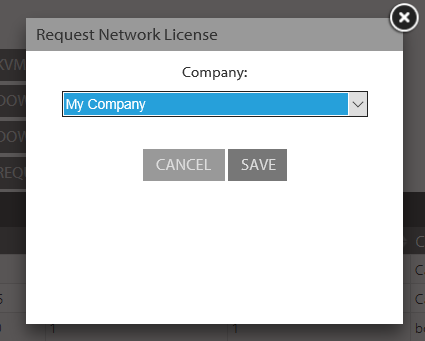
You can choose the 'None' option if you wish. You can also associate multiple master licenses with the same company. This will be useful if you have a customer who operates a number of dark sites each of which requires a daemon.
You will now be able to see your new license on the Network Licenses table.
Note the fields in this table:
- Network License: This is the master license code for a particular daemon instance.
- Max. No. Users: This is the maximum number of daemon instances that can be activated with this master license. It has been set to always have the value 1.
- Current. No. Users: This is the current number of daemon instances that have been activated with this master license.
- Company: If any, the company you associated this master license with.
- ComputerID: Device ID of daemon activated with this license.
- Activated: Date of activation of this license.
- Deactivated: Date of deactivation of this license.
- Created: The created date of this master license.
Note also that each license code has a corresponding edit  button. This button enables you to change the company associated with this license. You can delete all activity for a network license by clicking the trashcan button.
You can also create a network license using the CreateNetworkMasterLicense webservice.
Online Master License Activation/Deactivation
On the daemon License page indicated on the navigation bar
you will see a Master License section whose current information shows that the daemon is not licensed:
To license the daemon, select 'Get License Online' from the drop-down and click the orange arrow. This will present you with a popup form in which to paste the master license code you acquired from the server.
Clicking the 'Apply' button will license the daemon, as will be shown on the page:
To return the license online, which will deactivate the daemon, all that is required to perform this task is to select Return License Online from the Master License drop-down menu. The current number of daemon activations will be immediately updated on the Zentitle server.
Offline Master License Activation/Deactivation
The offline activation and deactivation procedures for the LAN daemon are similar to those employed for client applications. Here, the daemon is analogous to a client application.
To proceed with an offline activation, on the Master License drop-down, select the Create Activation Request item and click the orange arrow button.
This will prompt you to enter the master license code obtained from the server as in the online case. Following this, you will be presented with an activation request certificate to be pasted into the server.
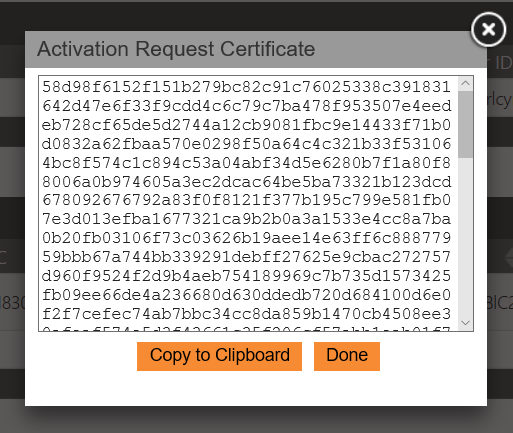
Instructions for doing this and subsequently obtaining the server certificate are provided in the offline activation documentation.
On obtaining an activation certificate from the server, go back to the Master License drop-down on the daemon, select the Import Certificate item and click the orange arrow button.
This will present you with a form in which to paste the server certificate.
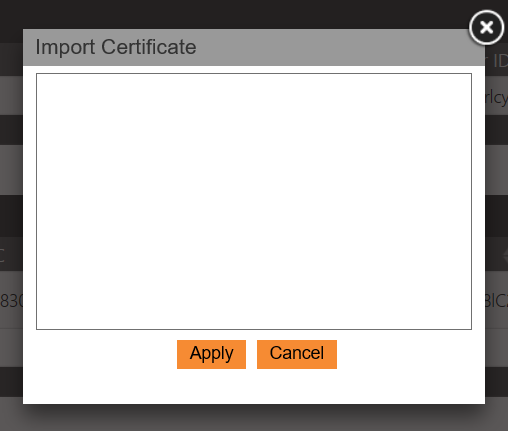
Clicking the Apply button will complete the offline activation process.
Offline deactivation proceeds by first selecting the Create Return Request item on the master license drop-down and clicking the orange arrow.
After entering the license code, you will be presented with a Return Request certificate:
This should be pasted into the server in accordance with the deactivation instructions given here.
This is all that is needed to deactivate the master license code. However, it can be reactivated at any time by following one of the methods described above.
Product Setup
To set up one of your products on the daemon, on the daemon License page, go to the Product Licenses drop-down on the License page and select the Enter Product Info item.
You will then be presented with a dialog to enter your customer ID and Product ID. Your Product ID should be the last 5 digits (omitting any leading zeroes) of your 10 digit product code, that is, it should be exactly the same as the product ID you hard-coded into your application.
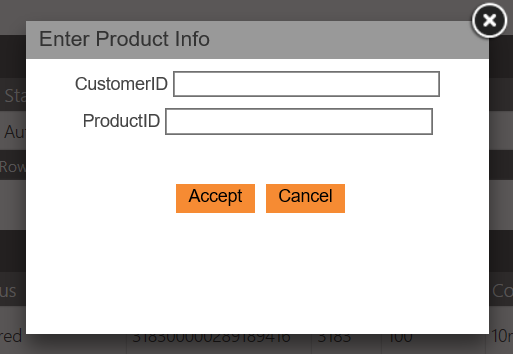
Click the Accept button to complete the product setup.
Product License Configuration
In addition to a master license code, it is necessary to provide a product license code for each of the products setup on the daemon. This is a normal license code for your chosen product. However, it must be configured correctly on the Zentitle server in order to be activated on the daemon.
To configure a license code for the daemon on the Zentitle server, go to the license code's 'edit' page on the Zentitle dashboard (see here for more details) and click the Options tab.
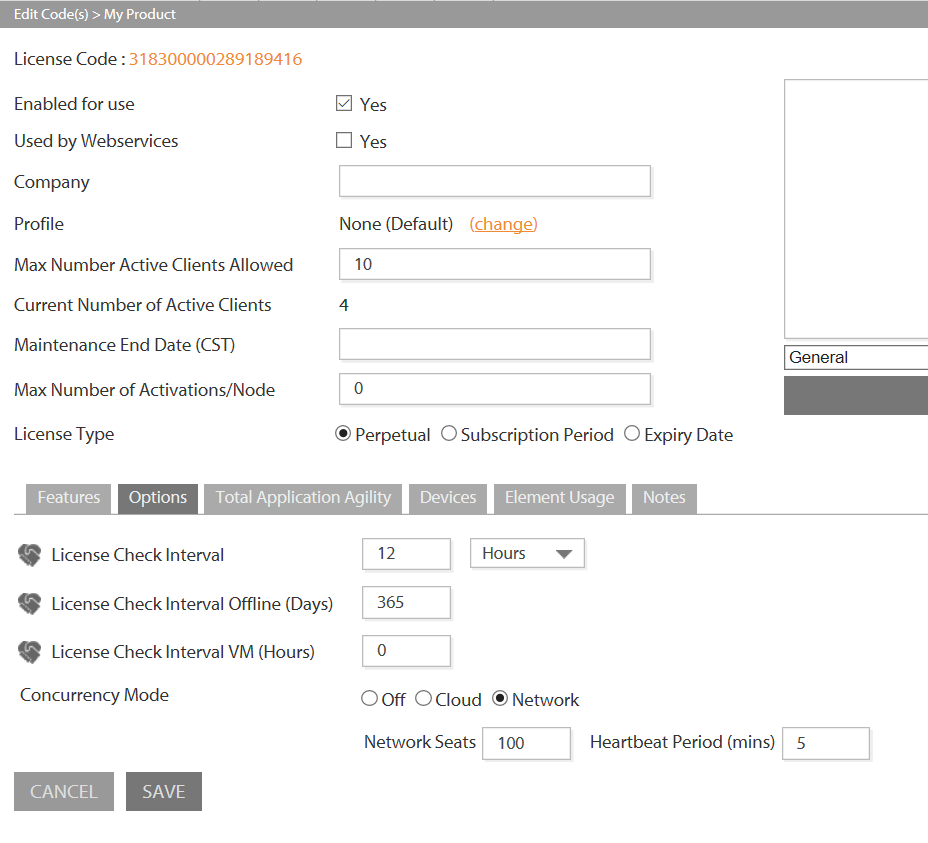
The concurrency mode must be set to Network and values must be set for the following fields:
- Network Seats: This is the total number of concurrent activations of this license code that can be managed by one or more daemons. It may take any value from 1 to 9999.
- Heartbeat Period (mins): This is the time interval between successive contacts between the client application and the daemon. It may take any value from 5 to 1440.
If the license is not perpetual, i.e. if an expiry date or a subscription period is set, then this determines when the code expires on the daemon(s) and thereby on all client machines.
Online Product License Activation/Deactivation
The steps to carry out online activation and deactivation for a product license are similar to those we took for the master license. On the daemon license page, go the Product Licenses drop-down, select the Get License Online item and click the orange arrow. This will present you with a popup in which to paste the product license code you configured on the server.
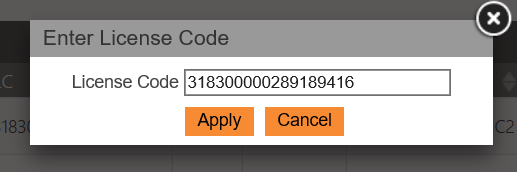
Clicking the 'Apply' button will license the product, as will be shown on the product licenses section of the License page.
The Product Licenses section of the page displays, in addition to the License Code (LC), the following information: (License) Status, the CustomerID,, the ID and name of the product, the current number of active connected clients (Net Seats) and LTCOs. It also shows the lease expiry date (when the license check interval expires - applies to connected i.e. non LTCO clients.)
The Long-Term Check Out (LTCO) section of the page displays the following information: (License) Status, the LTCO license code (which is different from the product license code - see below), the CustomerID, the ID and name of the product, the computer ID and the expiry date of the LTCO license.
Unlike on the V1 daemon, on the V2 platform it is possible to refresh a product license installed on the Zentitle daemon while clients have network seats checked out. Refreshing a product license consists of doing a network (or offline) activation of a product license using the existing license code without returning the license. Note that for security reasons, it is NOT possible to return a product license from the daemon while clients have outstanding network seats.
If you make changes to a product license on the Zentitle server then refresh that license on the daemon, those changes will be pulled to the daemon during the refresh. In turn, the changes in the product license will be pulled to the clients next time they contact the daemon (heartbeat, checkout features or elements, etc..)
If the license is changed so that the number of network seats is decreased, it may be that when the update is pulled to the daemon more network seats are checked out than allowed by the current license. It that case, the number of networks seats will “float down”. That is, all currently checked out network seats will remain valid but no new network seat will be available until enough have been returned to the daemon so that the count is below the new limit. The same process is followed for floating features, element pools, etc.
To deactivate the license code, all that is required to perform this task online is to select Return License Online from the Product Licenses drop-down menu.
Offline Product License Activation/Deactivation
For offline activation and deactivation, the steps for product licenses are similar to those of the master license. Offline activation proceeds by going to the product license drop-down and selecting Create Activation Certificate and clicking the orange arrow button as shown:
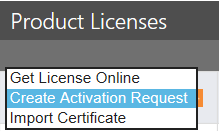
This will then prompt you for the product license code as shown above. On entering this, the activation request certificate will be generated.
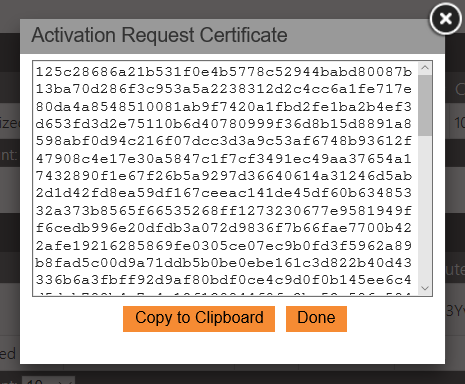
This should be pasted into the server using the offline activation procedure. The server will return a certificate which is used to complete the offline activation procedure on the daemon in the following way. On the product license menu on the daemon, select the Import Certificate item and click the orange button
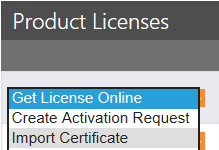
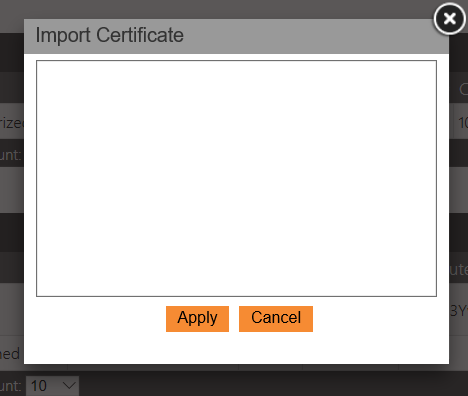
After entering the license code, you will be presented with a box in which to apply the certificate from the server. Clicking Apply will complete the offline activation procedure
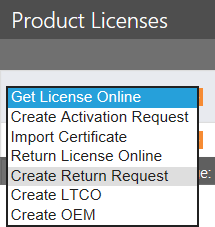
For offline deactivation, on the Product Licenses drop-down, select the Create Return Request option.
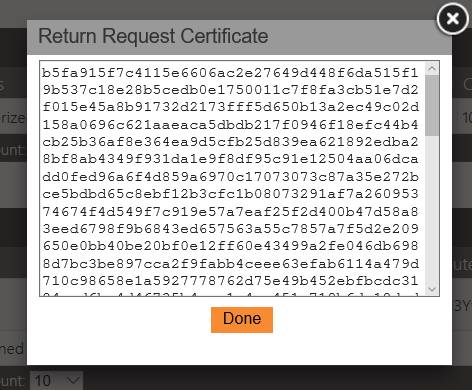
This will deactivate the product on the daemon side. It will present you with a deactivation certificate to import into the server to complete the process on the Zentitle server.
You will see in the Product Licenses section of the page that the license has been returned to the server.
Managing Users
On the Users page of the Zentitle daemon server, you can manage the users who's software is permitted to make use of the daemon. On installation of the daemon, there will only be one user, the admin user, who has permission to administer the daemon server and use the daemon. You may create additional users, however, they will only have the latter permission.
The Users page will initially have the following appearance:
Clicking the New User button will present you with a popup in which to add the credentials of your new user.
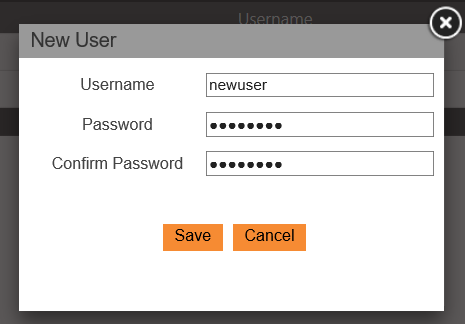
On doing so, you will see your new user added to the list.
Note that you can also delete this user by clicking the Delete User button and that the admin user cannot be deleted. The password for any user can, however, be changed. To do so click the Change password button.
Client Application Activation
Application Setup
Having set up your product and users, you can now configure your client application to use the daemon. Have your application pass the following parameters with the values shown into the NalpLibOpen() function. For more details on how to call this function, see the client API documentation.
| Parameter | Value |
|---|---|
| DaemonIP | The local IP address of the daemon on your LAN. In this documentation, its value is 192.168.222.11. |
| DaemonPort | The port on which the daemon is listening. The default is 16700. |
| DaemonUser | Username. |
| DaemonPass | User password. |
Connected Clients
If your client application is connected to the same LAN as the daemon and has been configured as above, the license code should be set to 'netseat'. On execution, you should automatically see records appear for this client on the daemon server (see the Client Application Data section below.)
Long-Term Checkout (LTCO) Licenses
An LTCO (Long Term Checkout) license is a license that will have no heartbeat, i.e. the licensed machine will not contact the daemon again after it has been activated. This license can, for example, be used on a laptop that will not be on premises for some time. Some restrictions to keep in mind are:
- The LTCO license cannot last longer than the expiration of the license it is created from.
- The license will cause a network seat to be subtracted from the seat pool.
- An active LTCO (checked out) cannot be destroyed until the LTCO expires or it is returned by the client that used it.
- An LTCO is restricted to a specific client computer with a fixed computer ID.
To create an LTCO, select the 'Create LTCO' item on the license drop-down menu and click the orange arrow button:
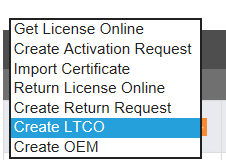
This will present you with a popup dialog in which to enter the computer ID of the machine you wish to license and also the expiry date of the license:
This will create an LTCO license for the computer you have specified. An entry for this license will appear in the Long-Term Checkout Licenses section of the Licenses page:
To complete the LTCO activation, the license code shown in the LC column (here '9240...') must be applied to the client, i.e. in this case we do not use the 'netseat' license code.
The license should only be returned on the server (by selecting the 'Return' item on the above drop-down) if it has expired or been returned by the client.
Client Application Data
The daemon UI provides various pieces of information relating to client applications which have been activated using the daemon. These can be accessed from the top navigation bar. We shall describe these in turn.
Network Seats
The Network Seat page has an entry for each activated client, as shown below.
Each entry consists of the computer ID, computer name and username of the client. These entries are filtered using the drop-down at the top of the page. The entries in the drop-down consist the names of your products. Selecting a different product will refresh the activation data tables with data for the newly selected product.
This computer name used here is not directly obtained from the client operating system. Instead it is an optional parameter to be passed into the Zentitle licensing library at initialization (NalpLibOpen) using the <ClientHostname> tag. If this parameter value is provided, nalpControl and the daemon’s GUI will use it when displaying information about the client.
The Zentitle daemon doesn't use the client's VM detection state as it relies on heartbeats to keep things in order. The daemon is aware only of the client's normal ComputerID and the ComputerID as determined when VM detection is enabled. As such the computer name may aid here in client identification.
HeartBeats
The client application contacts the daemon with a period given by the heartbeat you set on the Zentitle server. The default value is 5 min. The HeartBeats page provides information about heartbeat connectivity for each client, as shown.
In addition to providing the key parameters for each client (Username, Customer, Product and Computer IDs) the heartbeats table also provides the heartbeat period in seconds and the number of heartbeats missed. The daemon automatically deactivates any client that misses more than three heartbeats. When the client is deactivated its seat is returned to the pool.
Each entry also has a 'Revoke' button enabling the client to be deactivated. If a client's license is revoked it will be notified next time it heartbeats to the daemon. In general, this will mean a delay of one heartbeat period before the client is notified of revocation.
If the daemon is shut down while clients are connected and heartbeating, it will cache these heartbeats and restart them when the daemon itself is restarted. However, the number of missed heartbeats is not saved and the count will restart at zero.
Features
The Features page provides information about the usage of element pools and floating features that have been enabled.
This page consists of two tabs, one for element pools and one for floating features. Selecting one of these tabs shows the data for the feature type enabled on the product license for the product selected on the dropdown.
Shown below is typical data for the element pools tab:
The 'Element Pools in Use' tables contains a row for each element pool enabled. This row shows the feature ID, feature name, the total number of elements checked out ('Total Count') and the maximum number that can be checked out.
This is summary data for that element pool. You can obtain specific information about how many elements are checked out on each device by clicking the icon at the left of this row. This will expand the row into a child table for this element pool. Each row of this child table will contain the computerID, computer name, username and number of elements checked out on this device. The child table can be collapsed by clicking the
icon on its title bar.
The floating features tab is similar. The only difference, as it applies to floating features, is that the counts are floating feature seat counts where at most one seat can be checked out on any device for each feature.
Admin
Database Monitoring
The top part of the Admin page displays various pieces of information about the LAN daemon database as shown below:
The meanings of the various fields are as follows:
- Disk Mount Point: The point in the OS file system where the daemon database filesystem is mounted.
- Filesystem: This is the filesystem containing the daemon database.
- Disk Usage: Total disk usage by this filesystem.
- Disk usage percentage: Total disk usage percentage of this filesystem.
- Directory Usage: Size of the daemon database in total.
- Number of Table Rows: Number of NSA records in daemon database.
- Table Space: Space occupied by NSA records.
Streaming Data from the LAN Daemon
If you have Zentitle DataStreams enabled, you can import various kinds of data from the LAN Daemon into the Zentitle platform for streaming to a URL of your choice or one of a number of pre-defined endpoints. Please consult the DataStreams documentation for more information about this functionality
The remainder of the Admin page concerns options relating to this datastream import. As can be seen from the figure, there are three similar groups of controls. These relate to the actions one may perform on the data category selected with the corresponding dropdown menu. The options are the same in all three cases. These are:
- analytics. This is the standard Zentitle analytics data that would be sent to our Zentitle servers in the direct server connection (rather than LAN Daemon) scenario with one difference: this analytics data will not contain location information.
- daemondata. These are events which involve an interaction between the client application and the LAN Daemon, such as activation of a license.
As can be seen, there are also start and end date textboxes that can be used to filter the selected data to that captured during the specified time interval. Both dates are required to be specified.
From top to bottom, the actions carried out by clicking the orange buttons are as follows:
Export DB Data. This function should be used for datastreaming if the LAN Daemon does not have an internet connection. In this case, the data will be saved as a CSV file on the LAN Daemon at the location /etc/nalpeiron/exports/, e.g. /etc/nalpeiron/exports/daemondata_1614556800_1619827200.csv. It is intended that this file should then be uploaded to the Zentitle servers for streaming. For this example, this can accomplished with the Curl command:
curl -X POST -H "Connection: close" -F 'file=@/<path-to-file>/daemondata_1614556800_1619827200.csv' https://datauploader.nalpeiron.com/lan2mongo.php
Export & Upload DB Data. As above except that can be used when the LAN Daemon is online and able to carry out both the export and upload in one step.
Truncate DB Data. This will delete the specified data.
Help
The 'Help' button links to the documentation for the 'nalpControl' command line tool. This contains full usage information and examples.