
Licenses
When a Master User logs into the End-User Portal they will see the dashboard with the layout shown below:

The left hand menu has the items Licenses, Users and Offline Activation (if enabled by the Admin account.) The Licenses item is automatically opened. This will show a list of products and license codes the user currently has assigned to their subgroups, i.e. to groups for which their group is the Master Group. Recall that license codes cannot be assigned to Master Groups, only to Standard Groups, and so you will see no license codes assigned to the Master Group itself. See the Account-Based Licensing documentation for more details.
Each entry in this list will also show the following information:
- License Type: E.g. Perpetual, Subscription etc.
- Activations: The number of current activations on this license out the maximum number allowed.
- Maintenance: The maintenance end date if set.
- Any Agility Fields and/or Features that have been configured by the Administrator.
Users
The My Groups page will show you user data for a list of groups. This list consists of the Master Group with which the current user is associated along with all subgroups of this Master Group.
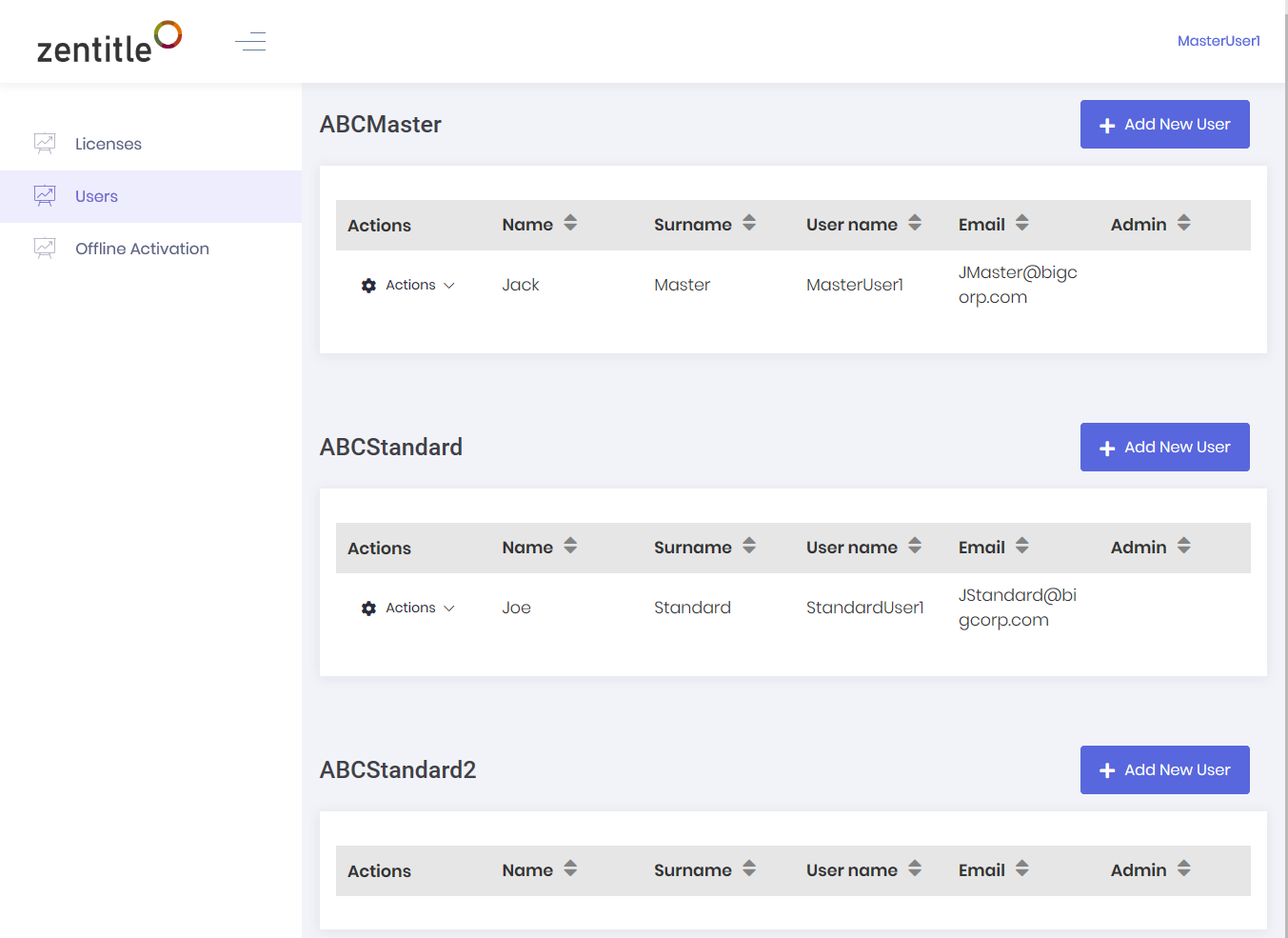
The left-most item on each row is an 'Action' button. When clicked, this will display a dropdown menu with items 'Edit' and 'Delete' (for every end-user except themselves.) Deleting the user will erase it permanently from Zentitle's records. To the right of this menu are the standard identification fields. The right-most item is 'Admin'. This is checked for Master users (i.e. members of Master group or promoted Standard users - see below.) A new user can be added to any of these groups. This is done by simply clicking the 'Add New User' button which will launch the following form:
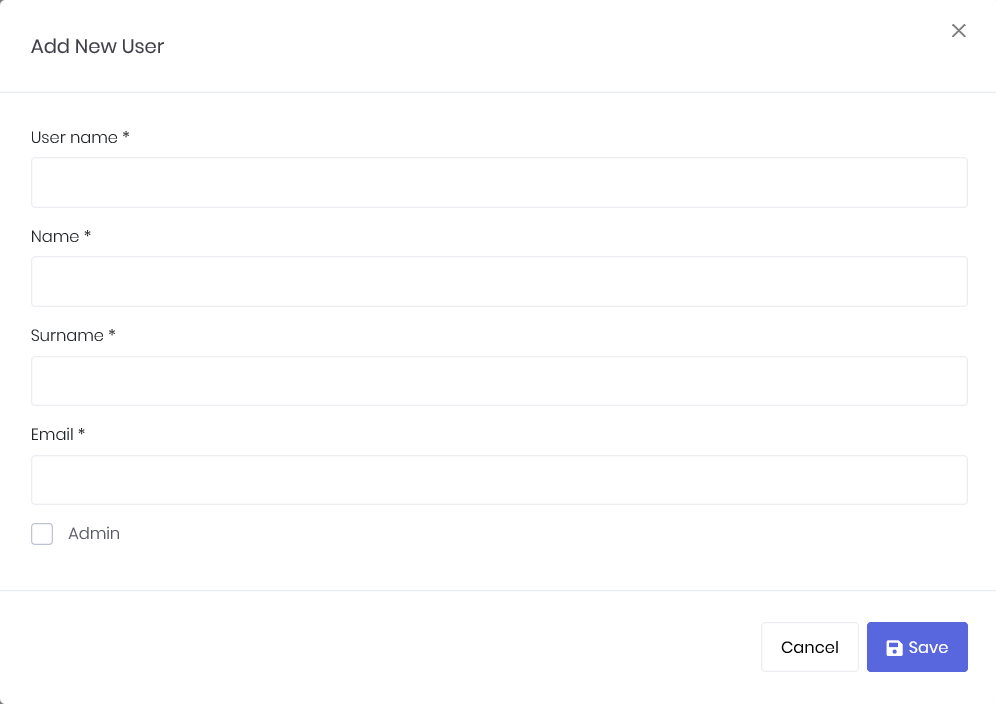
Here you can enter the user name, first name, last name and email address for this user. The user will be created on the Save button being clicked. When a new user has been created, they will be sent an email to the address you have provided with a link enabling them to set their password.
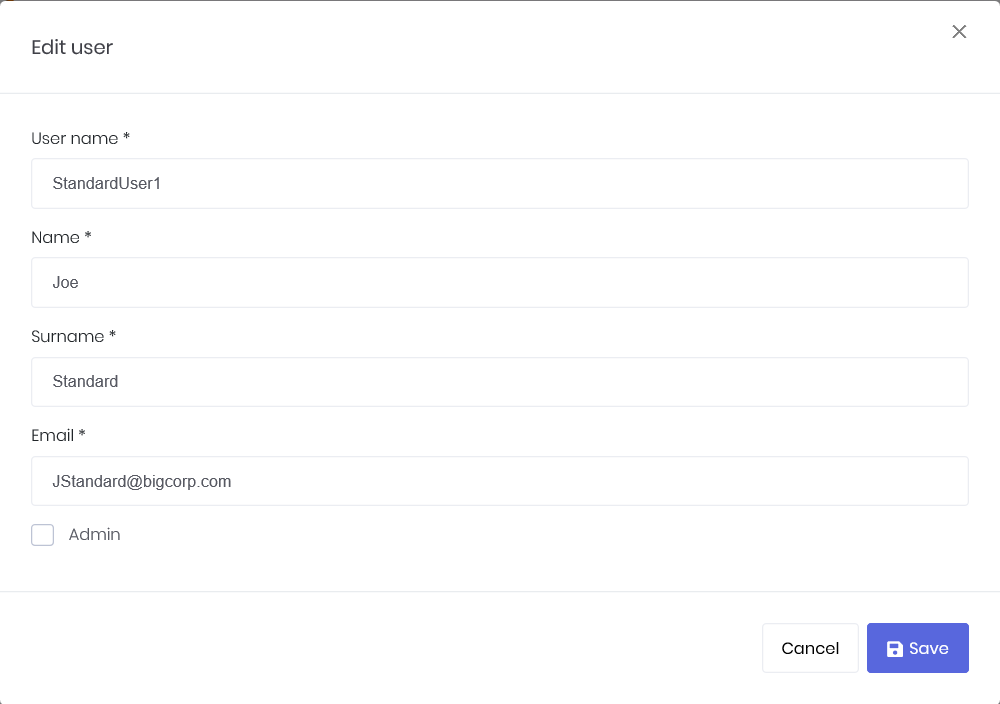
A user can be edited using the 'Edit' item on the 'Actions' menu. Clicking this will launch the 'Edit user' popup:
Promotion of Standard to Master Users
A Standard User can be promoted to a Master User, i.e. have Master User functionality as detailed above, by the ISV on Zentitle. Such a user need not even be associated with a Master Group. This may be done by creating/editing a Standard User with a special metadata tag using the webservices or on the Zentitle dashboard.
Offline Activation and Deactivation
Please see the documentation here for Standard Users as the offline activation/deactivation functionality for Master Users is identical. Note that this functionality will only be present if it has been enabled by the Admin User.