
Licensing Integration
and
Analytics Integration
Introduction
This article shows you how to use a Java graphical example project, created and designed to be run within the Eclipse IDE, as the basis for adding Zentitle Licensing and/or Analytics to your own Java application. This is a simple way to use NSL/NSA in a cross-platform Java application with a graphical user interface using the popular Eclipse IDE and the WindowBuilder Pro GUI designer. Both of these third-party tools are free and download/installation instructions are given below.
Before following this documentation, please be sure to first create and download your custom Licensing/Analytics library.
Getting Started with Eclipse
Eclipse is a fully-featured, popular and well-supported IDE for Java application development. With appropriate plug-ins, it is well-suited to the development of Java applications with a GUI. Eclipse is available for most common computer operating systems. Here we will go through the steps required to install and correctly configure Eclipse for our purposes. For definiteness, we assume an installation on Microsoft Windows x86. Some steps of the procedure may differ on other platforms.
Download Eclipse for your chosen platform.
- Download the version of Eclipse IDE for Java Developers for your chosen platform.
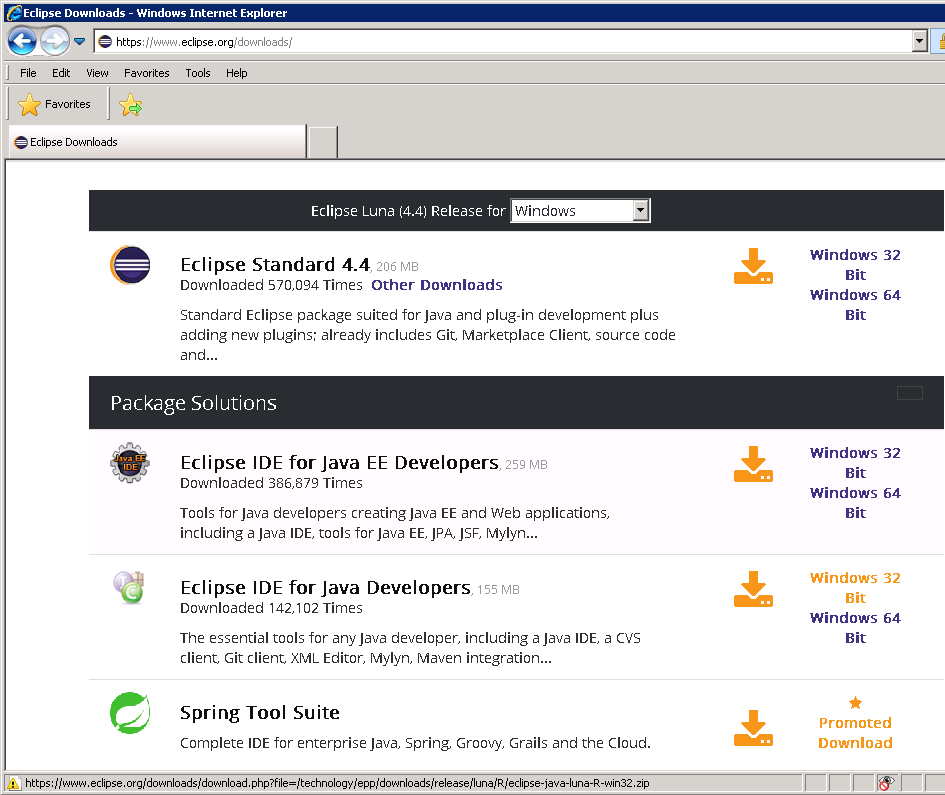
- Install Eclipse by extracting the 'eclipse' folder and its contents to a suitable location (e.g. C:\Program Files (x86).)
- Locate eclipse.exe within the 'eclipse' folder. Run it.
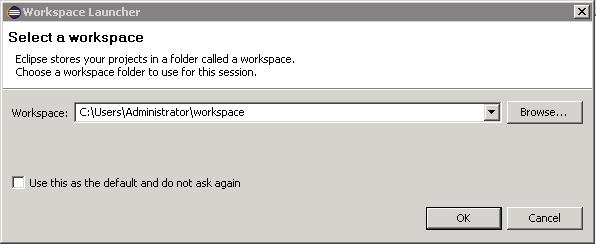
- Create a workspace folder or select an existing workspace using the dialog shown here:
Install a Java Development Kit
To enable Java development on Eclipse, a suitable Java Development Kit (JDK) must be installed. This includes a Java Runtime Environment (the Java virtual machine upon which Java applications run) together with tools for developing, debugging, and monitoring Java applications. The steps for installing the JDK are as follows:
- Obtain the JDK download (the Java Development Kit appropriate to your operating system and version of Eclipse: x86 or x64.)
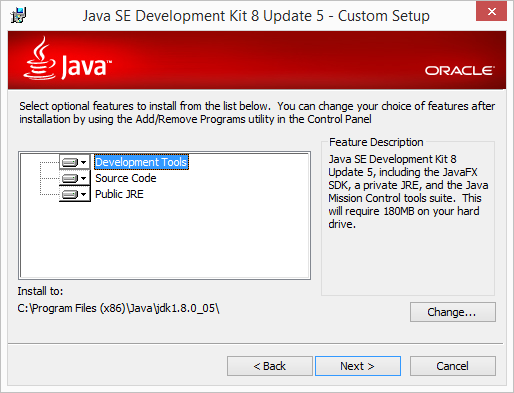
- Run the JDK executable. This will present an installation wizard. Choose to install all components (see below)
- Add the $JDK\bin subfolder to the PATH environment variable.
Setup/Install a Java Runtime Environment (JRE)
- Open eclipse.exe. Go to menu Window->Preferences.
- On the tree in the left pane of the Preferences form, select Java->Installed JREs.
- Ensure that the JRE (Java Runtime Environment) at $JDK has been installed. Otherwise, install it by clicking Add.
- On the next dialog, select Standard VM.
- Click Next.
- On the subsequent dialog, enter the $JDK location in the JRE Home textbox and click Finish.
Installing WindowBuilder Pro
WindowBuilder Pro is an Eclipse plug-in that enables the creation of Java GUI applications. We use components of this, most specifically the Swing GUI widget toolkit, in the creation of the user interfaces for the Java Eclipse project.
Install WindowBuilder Pro by going to the link: http://www.eclipse.org/windowbuilder/download.php
- Selecting the Release Version appropriate to your version of Eclipse and follow the subsequent instructions to Install New Software.
- Click the Select All button as shown below and click Next.
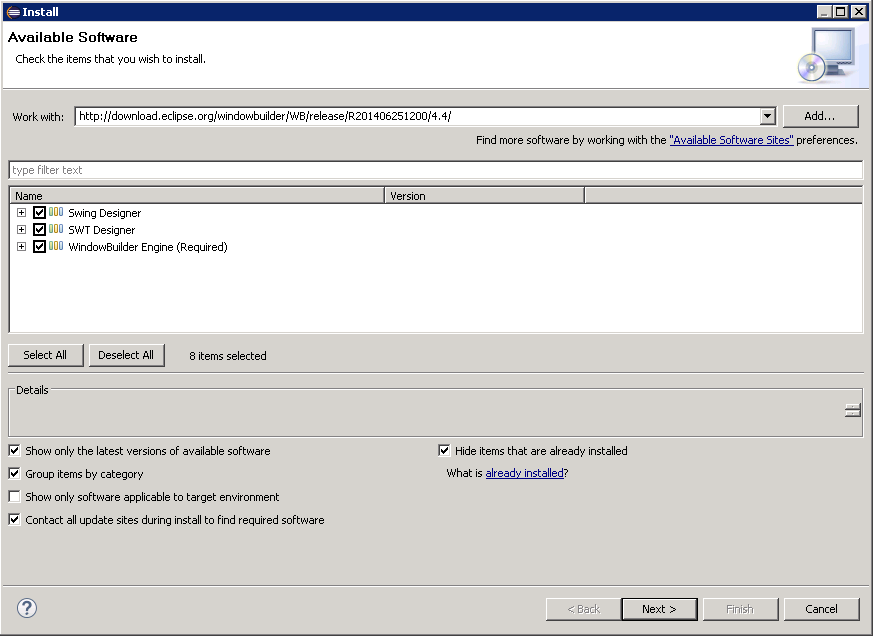
- Accept the License Agreement terms and click Finish to perform the installation.
- Restart Eclipse.
Importing the Java Eclipse Project
Creating an Empty Project
The Java Eclipse project can be imported and built using the following instructions:
- Run Eclipse.
- Create a New Java Project.
- Name the project ShaferEclipseExample and click Next:
- On the Java Settings form, select the Libraries tab and Native Library Location:
- Set the native library location to the ShaferEclipseExample\bin folder and click Finish
Importing the Example Project
- In Eclipse, click Import on the File menu
- Select Archive File from the General project type and click Next.
Browse to and select the ShaferEclipseExample.jar file as the 'From Archive File' item. Browse to and select the ShaferEclipseExample project you created for the 'Into Folder'. Click Finish.
- Copy the Zentitle library .dll/.so/.dylib file into the ShaferEclipseExample/bin folder.
- On Eclipse, select the Window->Show View->Package Explorer menu item. This will show you a file tree for your example project.
- Select the Build Path->Configure Build Path menu item.
- Select the Java Build Path item and the Source tab. Set the Native Library Location to ShaferEclipseExample/bin folder and click OK on all open dialogs.
- Go back to the Package Explorer, select the ShaferEclipseExample.java file and click Run
The installation and configuration of the Java Eclipse Example is now complete.
Code Integration Walkthrough
1. Create your Public Class
The ShaferEclipseExample class (found in ShaferEclipseExample.java) is our example public class - scrolling to the top of this class you will find a number of variables which should be initialized correctly. Please refer to section Using Eclipse and Java - NSL/NSA (Library V3.2 or greater) for an explanation of variables CustomerID, ProductID, and the three security constants: You will instantiate this class from method Main. All references below are to be made to this file/class.
public class ShaferEclipseExample
{
	public JFrame appMainFrame;
	JTextField tfUDF;
	JTextArea textArea;
	JLabel lblComputerID;
	private JTextField tfFeatureCode;
	private String userName;
	long[] userLoginTxnID;
	public String computerID;
	public Shafer oShafer;
	int shaferError;
	int privacy;
	int customerid = 3183; // **** REPLACE WITH YOUR CUSTOMERID
	int productid = 100; // **** REPLACE WITH YOUR PRODUCTID
	int securityconstantX = 100; // **** REPLACE WITH YOUR Security Constant X
	int securityconstantY = 600; // **** REPLACE WITH YOUR Security Constant Y
	int securityconstantZ = 400; // **** REPLACE WITH YOUR Security Constant Z
	int returnVal;
	public String regData;
	int licenseStatus;
	public Timer nalptimer; // Timer to periodically check License
	public boolean nodeLocked; // If false then license is concurrent
	String appLanguage;
	String version;
	String edition;
	String build;
Within your Form Load or Application Initialize Event, add code to call the following functions located in the Shafer.cs (oShafer Object) class:
2. Call your Initialise Method
Java Example - Initialise
	public void init()
	{
		//securityoffset=getSecurityOffset(securityx, securityy, securityz);
		//You can change the library name here if you wish.
		int securityRand = 1 + (int)(Math.random() * (501));
		securityoffset = securityx + ((securityRand * securityy) % securityz);
		loadNalpeironLibrary(libfilename);
		SetLibs();
		int i = nalp.callNalpLibOpen(nsaenable, nslenable, loglevel, workdir, logqlen, cacheqlen, netthmin, netthmax, offlinemode, proxyip, proxyport, proxyusername, proxypass, daemonip,  daemonport,  daemonuser,  daemonpass,  securityRand);
		try
		{
			Thread.sleep(2000);
		}
		catch (InterruptedException ex)
		{
			System.out.println("Error! :(");
		}
		if (i < 0)
		{
			throw new nalpError(i, shaferNalpGetErrorMsg(i));
		}
		else
		{
			i = shaferNSLValidateLibrary(customerid, productid);
			if (i< 0)
			{
				throw new nalpError(i,  shaferNalpGetErrorMsg(i));
			}
		}
	}
3. Retrieve and Check the License Status
Java Example - GetLicenseStatus
        // Get License Status
        try
		{
			licenseStatus = oShafer.shaferNSLGetLicenseStatus();
		}
		catch (nalpError E)
		{
			if (E.getErrorCode() < 0)
			{
				showError(E, true);
			}
		}
The ShowError function performs the frequently-needed task of obtaining the error message from the error code passed in. There is a second, Boolean parameter passed to this function whose purpose is to specify whether or not the application should exit.
Java Example - ShowError
    public void showError(nalpError E, Boolean exit)
	{
		if (E.getErrorCode() < 0)
		{
			JOptionPane.showMessageDialog(null, E.getErrorMessage());
			if (exit)
			{
				// AppMainFrame.dispose();
				System.exit(0);
			}
		}
	}
4. Additional Security Checks
Then Add security code to check the License Status, if the License status shows the client computer has been backdated then show message and exit application.
This will give the user the prompt to correct their computer's date and time, before running the application again:
Java Example - Security Check
        // SECURITY: If computer has been BACK Dated to get more time for the
		// trial or Subscription then Exit Application
		if (licenseStatus == Shafer.LicenseStatus.PROD_BTCOUNTER.getValue())
		{
			JOptionPane.showMessageDialog(null, licenseStatus);
			// AppMainFrame.dispose();
			System.exit(0);
		}
5. Retrieve License from Server
Then add the following code. ( this will check the license status, if a positive value then the license status is good for your application to continue running. So will be either in Trial or Activated mode.
If a negative value or 0 then the client will need to attempt to get a refreshed license from the activation server via the function GetLicenseFromServer(), which defined and explained in step 7):
Java Example - Get License from Server
        // If License Status is negative then try to get license from server
		if (licenseStatus <= 0)
		{
			licenseStatus = getLicenseFromServer(false);
		}
		else
		{
			// Extra security procedure: if license table overwritten on an
			// online system, the license table will refresh itself.
			// Don't try License Refresh if Network LTCO, Daemon doen't allow
			// LTCO Refesh's for security reasons
			if (licenseStatus != Shafer.LicenseStatus.PROD_NETWORK_LTCO.getValue())
			{
				licenseStatus = getLicenseFromServer(true);
			}
		}
6. Get the License Information
There are two kinds of license information which determine the kind of license being used:
- License Type: e.g. whether the license is trial or activation (with a license code), subscription or perpetual, node-locked or concurrent.
- Activation Type: e.g. whether the license was activated on or offline.
The ShowLicenseStatus method shows how to obtain the license information with calls to Shafer methods ShaferNSLGetActivationType and ShaferNSLGetLicenseType.
Java Example - Get License Info
   private void showLicenseStatus(int licenseStatus)
	{
		int licensetype = 0;
		int activationtype = 0;
		activationtype = oShafer.shaferNSLGetActivationType();
		licensetype = oShafer.shaferNSLGetLicenseType();

		// Clear Down status box
		textArea.setText("");
		textArea.setText(textArea.getText() + "License Type: " + Shafer.GetLicenseType(licensetype) + "\r\n");
		textArea.setText(textArea.getText() + "Activation Type: " + Shafer.GetActivationType(activationtype) + "\r\n");
		int SubscriptionExpiresinSecs = 0;
		String SubscriptionExpiryDate = "";
		// Show info in trial
		if (licenseStatus == Shafer.LicenseStatus.PROD_INTRIAL.getValue())
		{
			int TrialExpiresinSecs = 0;
			String TrialExpiryDate = "";
			// Get the length left in trial in Seconds
			try
			{
				TrialExpiresinSecs = oShafer.shaferNSLGetTrialExpSec();
			}
			catch (nalpError E)
			{
				showError(E, true);
			}

			// Get the Actual Expiry Date
			try
			{
				TrialExpiryDate += oShafer.shaferNSLGetTrialExpDate();
			}
			catch (nalpError E)
			{
				showError(E, true);
			}
			textArea.setText("IN TRIAL \r\n");
			textArea.setText(textArea.getText() + "Trial Expires in " + TrialExpiresinSecs + " secs \r\n");
			textArea.setText(textArea.getText() + "Trial Expires " + TrialExpiryDate + "\r\n");
		}

		// Show info Activated with a Subscription period
		if (Shafer.GetLicenseType(licensetype).toLowerCase().contains("subscription"))
		{
			// Get the length left in trial in Seconds
			try
			{
				// Get the length left in trial in Seconds
				SubscriptionExpiresinSecs = oShafer.shaferNSLGetSubExpSec();
				// Get the Actual Subscription Expiry Date
				SubscriptionExpiryDate = oShafer.shaferNSLGetSubExpDate();
				textArea.setText(textArea.getText() + "Subscription Expires in " + SubscriptionExpiresinSecs
						+ " secs \r\n");
				textArea.setText(textArea.getText() + "Subscription Expires " + SubscriptionExpiryDate + "\r\n");
				nodeLocked = true;
			}
			catch (nalpError E)
			{

				if (E.getErrorCode() == -1089) // If license file corrupt
				{
					if (licenseStatus == (int) Shafer.LicenseStatus.PROD_CONCURRENT.getValue())
					{
						textArea.setText("ACTIVATED PERPETUAL LICENSE (CONCURRENCY)\r\n");
					}
					else
					{
						textArea.setText("ACTIVATED PERPETUAL LICENSE \r\n");
					}
					nodeLocked = false;
				}
				else
				{
					// Check for other fatal errors
					if (E.getErrorCode() < 0)
					{
						showError(E, true);
					}
				}
			}
		}
	}
7. Setup your application to check the license status at regular intervals whilst running
This step is required so your running application will check with the application server to refresh its local license from the activation server at regular intervals whilst its running.
The local Client License is only valid for the set Client Lease period for the trial or for the activated License code.
When the client Lease has expired the client is required to retrieve a new license from the server.
This allows the client to expire (subscription or trial) during the applications execution, instead of just at application start
At the end of the GetLicenseFromServer method, when a connection to Zentitle has been established and the licensing is verified as operational, insert a call to start the already initialized timer:
Java Example - Start Timer
		startTimer();
	}
Then add the timer handler to call the following code, to check the license status and retrieve new license if required
Java Example - Timer tick event
	private void startTimer()
	{
		int interval = 1000 * 120; // timer interval of two minutes
		nalptimer = new Timer(interval, tick);
		nalptimer.setInitialDelay(1000 * 120);
		nalptimer.start();
	}

	ActionListener tick = new ActionListener()
	{
		public void actionPerformed(ActionEvent event)
		{
			timerTick();
		}
	};

    private void timerTick()
	{
		// Get License Status
		try
		{
			licenseStatus = oShafer.shaferNSLGetLicenseStatus();
		}
		catch (nalpError e)
		{
			if (e.getErrorCode() < 0 && e.getErrorCode() != -1094) // no
																	// license
			{
				showError(e, true);
			}
		}
		finally
		{

		}
		// SECURITY: If computer has been BACK Dated to get more time for
		// the trial or Subscription then Exit System
		if (licenseStatus == Shafer.LicenseStatus.PROD_BTCOUNTER.getValue())
		{
			JOptionPane.showMessageDialog(null, Shafer.LicenseStatus.getLicenseStatus(licenseStatus));
			// appMainFrame.dispose();
			System.exit(0);
		}
		// If License Revoked form Dameon server exit
		if (licenseStatus == -201)
		{
			JOptionPane.showMessageDialog(null, "License Revoked by Daemon Server");
			// appMainFrame.dispose();
			System.exit(0);
		}
		// If License Status is negative then try to get license from server
		if (licenseStatus <= 0)
		{
			licenseStatus = getLicenseFromServer(false);
		}
		showLicenseStatus(licenseStatus);
	}
8. Setup your application exit DLL closure
Please add code to the initialize method to trap the JFrame close event in order to perform some necessary tidying up on the application being closed.
Java Example - Calling exitApplication()
  private void initialize()
	{
		appMainFrame = new JFrame();
		appMainFrame.addWindowListener(new WindowAdapter()
		{
			@Override
			public void windowClosing(WindowEvent e)
			{
				exitApplication("User exiting application");
			}

			@Override
			public void windowClosed(WindowEvent e)
			{
				exitApplication("User exited application");
			}
		});
		appMainFrame.setTitle("NSL Example Application");
		appMainFrame.setResizable(false);
		appMainFrame.setBounds(100, 100, 398, 329);
		appMainFrame.setDefaultCloseOperation(JFrame.EXIT_ON_CLOSE);

		JMenuBar menuBar = new JMenuBar();
		appMainFrame.setJMenuBar(menuBar);

		JMenu mnFile = new JMenu("File");
		menuBar.add(mnFile);

		JMenuItem mntmExit = new JMenuItem("Exit");
		mntmExit.addMouseListener(new MouseAdapter()
		{
			public void mouseReleased(MouseEvent arg0)
			{
				exitApplication("Exit from menu");
			}
		});
		mnFile.add(mntmExit);
with an example exitApplication() method being as follows:
Java - exitApplication()
   public void exitApplication(String Message)
	{
	//	nalptimer.stop();
		System.out.println(Message);
		// ON Exit Check to see If concurrency License if so then
		// return the license to the server to achieve concurrency
		try
		{
			licenseStatus = oShafer.shaferNSLGetLicenseStatus();
			if (licenseStatus == 1)
			{
				nodeLocked = true;
			}
			else
			{
				nodeLocked = false;
			}
		}
		catch (nalpError E)
		{

			if (E.getErrorCode() < 0)
			{
				showError(E, false);
			}
		}
		if (licenseStatus == (int) Shafer.LicenseStatus.PROD_CONCURRENT.getValue())
		{
			// Return the license to the server to free up the
			// activation for another client
			String licenseCode = null;
			try
			{
				licenseCode = getLicenseCode();
			}
			catch (IOException e)
			{
				// TODO Auto-generated catch block
				JOptionPane.showMessageDialog(null, e.getMessage());
			}

			if (licenseCode == "")
			{
				JOptionPane.showMessageDialog(null, "Licensecode is required to return the license");
			}
			try
			{
				returnLicense (true);
			}
			catch (nalpError E)
			{
				if (E.getErrorCode() < 0 && E.getErrorCode() != -1080) // error but not privacy unset
				{
					showError(E, false);
				}
			}
		}
		oShafer.shaferNalpLibClose();
		System.exit(0);
	}
The main purposes of the code in this method are to ensure that the license is returned to the server if it is a concurrent license and to close the Zentitle support library. Returning the license code will make it available for use by other concurrent licensed clients.
Code Integration Walkthrough - Analytics
The following code examples are required for generating analytics data.
Many analytics calls in shafer.cs include the additional parameter NSAClientData. This is reserved for future use.
ApplicationStart Logging
|
Parameters |
Description |
|---|---|
| Username (string) | This is the recorded username of user starting the application, if not required or available set to empty string. |
| Applanguage (string) | Set to the ISO 2 digit language code for the applications running Language. |
| Version (String) | Set to your applications Major version number. |
| Build (String) | Set to your applications Build Number. |
| Edition (String) | Set to your applications Edition. |
| LicenseStatus (String) | Set to your applications License Status. If using NSL use return value from GetLicenseStatus as shown below |
| aid (long[1]) | This is an array-type global variable for each application instance whose sole element must be initialised as 0 before calling shaferNSAApStart, which will return a different value. This new value must be passed into shaferNSAApStop on application exit (see below.) This variable serves as a transaction ID to pair application start and stop events. |
Java Example - Application Start
	public int ApplicationStart(String Username, String AppLanguage, String Version, String Edition, String Build,
			String LicenseStatus) throws nalpError
	{
		int i=0;
		String NSAClientData = "";
		i = shaferNSAApStart(Username, NSAClientData, aid);
		if (i < 0)
		{
			throw new nalpError(i,  shaferNalpGetErrorMsg(i));
		}
		// Call NPSystemInfo to Record System Infomation
		i = shaferNSASysInfo(Username, AppLanguage, Version, Edition, Build, LicenseStatus, NSAClientData);

		if (i < 0)
		{
			throw new nalpError(i,  shaferNalpGetErrorMsg(i));
		}
		// TxnID = 0;
		// If any records left in cache then send them now
		i = shaferNSASendCache(Username);
		return i;
	}
ApplicationEnd
Add code in your exitApplication() method to call method ApplicationEnd. This method in turn calls the NSA wrapper method shaferNSAApStop which you can find in the Shafer.cs class.
Java Example - Application End
	public int ApplicationEnd(String Username) throws nalpError
	{
		int i=0;
		String NSAClientData = "";
		i = shaferNSASendCache(Username);
		if (i < 0)
		{
			throw new nalpError(i,  shaferNalpGetErrorMsg(i));
		}
		i=shaferNSAApStop(Username,NSAClientData,aid);
		// Call NPSystemInfo to Record System Infomation
		if (i < 0)
		{
			throw new nalpError(i,  shaferNalpGetErrorMsg(i));
		}
		// TxnID = 0;
		// If any records left in cache then send them now

		return i;
	}
Exception Logging
Add code to call method shaferNSAException which you can find in the Shafer.cs class. This method takes the following parameters:
|
Function |
Parameters |
Description |
|---|---|---|
| Exception | userName (String) | This is the recorded username of user running the application, if not required or available set to empty string. |
| message (string) | Can be used as the errorcode, stacktrace etc. of the exception thrown. | |
| description (String) | This is the description of the error thrown. |
Java Example - Exception Logging
	public int ThrowException(String userName, String message, String description)
	{
		int i=0;
		String NSAClientData = "";
		i = shaferNSAException(userName, message, NSAClientData, description);
		if (i < 0)
		{
			throw new nalpError(i, shaferNalpGetErrorMsg(i));
		}
		return i;
	}
Feature Use Logging
|
Function |
Parameters |
Description |
|---|---|---|
shaferNSAFeatureStart |
username(String) | This is the recorded username of user running the application, if not required or available set to empty string. |
| featurecode (String) | The feature code setup on the NSA server which records the required feature usage. | |
| fid (long[1]) | This is an array-type variable which must have a separate instance for each feature start event, with the same instance being used for the corresponding feature stop event. The sole element of fid must be initialised as 0 before calling shaferNSAFeatureStart, which will return a different value. This new value must be passed into shaferNSAFeatureStop (see below.) This variable serves as a transaction ID to pair related feature start and stop events. | |
shaferNSAFeatureStop |
username (String) | This is the recorded username of user running the application, if not required or available set to empty string. |
| featurecode (String) | The feature code setup on the NSA server which records the required feature usage. | |
| fid (long[1]) | The Transaction ID returned from the associated FeatureStart |
Java Example - Feature Start
	public int FeatureStart(String username, String featurecode, long[] fid)
	{
		int i=0;
		String NSAClientData = "";
		i = shaferNSAFeatureStart(username, featurecode, NSAClientData, fid);
		if (i < 0)
		{
			throw new nalpError(i, shaferNalpGetErrorMsg(i));
		}
		return i;
	}
Java Example - Feature Stop
	public int FeatureStop(String username, String featurecode, long[] fid)
	{
		int i=0;
		String NSAClientData = "";
		i = shaferNSAFeatureStop(username, featurecode, NSAClientData, fid);
		if (i < 0)
		{
			throw new nalpError(i,  shaferNalpGetErrorMsg(i));
		}
		return i;
	}
User Logging
Add code to call the following functions located in the Shafer.cs class in your code recording a user logon and logoff.
|
Function |
Parameters |
Description |
|---|---|---|
| shaferNSALogin | username (String) | This is the recorded username of the user logging on. |
| TxnID (long[1]) | This is an array-type variable which must have a separate instance for each login event, with the same instance being used for the corresponding logout event. The sole element of TxnID must be initialised as 0 before calling shaferNSALogin, which will return a different value. This new value must be passed into shaferNSALogout(see below.) This variable serves as a transaction ID to pair related login and logout events. | |
| shaferNSALogout | username (String) | This is the recorded username of the user logging off. |
| TxnID (long[1]) | The Transaction ID returned from the associated shaferNSALogin |
Java Example - User Login
	public int logIn(String username,  long[] TxnID)
	{
		int i=0;
		String NSAClientData = "";
		i = shaferNSALogin(username, NSAClientData, TxnID);
		if (i < 0)
		{
			throw new nalpError(i, shaferNalpGetErrorMsg(i));
		}
		return i;
	}
Java Example - User Logout
	public int logOut(String username,  long[] TxnID)
	{
		int i=0;
		String NSAClientData = "";
		i = shaferNSALogout(username, NSAClientData, TxnID);
		if (i < 0)
		{
			throw new nalpError(i, shaferNalpGetErrorMsg(i));
		}
		return i;
	}
Build, Run and Test your Application
The project may be run/debugged by clicking the ShaferEclipseExample icon and selecting Run->Run or Run-Debug from the main Eclipse menu.
Exporting the Java Eclipse project
Here we describe how the Java Eclipse project may be exported for redistribution, as a guide for exporting your own applications with the correct files included.
- In Eclipse, select the ShaferEclipseExample project and select Export on the right-click menu.
- In the Export dialog for the select the export destination to be Java->JAR file. Make the selections shown here:
- In the JAR Export dialog make the selections shown and supply the path the JAR file to be created.
- Click Finish on the JAR Packaging Options dialog.
Download the Java Example Application
You will need to download the Java Eclipse project and will also need to use V3.2+ of the Zentitle library, which can be downloaded from the Zentitle UI.
Release Notes (Please always check the release notes for the latest updates)
The Eclipse project can be downloaded from the link below:
Download the Java Eclipse Project (Library V3.2+) attached
This example is for node-based licensing. An example for account-based licensing can be found here.