
Introduction
In this section we are going to test using a pre-prepared Test Harness Example application for C#. This has 5 features already coded and a UI that allows you to quickly test the service so you don't need your own application but you will need to setup your own Nalpeiron based environment to test with, just like if was your own application.
The steps are easy:
- Download the test application (below) for Visual Studio
- Edit the application to add in your Nalpeiron Customer and Product ID
- Edit the server side environment to add in the 5 "specific" features that are already in the example
- Download the filechk.dll from the publisher center that has the above new features added
- Put the DLL file into the same folder as the test /bin folder and the compiled code with the new parameters added in step 2.
- Now run the test application and use the UI to send data to the Analytics Service
- Review the data sent in the publisher center to check that all is working as expected
Get Started
1Download the sample above.
2Edit the sample application to add in your Nalpeiron Customer and Product ID
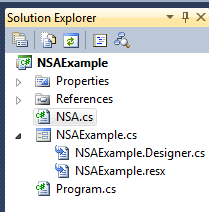
- Add the Test Application (harness) class called NSA.cs to your Application.
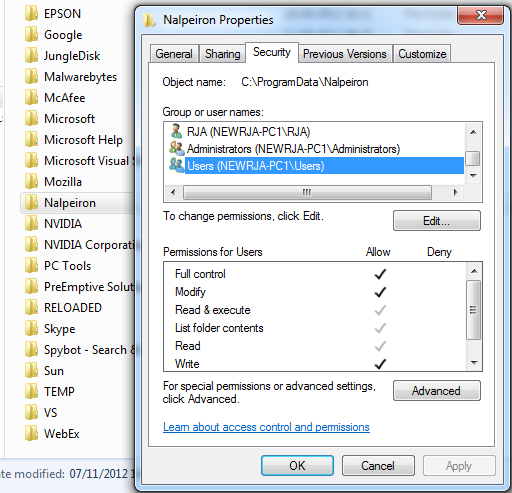
- Create a directory under your common /AppData directory for your OS. Create a folder here called Nalpeiron and assign full permission for the user ‘Users’.
Example locations for app folder:
- Windows – c:\programdata
- Previous versions of windows - C:\Documents and Settings\All Users\Application Data
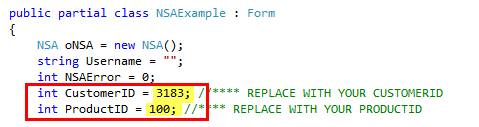
- Now edit 2 variables (CustomerID and ProductID) which will be available to your Application Load event and set them to the values for your NSA product in your code. Edit the CustomerID and ProductID variables in NSAExample.cs to contain the values of your CustomerID and ProductID.
To find the CustomerID and ProductID
- Login to my.nalpeiron.com
- Choose the product from the list (you have previously setup in a former step)
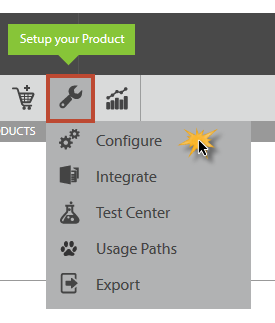
- Choose Setup->configure
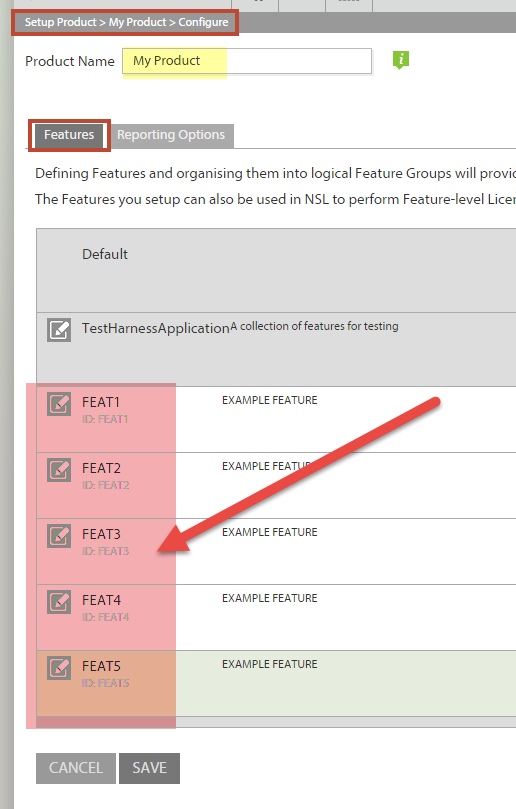
You will then see a screen (as below) with your details for each Product you plan to track with NSA.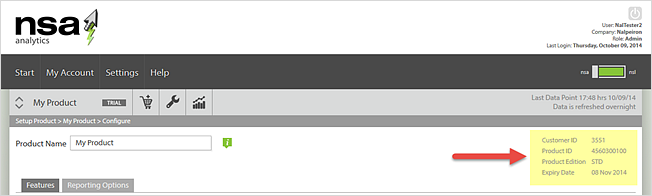
Note these numbers down and then edit the code to include them as below. Note the use of the ProductID.
- Now you can save the example project and place all the sample project and test harness files in a folder.
3 Edit the server side environment to add in the 5 "specific" features that are already in the example.
- Login to my.nalpeiron.com
- Choose the product from the list (usually trial)
- Choose Setup->configure
- Select the features and add the following 5 features with the features codes required for the NSAExample application.
4After you have configured your product in NSA and input the feature codes you will need to download your stamped NSAFilechck.dll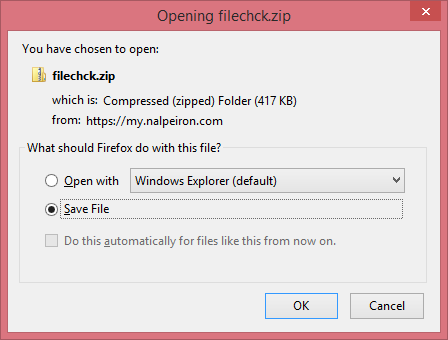
5Ensure the NSAfilechck.DLL is now in your applications bin directory and move on to the next step.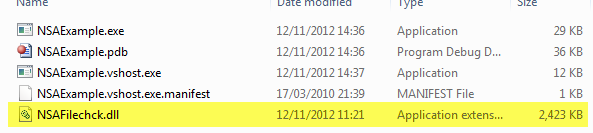
6Build and run the NSA Test application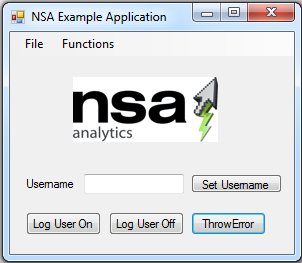
- Now you are ready to start running some tests but you need to get the Server side ready to quickly show you these by setting that up quickly.
When you start testing using the test application the following can be achieved:
- Running the application will log (to NSA) an Application Start and Closing the Application will log (to NSA) an Application Exit.
- Choosing a feature from the "functions" drop down will log (to NSA) a feature start and end. Try each one of the 5.
- Add a username to pass that data (and click "set username" to save it).
- The Log User On Button will simulate log on (to NSA) with the username selected.
- TheLog User Off Button will simulate log off(to NSA).
- ThrowError button will log (to NSA) an example error.
7Now logon to the Nalpeiron Publisher Center and get ready for test activity in the "Test Center".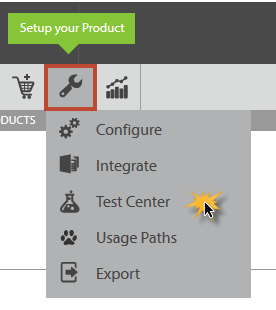
Download the Example Applications attached
Release Notes (Please always check the release notes for the latest updates)