
Introduction
The Nalpeiron Software Analytics Service is a cloud-based service to help you get detailed insight into the usage of your products by your "user".
It works with most major IDE including Windows, Mac, Linux and Java. A real-time Business Information Service for Software Analytics, Run-time Intelligence and Product Usage Insight. Easily retrofit your Software and then capture all the critical elements of a user’s interaction and usage.
In short, it allows you to understand how your Software is performing in the wild.
Use Nalpeiron Software Analytics to:
- Get facts-based interaction data
- Capture user “feedback” and gain detailed insight into product usage
- Improve software quality, reduce customer support and enhance the user experience
- Use feature adoption data to plan new products and focus engineering resources
- Recognize new opportunities and trends
- Save time collating defect, support and product marketing reports
Basic concepts
To get started all you need is your own Software application source code, a library file from Nalpeiron and some example code showing you how to quickly connect the parts together.
The .dll/dylib library file Nalpeiron provides is already securely connected to the Nalpeiron Analytics server.
On the first run, Nalpeiron will uniquely identify the node on which your Software is being installed, but the interaction is not related to an individual user at this point so the interaction is anonymous.
After the first use, Nalpeiron will keep a track of the various parameters you have identified you wish to track, this could include feature usage or simple environment information.
Some of this data collection has to be setup by you, some of it is automatic and requires no effort on your part.
Once running the Nalpeiron Service will pass up to our cloud all the user interactions you are tracking and provide that data in useful charts and reports for you to access anytime you wish at my.nalpeiron.com.
If the user goes offline we will cache the data and then pass it when a connection is available.
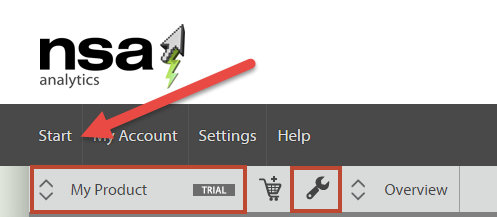
The interface has been kept as simple and easy to use as possible, just click the "start" link on the main toolbar to get back to the main dashboard at any time.
Also on the "product toolbar" below you will work on a product paradigm to control your software in our service and then each product is configured using the "wrench" product setup button.
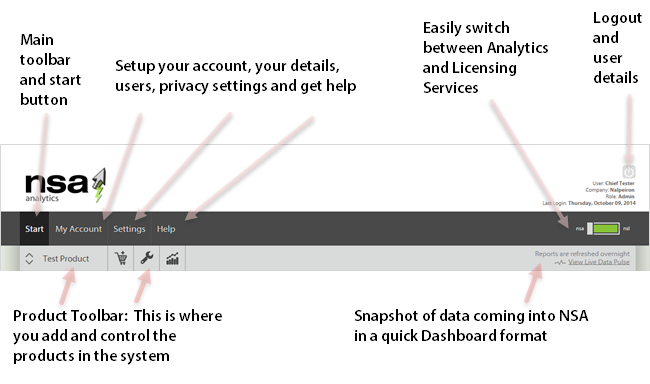
This is a quick overview of the NSA navigation.
Overview of the NSA Publisher Center
This is the main start page you will see when logging in to your account.
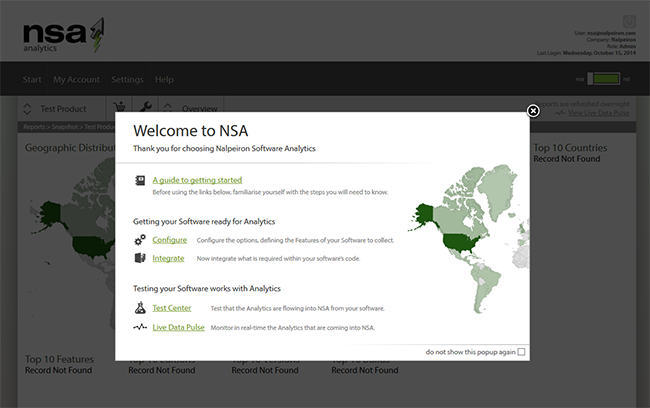
Before you get started it always makes sense to take a look around and review the associated docs so we start you off with our quick help guides so you can get data into NSA as fast and easily as possible!
Also the main dashboard landing page is not that useful at the start as you don't have any data in the system so we encourage you to get your app. connected up and start pushing us data so you can see the reports and dashboards working with useful feedback.
The main dashboard page
Once you have data coming in the main dashboard comes to life and you will see it as a great start point for some useful BI and a general overview of how your app. is doing in the wild (or the test lab).
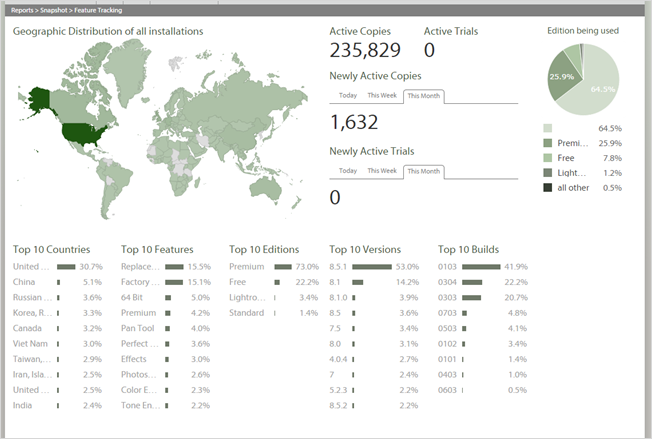
The Overview report shown in the main dashboard page helps you use real "facts" not gut feelings to drive development.
Spend development effort on the features people actually use, not what you “guess” they use.
As you can see from the screenshot it has a range of Top 10's across a range of variables that can be useful to see in a snapshot. You can also easily see data by Day, Week or Month.
This is a good start point.There are more reports and you can learn more about them in this article: "Using Reports" and if you want to get more out of your data you can easily export your data too, see this article for how to do that: "Exporting Data"
Quickstart
Before you go to much further you might want to add in your colleagues and other internal users.
Adding and Managing Internal Users
One of the first tasks is to add your other colleagues within your organization to give them access. You can set various permissions for these users and grant them access through the follow process.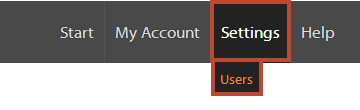
- Click on "Settings", then "users".
Getting files and the project together
The first step before configuring Nalpeiron is to get an example "code sdk" that is appropriate for your own IDE. Or if you don't have easy access to your own source code and simply want to test the service with our test harness application then you can also get that from the download section.
Once you have your own application project ready and/or the Nalpeiron example code you can proceed to the next step. You will mainly be concerned with working with your "Products" and can do that by simply selecting them from a list on the left hand side of the "product" toolbar and that will allow you to configure your tracking options and code your application.
Please be aware of the difference in timing of data collection and reporting when testing.