
The first thing you do to get Started is login to the Nalpeiron back-end server, we call this the Nalpeiron Publisher center.
Nalpeiron uses a "product" paradigm to manage the way our Service segments things you wish to track, its not a literal requirement to have various products you can use the idea to segment anything you wish such as hardware or other components that are not strictly a "product" as such.
In normal use you will want to configure a "product" for each of the applications you wish to separately track.
When configuring your product you can simply name it and note your Customer and Product IDs for the coding of your application, or go deeper and track features and more details about your product such as version numbers and exceptions.
If you don't do anything other than setup a product and attach the Customer and Product IDs to your application Nalpeiron (plus distribute the required libraries) will automatically collect almost all of the data you may wish to track as standard e.g. platforms, geography, environments etc
To get started please ensure you have the credentials to hand you got sent with your trial or account purchase and proceed as below.
Setup your Products in the Nalpeiron Analytics Service
1Login to my.nalpeiron.com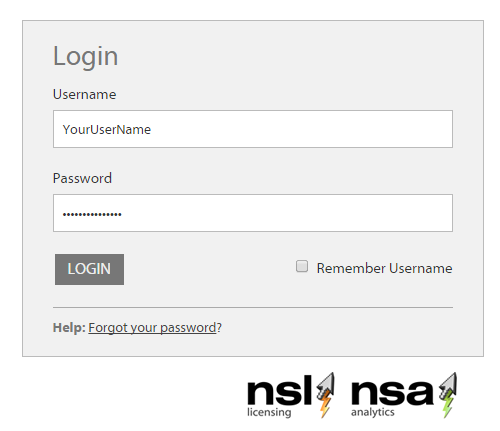
2Edit a product from the list (i.e. the trial product provided or one of the products you have purchased) that requires configuring.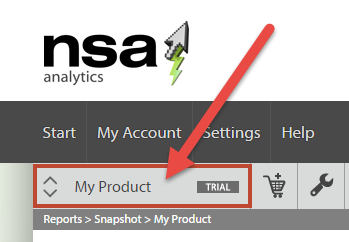
In trial mode you only have a single "My Product" in the system so there is no need to click the drop down list, you can move on to the process of configuring your Product in the system.
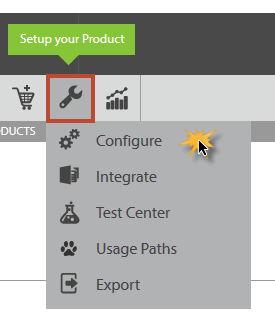
3Choose Setup -> Configure.
- Click the "wrench" Icon to setup and work with each Product in the system. (Each product is unique so it's important to choose the specific one you wish to setup first.)
- Then click the "configure" link in the drop down list.
Name your Products in the Nalpeiron Analytics Service
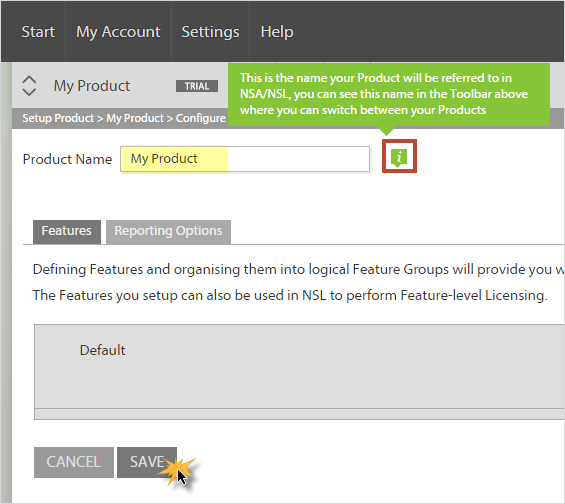
Add feature tracking to your Products in the Nalpeiron Analytics Service
ShaferError = oShafer.FeatureStart(Username, "FEAT1", ref TxnID);
if (ShaferError != (int)Shafer.ErrorCodes.FC_OK && ShaferError != (int)Shafer.ErrorCodes.FC_PRIVACY_NOTSET)
{
Shafer.ErrorCodes Err = (Shafer.ErrorCodes)ShaferError;
string ErrMess = "";
Shafer.GetErrorMessage((int)Err, ref ErrMess);
MessageBox.Show(ErrMess);
}
//DO Function Code
ShaferError = oShafer.FeatureEnd(Username, "FEAT1", TxnID);
if (ShaferError != (int)Shafer.ErrorCodes.FC_OK && ShaferError != (int)Shafer.ErrorCodes.FC_PRIVACY_NOTSET)
{
Shafer.ErrorCodes Err = (Shafer.ErrorCodes)ShaferError;
string ErrMess = "";
Shafer.GetErrorMessage((int)Err, ref ErrMess);
MessageBox.Show(ErrMess);
}
The FeatureStart and FeatureEnd functions are are wrappers to the native function calls NSAFeatureStart and NSAFeatureStop in the Nalpeiron library ('filechk') dll:
public int FeatureStart(string Username, string FeatureCode, ref UInt32 TxnID)
{
int ReturnValue = 0;        // Convert strings to byte arrays for Unicode compatibility
string NSAClientData = "";
byte[] UTFNSAClientData = Encoding.UTF8.GetBytes(NSAClientData == null ? "" : NSAClientData);
byte[] UTFUsername = Encoding.UTF8.GetBytes(Username == null ? "" : Username);
byte[] UTFFeatureCode = Encoding.UTF8.GetBytes(FeatureCode == null ? "" : FeatureCode);
ReturnValue = NSAFeatureStart(UTFUsername, UTFFeatureCode, NSAClientData == "" ? null : UTFNSAClientData, ref TxnID);
return ReturnValue;
}

public int FeatureEnd(string Username, string FeatureCode, UInt32 TxnID)
{
int ReturnValue = 0;        // Convert strings to byte arrays for Unicode compatibility
string NSAClientData = "";
byte[] UTFNSAClientData = Encoding.UTF8.GetBytes(NSAClientData == null ? "" : NSAClientData);
byte[] UTFUsername = Encoding.UTF8.GetBytes(Username == null ? "" : Username);
byte[] UTFFeatureCode = Encoding.UTF8.GetBytes(FeatureCode == null ? "" : FeatureCode);
ReturnValue = NSAFeatureStop(UTFUsername, UTFFeatureCode, NSAClientData == "" ? null : UTFNSAClientData, ref TxnID);
return ReturnValue;
}
where the API calls for these two functions are as follows:
NSAFeatureStart
ReturnValue = NSAFeatureStart(UTFUserName,UTFFeatureName,UTFNSAClientData,TxnID)
with the parameters being defined as follows:
| Parameter | Type |
Meaning |
| UTFUserName | UTF8 encoded byte array | Name of current user. |
| UTFFeatureName | UTF8 encoded byte array | Feature Code |
| UTFNSAClientData | UTF8 encoded byte array | Not yet implemented. Set to UTF8 encoded byte array for empty string. |
| TxnID | UInt32 | Transaction ID. |
To process the ReturnValue , it must, after the function call, be decremented by the security offset parameter (see client applications documentation), i.e.
ReturnValue -= ( int )SecurityOffset;
This ReturnValue, on success, will have the value 0. Other values are error codes. The meaning of such a code can be obtained from a call to NalpGetErrorMsg (see client library documentation.)
This function is used to start a feature. The ReturnValue (minus the security offset) provides error information for values other than 0. When 0 is returned, the operation has been successful. Again, a call to NalpGetErrorMsg will provide detailed information in the event of an error. An important parameter here is the transaction ID TxnID. This is used to identify the particular feature run and thereby the calculate, e.g. the duration of the feature run from the call to:
NSAFeatureStop
ReturnValue = NSAFeatureStop(UTFUserName,UTFFeatureName,UTFNSAClientData,TxnID)
This function is used to end a feature, with the parameters defined as above. The ReturnValue (minus the security offset) provides error information for values other than 0. When 0 is returned, the operation has been successful. Again, a call to NalpGetErrorMsg will provide detailed information in the event of an error.
Additional Reporting Options
If you wish to track more options, then click the "Reporting Options" tab.
This allows you to specify product version details to help between recent versions of this product in reporting.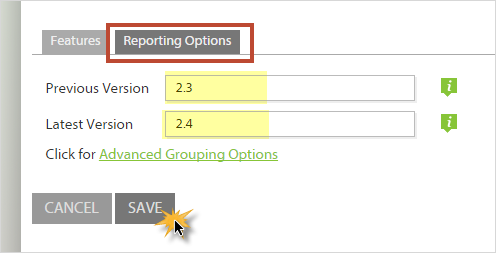
- Simply enter any relevant details to you like a version number in the fields and click save.
In addition to this quick option you can also modify more advanced grouping options such as reporting on CPU and OS in groups to simplify reports, these group options are on by default.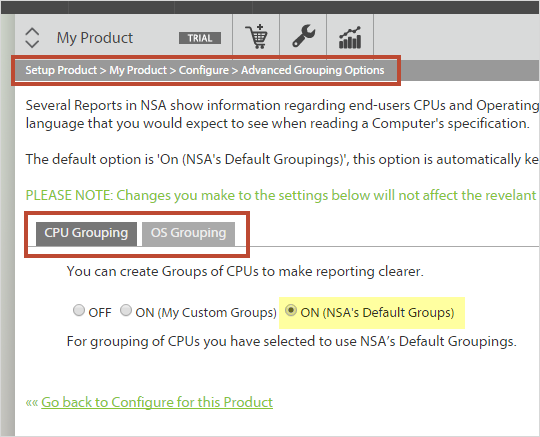
Once you have added all the features (with unique names) you wish to add and any reporting options you can move on to downloading the Nalpeiron library to include with your application installer.