
Create a product
Zentitle breaks down its paradigm into "products" (or ProductIDs) and licenses for distribution to the end user (license codes).
Login to your Zentitle dashboard at my.nalpeiron.com
All accounts start with one product created by default, which you can edit directly as your first product, or create a new product.
To create a new product, click on the shopping cart icon: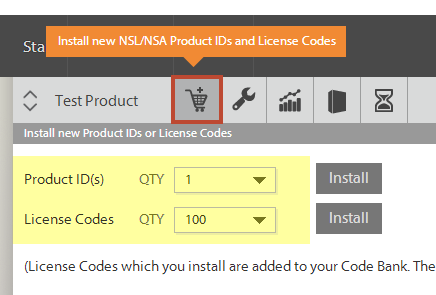
Click on the ProductIDs and choose how many to create. Click "Install".
Once you have added products or codes, they will show up in the Product drop-down selector.
Select a product
On the left hand side of the gray toolbar (the product drop-down selector), you will see a products dropdown. Click the product you wish to configure:
On doing this, the selected product will become your current product and the dashboard will refresh itself accordingly, e.g. the overview page will now display the statistics only for that product.
Configure the product
To configure the product you've selected, click the wrench icon and select the 'Configure' option from the drop-down menu as shown below:
Now you can quickly setup your product with a few simple options.
You will now be at the product configuration page:
1
Name your Product to your own name to make identifying your project easier.
The underscore '_' character is prohibited in product names as it is used for internal purposes.
2
Choose if you wish to offer end users a trial. The trial period is measured in days.4
3
Set the number of maximum number of active clients (devices) allowed on this license code at a given time.
4
Choose your business model (license type) for this "product" (you can have multiple models and products).
5
If you choose a "subscription" based model you get the option to set the subscription period that the license will lapse until reset (i.e. a user pays then the period recurs).
6
Make the appropriate changes. Then click Save.
Finding your Customer ID and Product ID
Your customer ID and (full) product ID for the currently selected product can be found on your product configuration page. This may be accessed by clicking the wrench icon on the dashboard and selecting Configure.

For developers: When setting your product ID in your application, you should use only the last 5 digits, omitting any leading zeroes.