
Licenses
When a Standard User logs into the End-User Portal they will see the dashboard with the layout shown below:
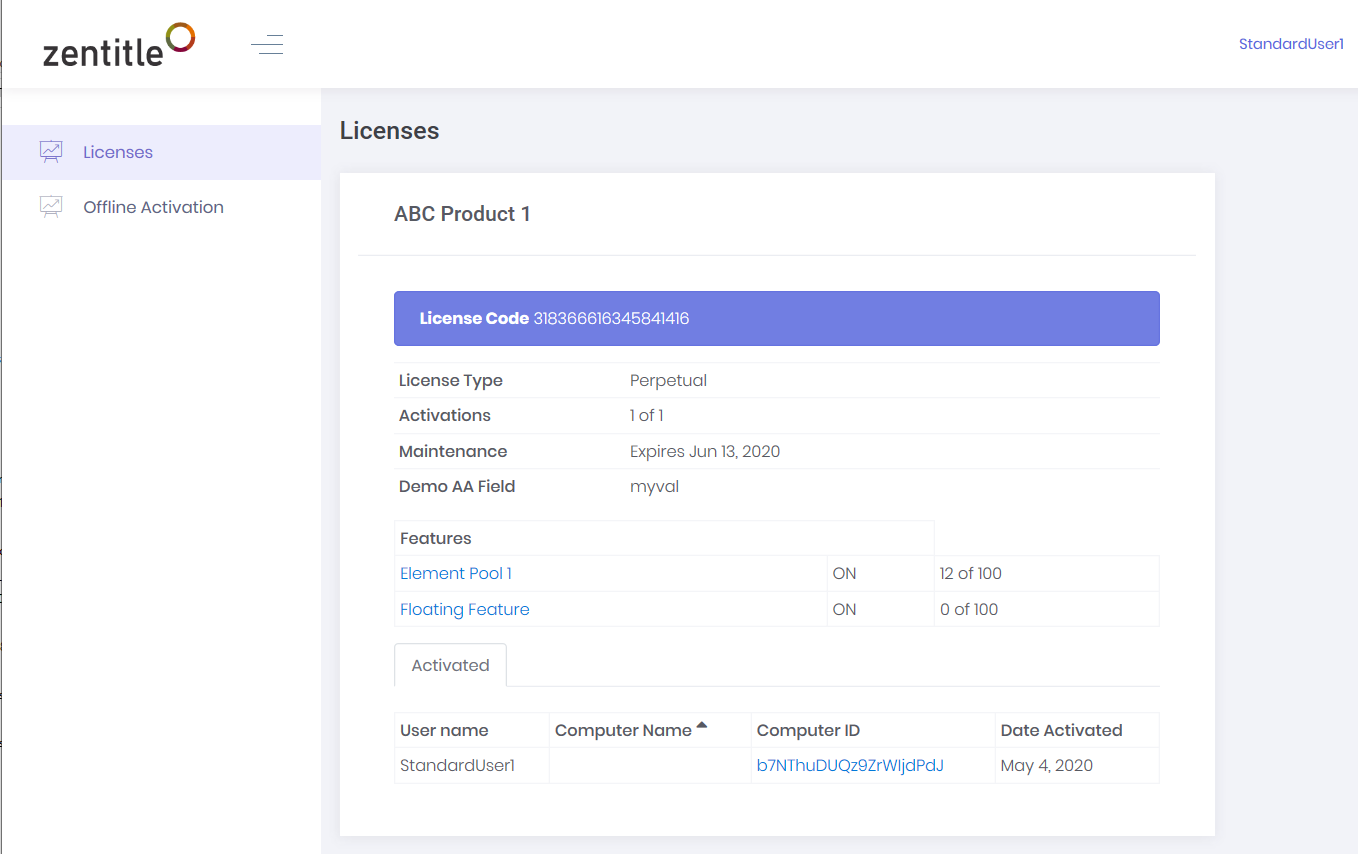
The left hand menu has the items 'Licenses' and 'Offline Activation' and the 'Licenses' item is automatically opened. This will show a list of license codes the user currently has assigned to them along with the corresponding products.
Each entry in this list will also show the following information:
- License Type: E.g. Perpetual, Subscription etc.
- Activations: The number of current activations on this license out the maximum number allowed.
- Maintenance: The maintenance end date if set.
- Any Agility Fields and/or Features that have been configured by the Administrator.
Offline Activation and Deactivation
Selecting the 'Offline Activation' menu item will take the user to a form enabling them to perform offline activation and deactivation using the standard Zentitle certificate exchange (see here for further details.)
Offline Activation
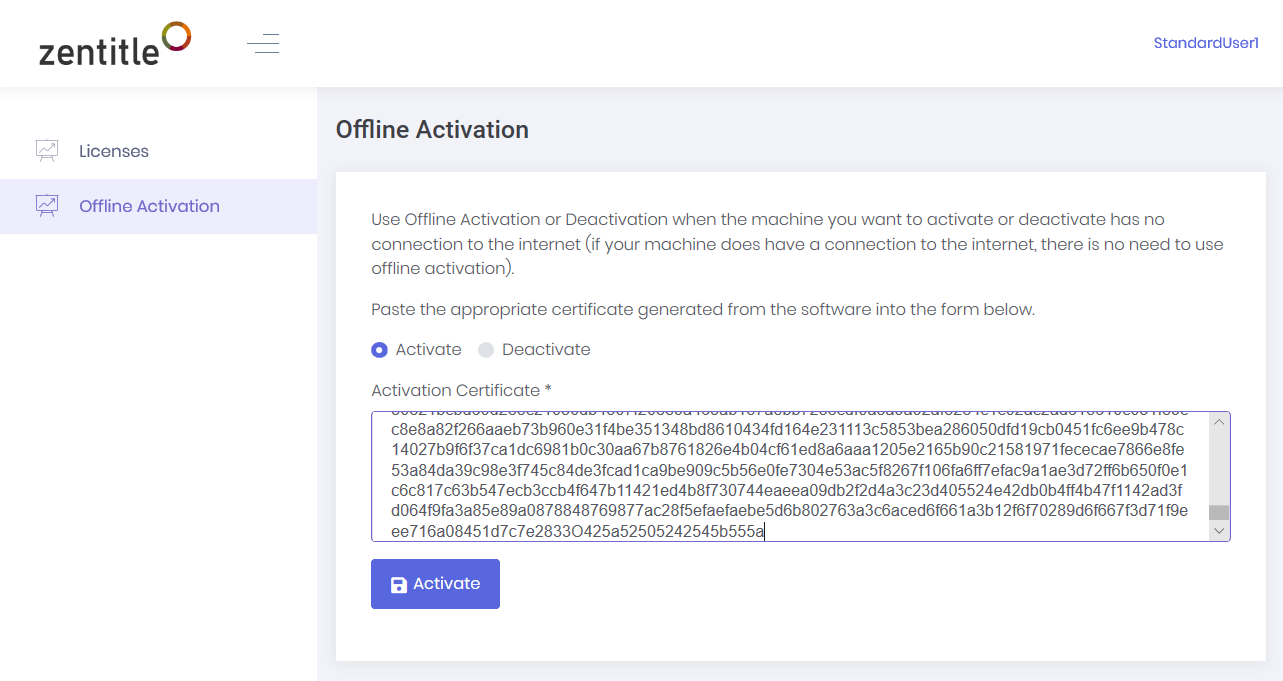
To perform an offline activation, the user will have to obtain a request certificate from the client application.
They should then paste this into the 'Activation Request' space provided, selecting 'Activate' and choose the correct product from the 'Product' dropdown menu.
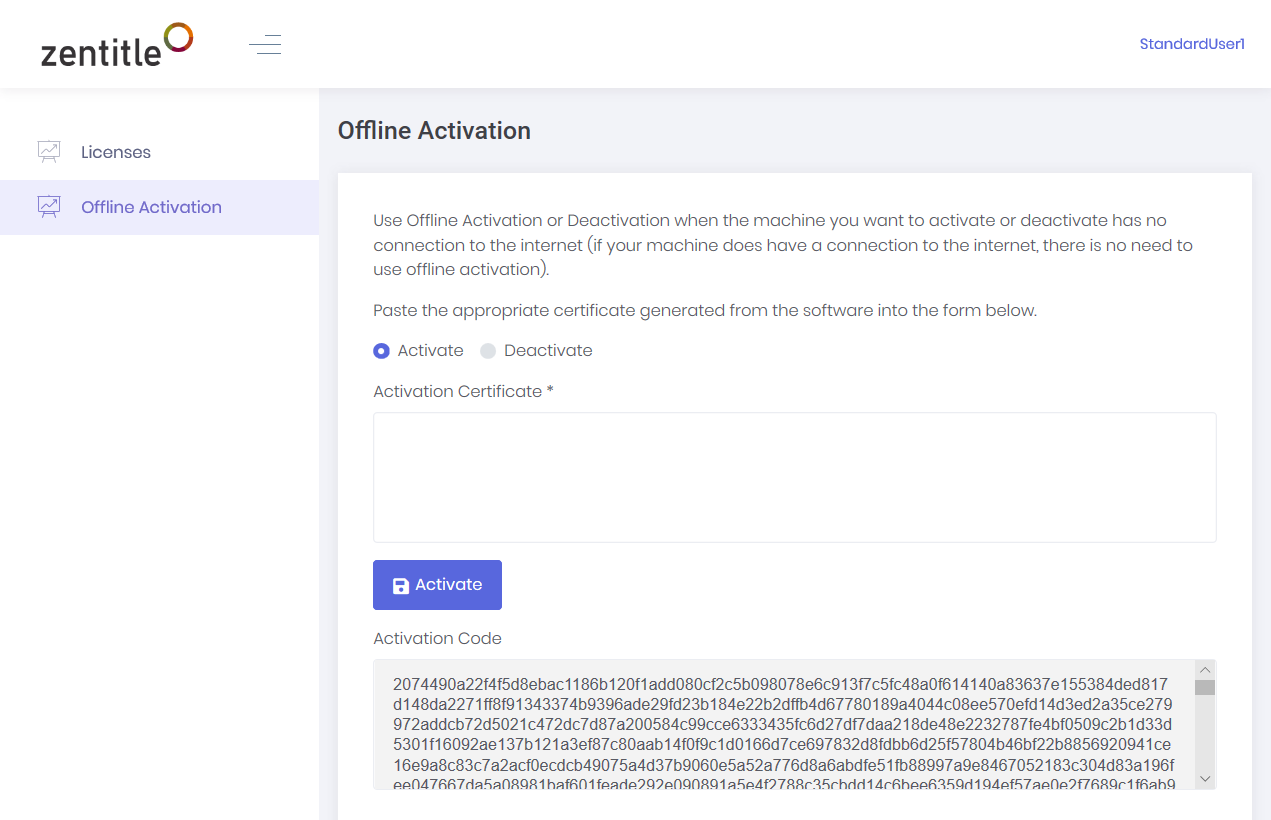
Clicking the 'Activate' button will create an activation certificate, as shown below, that should then be imported into the client application.
Offline Deactivation
For offline deactivation, the user should paste the deactivation request certificate into the space provided, select the product and the 'Deactivate' option:
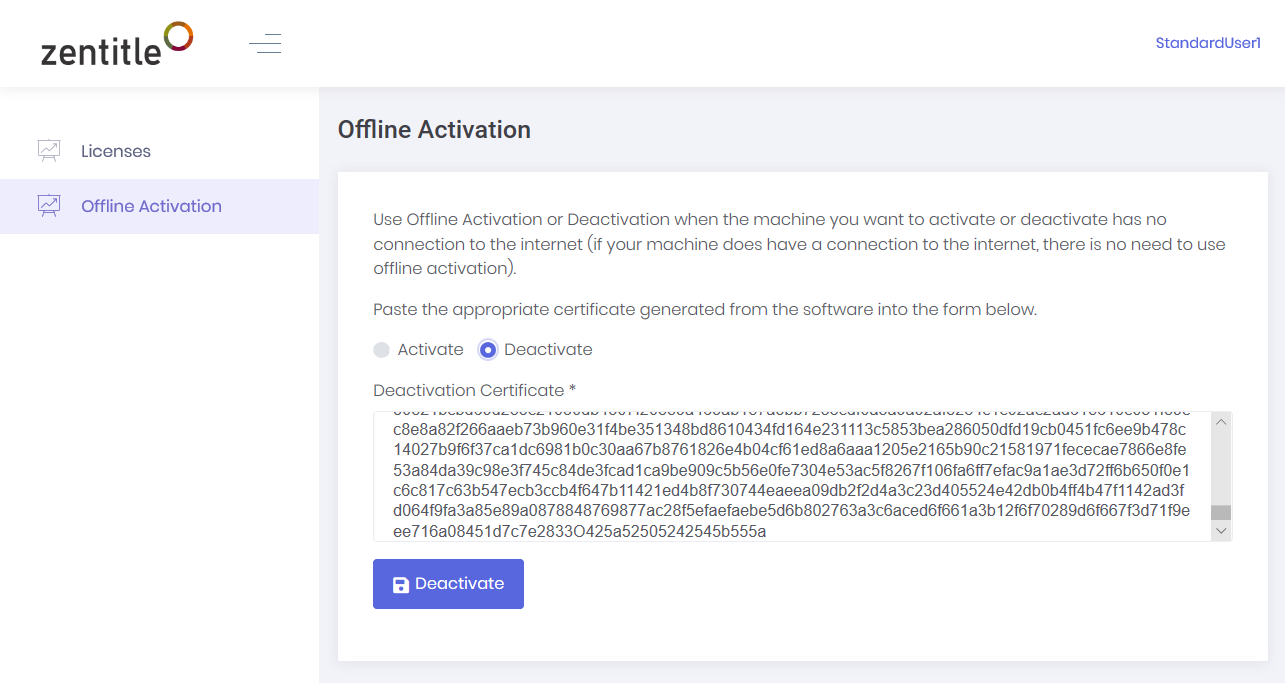
Clicking the 'Deactivate' button will deactivate the client.