
Introduction
As an Independent Software Vendor (ISV), you will have to consider the possibility that some of your customers will run your applications on virtual machines (VMs) and be able to address any challenges that this may pose. While the use of VMs may be entirely legitimate in many use cases, care must be taken to ensure that virtual environments are not exploited as a means of circumventing entitlement management.
One of the principal challenges of entitlement management is ensuring that application and feature access corresponds exactly to that to which the user has been entitled. Zentitle licensing is based on the identification of client machines rather than the users themselves. One is then led to consider the scenario where a single machine image, incorporating a licensed copy of the client application, is hosted on a number of identical virtual environments ('VM clones'.) An important task is to prevent these virtual machines from presenting themselves to the Zentitle Licensing server as a single machine running a single instance of the licensed software.
Zentitle Licensing has the following features designed to counteract this kind of software misuse though virtualization whilst minimizing any inconvenience to legitimate virtual and metal clients:
- Client-side virtualization detection.
- Presentation of virtual client data on the Zentitle Licensing Dashboard.
- Provision of a VM License Check Interval.
- Discrimination of VM clones by assignment of different Computer IDs.
- Allowing VM’s and metal machines to activate on the same license code.
Enabling Virtualization Detection
Zentitle virtualization detection is easily enabled in the client library. On the Integrate page, where the library is configured and downloaded, one simply has to check the 'Switch on Virtualisation Detection' checkbox before downloading the library to enable this feature, as shown below.
Selecting also the 'Treat Hyper-V hosts as physical machines' option will prevent Hyper-V hosts, which are physical machines having virtualized OSs, from being detected as VMs. Please see below for more information about virtualization types.
NSL and Virtualization Type
Virtualization environments are often categorized into two types: Type 1 and Type 2. Type 1, also known as native, hypervisors run on bare metal whereas Type 2, also known as hosted, hypervisors run as an application within an operating system. These categories can have considerable overlap as with KVM which is a kernel module. Hyper-V can also cause confusion when it is installed on an existing Windows OS. Hyper-V is actually a Type 1 hypervisor. However, if installed on a Windows OS, it does not run as an application on that OS. Instead, it virtualizes the OS. That is, the OS running when Hyper-V is installed becomes a virtual machine and the Zentitle library detects it as such. In the majority of cases, treating this host VM as a virtual machine would lead to undesired behavior. In the case of Hyper-V installed on a Windows system, NSL identifies the host and all clients running on this host as VMs, but returns appropriate identifiers to distinguish between the two, allowing developers to decide how they want to handle a host OS that has been virtualized i.e. with the above option to treat Hyper-V hosts as physical machines.
As of insider build version 18305, Windows 10 Pro and Enterprise will incorporate a feature known as Windows Sandbox. This is a lightweight, temporary Windows instance which can be used to isolate tasks from your main desktop environment. This functionality requires virtualisation capabilities to be enabled in the BIOS. When these are enabled, both the sandbox and the host OS will be detected by NSL as Hyper-V virtual machines.
The VM License Check Interval
The management of VMs requires a separate VM License Check Interval to be set. The purpose of this quantity is to ensure that if a VM is taken offline, its license will not be viable indefinitely. It will have to contact the server once this interval has expired to refresh its license status and remain active if it does not exceed the number of allowed activations. This ensures the offline license will be reused if not heard from by the Zentitle server, thus auto-healing a lost seat. Also, the client machine will stop working if offline after the VM License Check Interval.
We recommend using a low value of the VM License Check Interval to stop extended use of VM clones which have been taken offline.
To specify this for trials, go to the product edit page (the 'Configure' item on the menu accessed from the wrench icon on the toolbar) and click the Options tab.
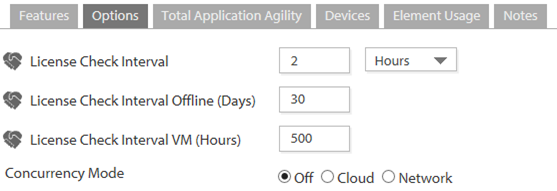
Set the 'License Check Interval (VM)' value to the required number of hours.

This field can be set for an individual license code by clicking the Options tab on the corresponding code edit page:
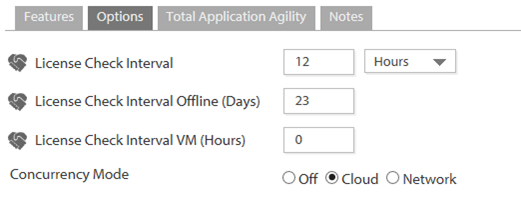
It can also be set for a license code profile by clicking the Options tab on the corresponding profile edit page:
Trials on VMs
If a client machine on a trial license is a VM, this will be detected as such (see below.) All VM clones will have the same Computer ID. Therefore, they will all act as a single machine. These trials will all expire at the master trial expiry date.
Licenses on VMs
VM clones which have been activated with the same license code will have different Computer IDs. The license of an activated VM client is always treated as concurrent by the Zentitle server regardless of the initial license type. This may cause confusion if the license is used on multiple machines. For example, if a license is initially set to be a permanent license on a non-virtual machine, the license will show on that machine and on the server as permanent.
On a VM, the client (via a call to NSLGetLicenseInfo) will always indicate that the license is a concurrent license. This is to ensure that VM clones are handled on the server side correctly: in our example applications, on application exit, the license must be returned to the server. This also enables auto-healing of the license code if the VM client application is started and the machine is then taken offline and not heard from again.
- The workdir contains the old Computer ID and so the integrity of this folder is essential for this 'auto-healing' process to work. In other words, don't delete this.
- Old VM deactivation records greater than 7 days old will be automatically deleted.
Virtual Machine Identification
Trials
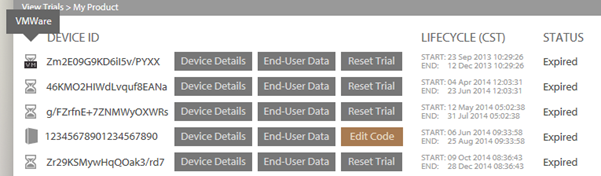
On the Manage Trials page, a VM can be identified by the 'VM' indicator overlaying the activation type icon, as shown below. Hovering over this icon will reveal the virtualization platform being used.
Licensed Activations
VMs are similarly indicated on the Zentitle dashboard for licensed activations. On the code edit page, the VM indicator overlays the operating system icon in the Devices tab, as shown below.

This is also the case for the Devices and Activity page:

Virtualization and Zentitle Analytics (NSA)
The NSA System Info data collection, if enabled, will collect the virtualization platform, as shown on the Device Details page below:
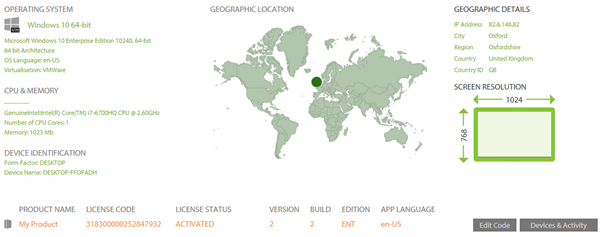
For trials, because the Computer ID is the same for all VM clones, all NSA data captured for a collection of such clones will be combined, as it is impossible to discriminate among them.
For licensed activations, however, the Computer ID of each clone changes with each call to NSLGetLicense. Hence, when capturing an analytics data set, e.g. feature activity, the data for all Computer IDs corresponding to a single VM clone must be merged to form the complete data set for this clone.