
Note: Your developer must first set up user registration data capture.
Introduction
If you wish to manage your users and their entitlements you can do so in several ways.If your users exist within the Zentitle ecosystem simply under their generic and anonymous ComputerID (unique device identifier) then you can do that, but you can also collect data from Users and associate that with their PCs so that you have a more detailed record of the usage and deployment of your Software.
Your End-Users exist within the Zentitle ecosystem as generic and anonymous ComputerIDs (unique PC identifier) which are associated with License Codes and/or Trials of your Products. You can extend this identification making it non-anonymous by collecting data from End-Users when they begin a Trial or an Activated Product that becomes associated with their unique Computer ID.
The End-User data you collect is completely flexible, you can collect what you want. You may code so that you just collect traditional types of data such as Names, Email Addresses etc that the End-User provides you. But, you can also collect anything you wish to collect to suit your own operations, examples could be e-commerce information such as order or invoice numbers, in fact anything that you wish either the End-User to provide, and/or data that you wish to attach which the End-User themselves never sees.
In order to do this you will need to setup your own code to collect data and bring that into Zentitle via our APIs. Once in our system and associated with a ComputerID (unique PC identifier) then you use this extra data to manage your licensing more effectively along with adding information to the life-cycle of that user for better User management.
Once this End-User Data is collected you can search by First Name, Last Name, eMail Address and Company to find a match or matches, then Edit any License Codes they have for the Products they have, or reset Trials as required (to allow them to begin their Trial over again).
Collecting User Data
To collect data from the User see see our article about how to do that here.Managing the data within the Zentitle UI
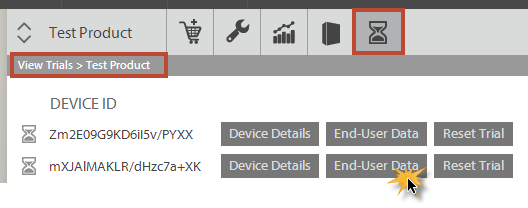
There are two main areas of the Zentitle UI where you can review the captured user data.One is associated with a trial device/record. Simply clicking on the End-User Data button will take you to the records for that device. Note that trials do not consume a license code.
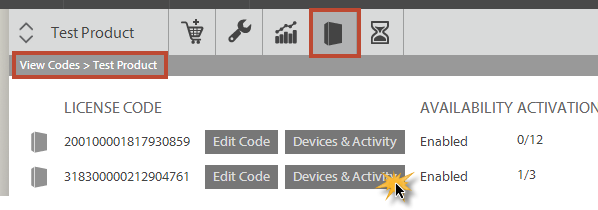
The other is associated with a device, in the computers and activity screen. In this case you first locate a license code of interest (via search or the list) and then click on "Computers and Activity"
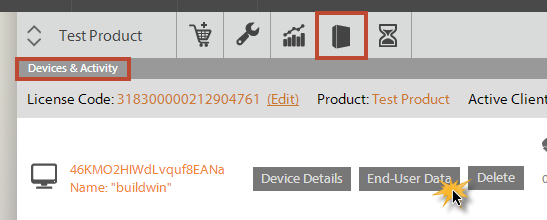
Then you choose the device of interest associated with the code, this could be one or more devices, clicking on the End-User Data button will take you to the records for that device.
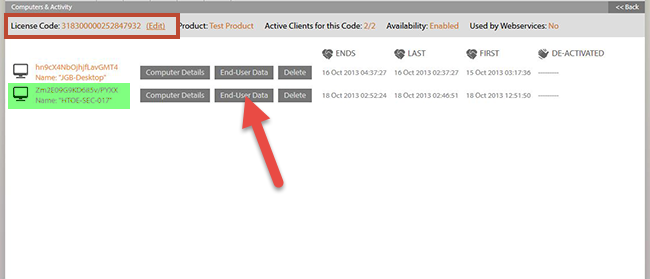
In each case there needs to have been some activity against a license or a trial record created. At these points the user data collected by you will be associated with these records in our system and can be viewed in the User Interface.
Different uses for End User Data
End user data functionality is a broad term for any form of data you wish to attach to a device in our system.Traditionally that would have been a name and address for example.
Zentitle will enable almost any data to be attached, and to also the data to be attached over time.
To access the data from a license code
- First you search for the code in question, and then on that record you will see the devices attached.
- Choose the relevant device to review the data (you can see the "computerID" from Zentitle as well as any collected local "name" data for the device).
- Click the "End-User Data" button.
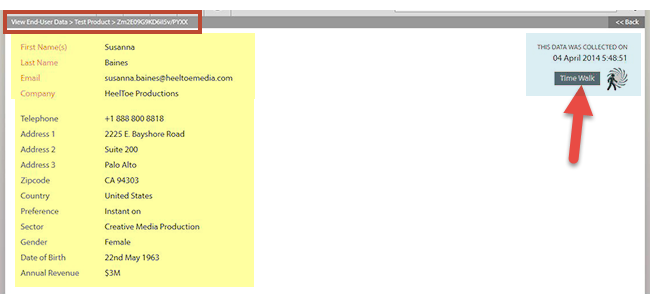
Once you are on the End-User data page you will see the data collected on the left, if you have any associated with this device.
The top four fields are the ones we recommend as the minimum data to collect and we do a "fast" search on from the Zentitle toolbar.
The data below this is entirely up to you, in this case in the yellow you can see some sample data that would be collected and stored with a licensed user.
On the right you can see the data collection date and you can click an additional option to review the data collected over time, we call that "Time Walk".
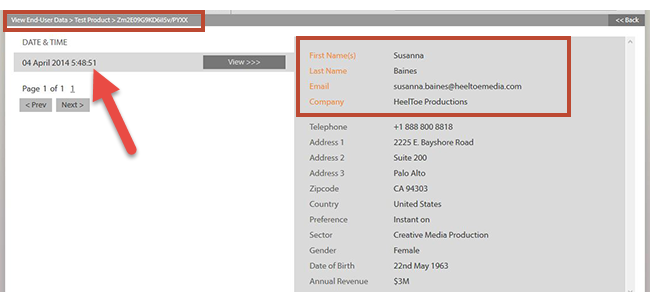
"Time Walk" shows you the collection dates and data collected at that time, see below for an example. This will only display if there is more than one data record.
Reviewing data from Trial Users
From a trial, you can also see the data but access it differently as we outline above.Note in the toolbar there is no associated code, just the device data.
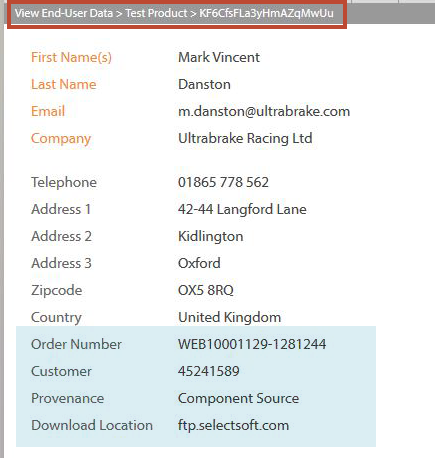
Below is just another example of the type of data you can collect.
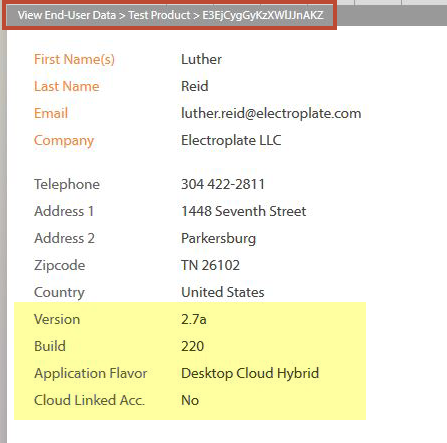
Note that you can automatically collect data and also have the user enter the data and then aggregate it into your one view.