
Introduction
Now you have your application setup and deployed you can start to export the gathered licensing data for your product(s).
You can then analyze it using data mining applications from third parties or your own In-house Solutions.
Exporting your data
The NSL Export functionality enables the downloading of historical licensing data in multiple formats. This functionality can be accessed on the NSL dashboard by clicking the wrench icon. This will display a drop-down menu with the last item being Export.
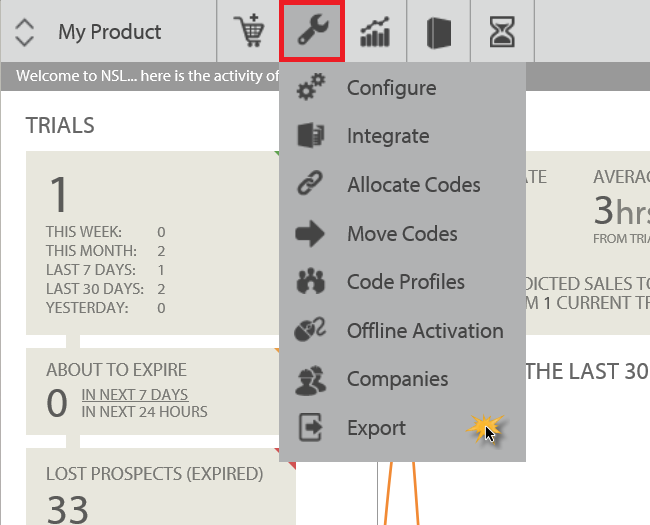
- To get started login as usual and click on 'Export' on the product toolbar.
You will be presented with a variety of export options for the kind of data you wish to export, for which products, over which time interval and in what format.
Export Categories
The export data types fall into three categories:
- Consumer Registration Data
- Licensing data
- Trial Data
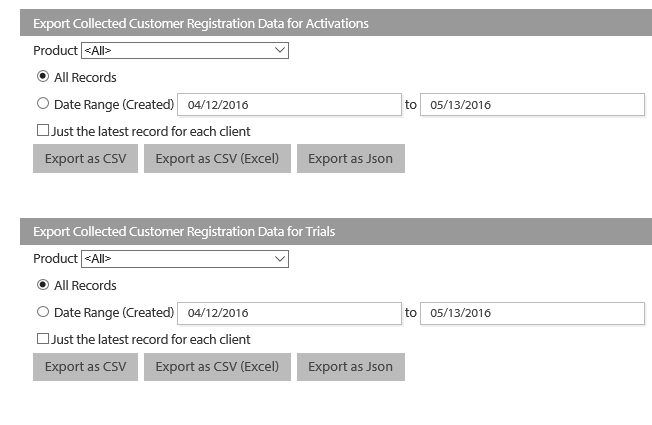
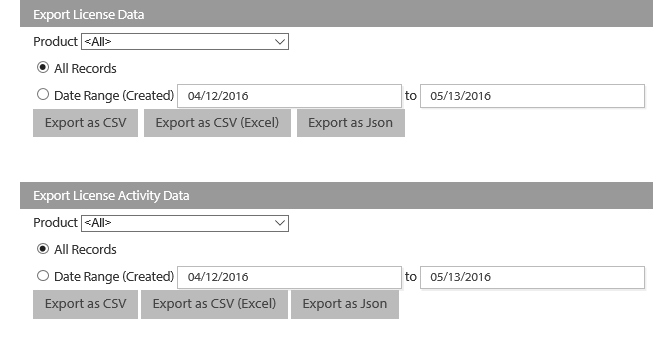
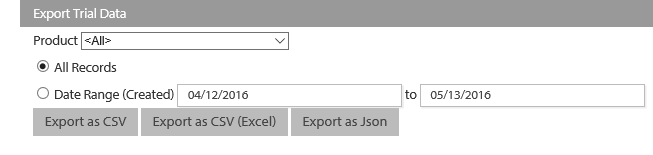
For consumer registration data, you can choose whether to export such data for trial or activations (i.e. with license codes.) For licensing data, you can choose whether to export license data, which contains the settings for the license codes associated with your product, or license activity data, which contains data pertaining to activations and deactivations of your license codes. The trial data export pertains to trial activity, such as the start and end dates of each trial.
Each export may contain up to 100000 records. Exceeding this limit will lead to the creation of multiple exports for different date ranges.
The user interfaces for the export categories are shown below:
Consumer Registration Data
Licensing Data
Trial Data
Export functionality
For each export category, you can tailor the following settings to your requirements:
- Product. From the product dropdown, you can choose to export data from all of your products or from any particular product.
- All Records/Date Range. If you check the 'All Records' button, the entire history of records in the selected category for the chosen product(s) will be exported. If, instead, you check 'Date Range', then only data created between the dates specified in the neighboring textboxes will be exported.
- Latest record only. If you check the 'Just the latest record for each client' box (consumer registration data exports), then only the latest record for each client machine will be exported, subject to it being within the date range you have specified.
Export Format
When you have chosen an export category and set the above options to those required, you can begin the export process by clicking the grey button that will generate the export in one of three formats. These are:
- CSV
- CSV (Excel)
- Json
Export Preparation
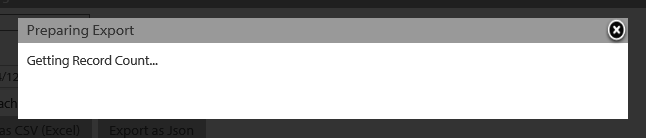
The preparation of your export will begin when you have clicked the button for your chosen format. You will see a message informing you that the records to be exported are being counted:
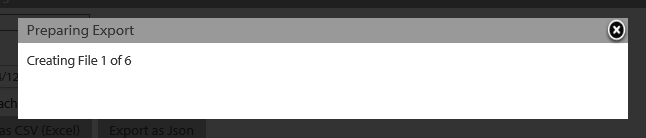
For large exports, the data is split among multiple files, with each containing at most 100000 records. As such, your export may contain many files. The next message shows you which file is currently being prepared.
When all files have been prepared, they are added to a zip archive.
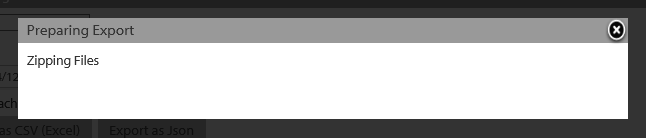
When this zip archive has been prepared, it can be downloaded through your browser.

The names of the archive and individual export files will contain information about the data you exported. The format of these filenames is as follows:
<ExportCategory>_<CompanyID>_<StartDateTime>_<EndDateTime>
where the <DateTime> fields span the time interval over which the exported data was recorded.