
Introduction
An element pool is a type of feature that can be associated with a license code which is characterized by having a number of multipurpose 'elements' associated with the code. These elements can represent any finite, fungible resource that may be apportioned to the set of instances of a client application associated with this license code, whereby the total number of elements for this code is fixed.
Examples include:
- Network connections
- Processor cores on a server
- Any form or real or digital currency
Each client instance may 'check-out' or 'check-in' any number of elements subject to the condition that the total number of elements checked does not exceed the total number of elements associated with the license code. This total number can be set on a code-by-code basis or set globally for a license code profile.
Element pools are managed by the Zentitle activation server. As such, they are only suitable for online licensing where the client machines refresh their licenses from our server at regular intervals.
Dashboard Element Pool Management
Setting up an Element Pool Feature
An element pool feature can be created and assigned to a license code (or profile) in a similar manner to that of other feature types. The first step is to go to your product's Configure page from the main menu:
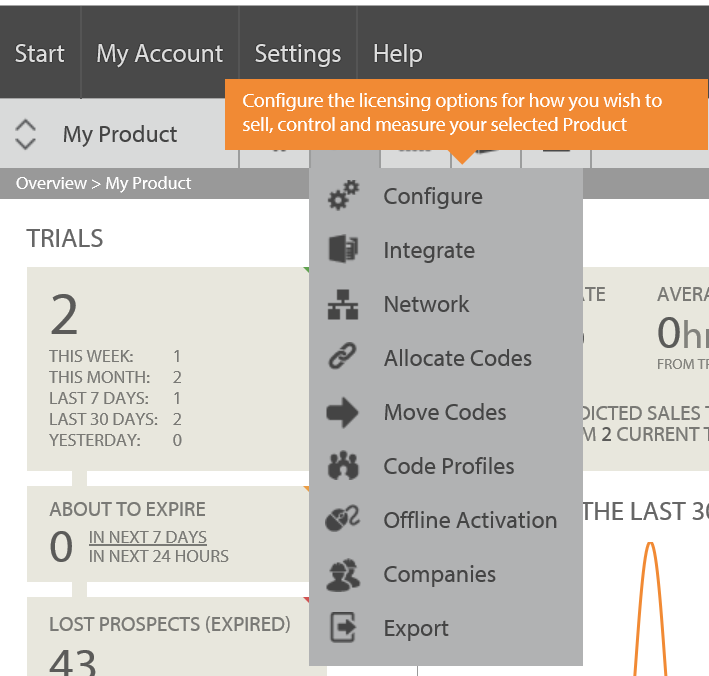
On arriving at the Configure page, click the Show Advanced Options button and click the Features tab. This will show you a tree representation of your existing features and also an Add Feature button.
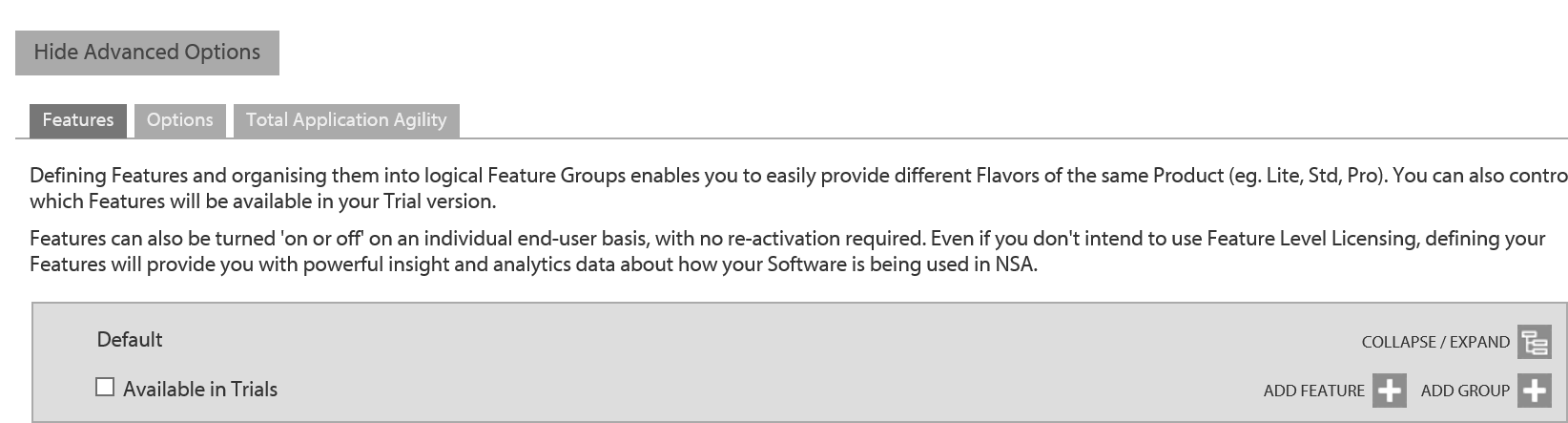
Clicking this button will bring up the Add/Edit Feature dialog as shown below.
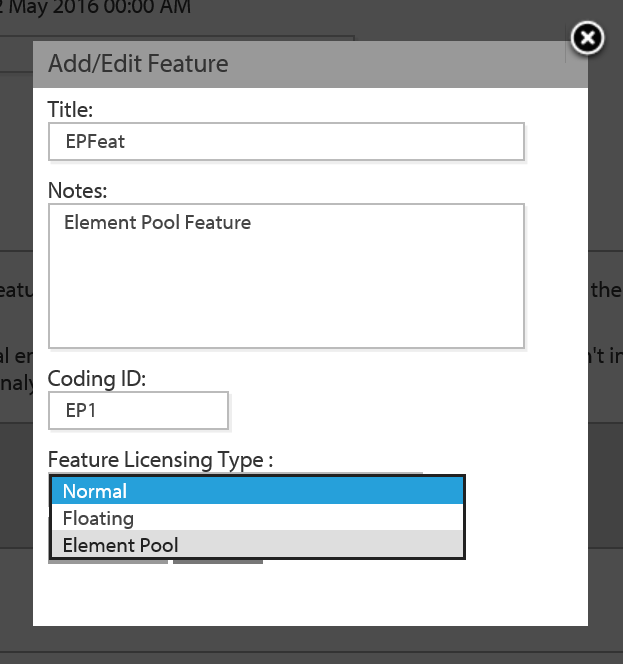
To define an element pool, simply give your feature a title, add some notes and a 5 character Coding ID. Select the Feature Licensing Type to be Element Pool to complete the definition.
An existing feature of another type (normal or floating) may be converted into an element pool, or vice versa, simply by clicking the Edit icon next to the feature title, which will bring up the Add/Edit dialog enabling this change to be made.
Element Pools and Profiles
Having defined an element pool, you may now wish to associate it with a license code profile. To do so, go to the Code Profiles page from the main menu as shown.
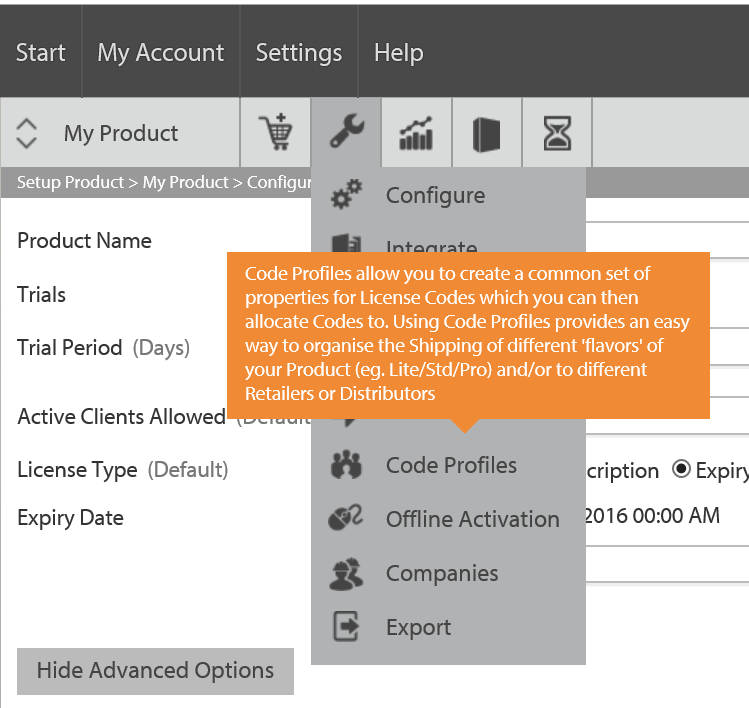
Clicking Edit button next to the profile you wish to select will take you to the Edit Profile page for this profile. On this page you will see a Features tab. Clicking this will display the features tree, incorporating your newly-defined element pool, for the current product.
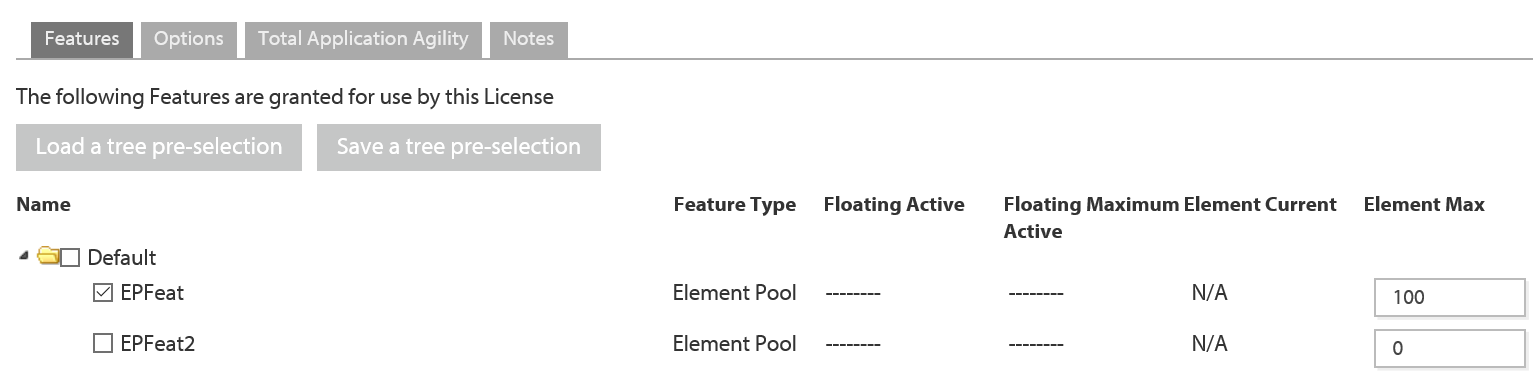
Here you have the opportunity to define the total number of elements that is associated with a license code belonging to this profile. Simple enter this number into the Element Max textbox and click Save.
Element Pools and License Codes
Alternatively, you can assign an element pool to an individual license code. To do this, select the View and Manage Codes page from the main menu as shown.
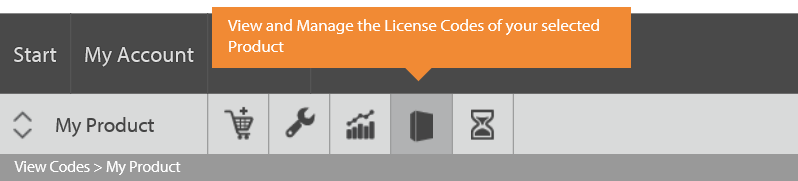
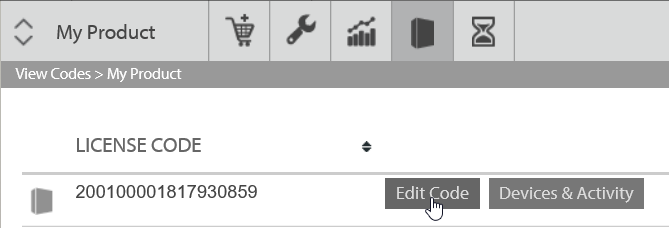
On the view and Manage Codes page, click the Edit Code button next to the license code you wish to work with. This will take you to that license code's Edit Code page.
On the Edit Code page, click the Features tab to see the feature tree for your product. For element pools, there are two columns of particular interest:
- Element Current: This is the number of elements currently checked out for this pool with this license code.
- Element Max: This is the total number of elements in this pool for this license code. You can set a specific value for this code by editing the value in the textbox.

Tracking Element Usage
The Element Usage tab provides the following information about the current and historical usage of element pools for the chosen license code:
- Current usage of all element pools by all devices activated with this license code.
- A historical record of all element transactions for all element pools for this license code.
These are shown in two tables: Current Element Usage by Device and Element Usage history, shown below.
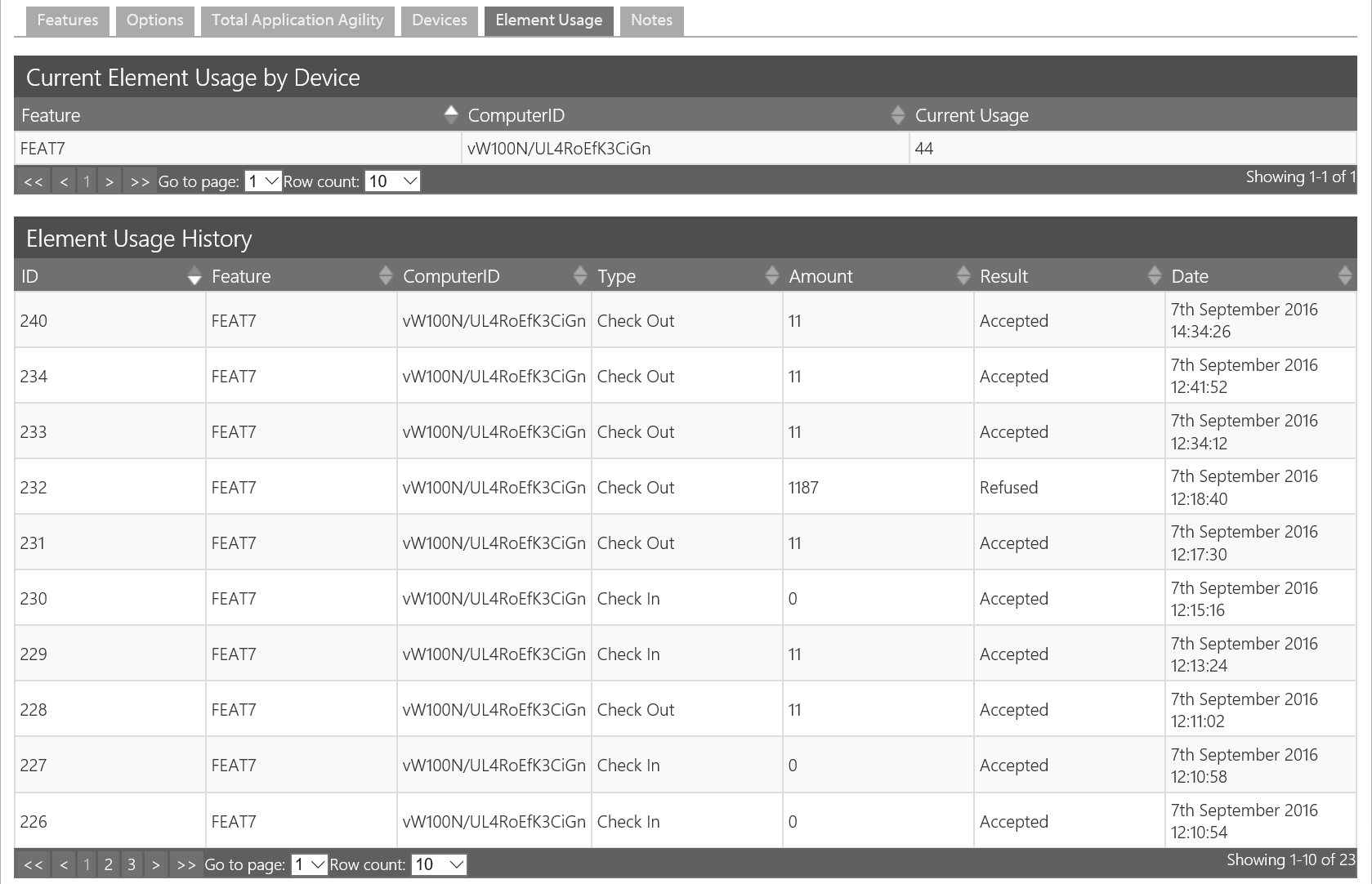
The Current Element Usage by Device table has a row entry for each element pool and device, with the following columns:
- Feature: The unique ID of the pool which should be a max. 5 character alphabetic string.
- ComputerID: The unique ID of each device with elements checked out.
- Current Usage: The number of elements of the specified pool currently checked out by the specified device.
The Element Usage History table maintains a record of all element pool transactions (checkin/out) for the selected license code, and has the following columns:
- ID: A unique ID for each transaction.
- Feature: The unique ID of the pool which should be a max. 5 character alphabetic string.
- ComputerID: The unique ID of each device with elements checked out.
- Type: Transaction type, with possible values 'Check in','Check out','Returned' and 'Deleted'.
- Amount: Number of elements involved in the transaction.
- Result: Whether the transaction was 'Accepted' or 'Refused'
- Date: Date and time (UTC) of the transaction.
Client-Side Element Pool Management
C API
A client application can make use of element pools using the C API calls described in the following table:
| Function | Parameters | Description |
|---|---|---|
|
int NSLCheckoutPool(const char *poolName, uint32_t poolAmt,int32_t *poolStatus, const char *licenseNo); |
poolName: 5-character pool code. poolAmt: number of elements to be checked out. poolStatus: pool (feature) status code licenseNo: license code. |
Checks a specified number of elements out of an element pool. |
|
int NSLReturnPool(const char *poolName ,uint32_t poolAmt, const char *licenseNo); |
poolName: 5-character pool code. poolAmt: number of elements to be checked in. licenseNo: license code. |
Checks a specified number of elements into an element pool.
|
|
int NSLGetPoolInfo (const char * poolName, uint32_t * poolMax, uint32_t * poolAmt, int32_t * poolStatus); |
poolName: a NULL terminated, UTF-8 encoded string containing the five (5) character pool code of the pool to be withdrawn from. poolMax: the maximum number of elements in the pool. If the caller does not have access to the pool, the return value will be 0. poolAmt: the number of elements withdrawn from the pool by the calling client. poolStatus: pool (feature) status code |
Get the number of pool elements currently checked out along with the status of an element pool. NOTE: this function replaces NSLGetPoolStatus. |
Pool Status Codes
| Value | Description |
|---|---|
| 1 | Request Authorized |
| 0 | Unset |
| -1 | Error |
| -2 | Unknown Element Pool |
| -3 | Request Denied |
| -4 | Resource Not Authorized for Use |
| -5 | License Expired |
C# Example Code
The above three functions are contained in the ShaferFileChck.dll module (or its equivalent in Linux, MacOS and other platforms) and can, in a .NET environment, be invoked by making a suitable invocation of the function and using a suitable wrapper. The table below provides example code which accomplishes this in C#.
| Function | Invocation | Wrapper |
|---|---|---|
| NSLCheckoutPool |
[DllImport("ShaferFilechck.dll", CallingConvention = CallingConvention.Cdecl)] public static extern int NSLCheckoutPool(byte[] PoolName, UInt32 NumToCheckOut, ref int Poolstatus, byte[] licenseNo); |
public int CheckoutElements(string Poolname, UInt32 NumToCheckOut, ref int status, string LicenseCode) { int ReturnValue = 0; // Convert strings to byte arrays for Unicode compatibility byte[] UTFLicenseCode = Encoding.UTF8.GetBytes(LicenseCode == null ? "" : LicenseCode); byte[] UTFPoolname = Encoding.UTF8.GetBytes(Poolname == null ? "" : Poolname); ReturnValue = NSLCheckoutPool(UTFPoolname, NumToCheckOut, ref status, UTFLicenseCode); ReturnValue -= (int)SecurityOffset; return ReturnValue; } |
| NSLReturnPool |
[DllImport("ShaferFilechck.dll", CallingConvention = CallingConvention.Cdecl)] public static extern int NSLReturnPool(byte[] PoolName, UInt32 NumToCheckIn, byte[] licenseNo); |
public int CheckinElements(string Poolname, UInt32 NumToCheckIn, string LicenseCode) |
| NSLGetPoolInfo |
[DllImport("ShaferFilechck.dll", CallingConvention = CallingConvention.Cdecl)] public static extern int NSLGetPoolInfo(byte[] PoolName, ref UInt32 PoolMax, ref UInt32 PoolAmt, ref Int32 PoolStatus); |
public int GetPoolInfo(string Poolname, ref UInt32 PoolMax, ref UInt32 PoolAmt, ref int PoolStatus) { int ReturnValue = 0; // Convert strings to byte arrays for Unicode compatibility byte[] UTFPoolname = Encoding.UTF8.GetBytes(Poolname == null ? "" : Poolname); ReturnValue = NSLGetPoolInfo(UTFPoolname, ref PoolMax, ref PoolAmt, ref PoolStatus); ReturnValue -= (int)SecurityOffset; return ReturnValue; } |
VB.NET Example Code
The table below provides example code which accomplishes the same as the above in VB.NET.
| Function | Invocation | Wrapper |
|---|---|---|
| NSLCheckoutPool |
<DllImport("ShaferFilechck.dll", CallingConvention:=CallingConvention.Cdecl)> Public Shared Function NSLCheckoutPool(ByVal PoolName() As Byte, ByVal NumToCheckOut As UInt32, ByRef Poolstatus As Integer, ByVal licenseNo() As Byte) As Integer End Function |
Public Function CheckoutElements(Poolname As String, NumToCheckOut As UInt32, ByRef status As Integer, LicenseCode As String) Dim ReturnValue As Integer = 0 'Convert strings to byte arrays for Unicode compatibility Dim UTFLicenseCode() As Byte = Encoding.UTF8.GetBytes(If(LicenseCode = Nothing, "", LicenseCode)) Dim UTFPoolname() As Byte = Encoding.UTF8.GetBytes(If(Poolname = Nothing, "", Poolname)) ReturnValue = NSLCheckoutPool(UTFPoolname, NumToCheckOut, status, UTFLicenseCode) ReturnValue -= CInt(SecurityOffset) Return ReturnValue End Function |
| NSLReturnPool |
<DllImport("ShaferFilechck.dll", CallingConvention:=CallingConvention.Cdecl)> Public Shared Function NSLReturnPool(ByVal PoolName() As Byte, ByVal NumToCheckIn As UInt32, ByVal licenseNo() As Byte) As Integer End Function |
Public Function CheckinElements(Poolname As String, NumToCheckIn As UInt32, LicenseCode As String) Dim ReturnValue As Integer = 0 'Convert strings to byte arrays for Unicode compatibility Dim UTFLicenseCode() As Byte = Encoding.UTF8.GetBytes(If(LicenseCode = Nothing, "", LicenseCode)) Dim UTFPoolname() As Byte = Encoding.UTF8.GetBytes(If(Poolname = Nothing, "", Poolname)) ReturnValue = NSLReturnPool(UTFPoolname, NumToCheckIn, UTFLicenseCode) ReturnValue -= CInt(SecurityOffset) Return ReturnValue End Function |
| NSLGetPoolInfo |
<DllImport("ShaferFilechck.dll", CallingConvention:=CallingConvention.Cdecl)> Public Shared Function NSLGetPoolInfo(PoolName As Byte(), ByRef PoolMax As UInt32, ByRef PoolAmt As UInt32, ByRef PoolStatus As Int32) As Integer End Function |
Public Function GetPoolInfo(Poolname As String, ByRef PoolMax As UInt32, ByRef PoolAmt As UInt32, ByRef PoolStatus As Integer) As Integer Dim ReturnValue As Integer = 0 ' Convert strings to byte arrays for Unicode compatibility Dim UTFPoolname As Byte() = Encoding.UTF8.GetBytes(If(Poolname Is Nothing, "", Poolname)) ReturnValue = NSLGetPoolInfo(UTFPoolname, PoolMax, PoolAmt, PoolStatus) ReturnValue -= CInt(SecurityOffset) Return ReturnValue End Function |