
Introduction
The Nalpeiron Analytics Service (NAS) backend Publisher Center is much like any web-based management portal. You use it to manage everything around your licensing and this section is about how to manage your account with Nalpeiron.
Getting started
To get started please ensure you have the credentials to hand you got sent with your trial or account purchase and proceed as below.
1Login to my.nalpeiron.com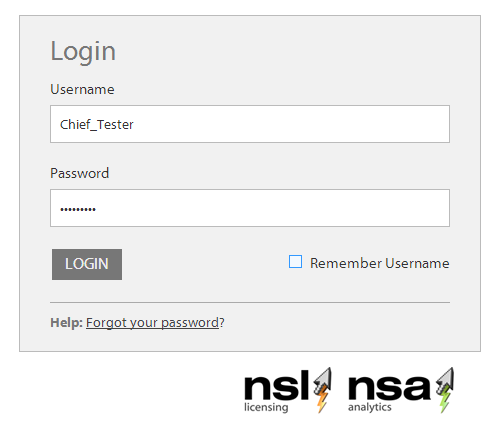
2Review your main toolbar
The main toolbar
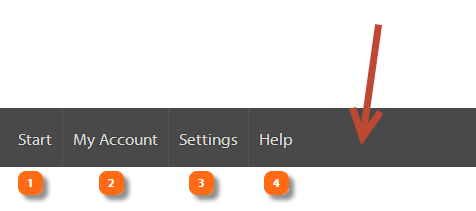
The top/main toolbar is on every page and serves core functions:
- Use the start link to get back to the trial dashboard at any point
- You should ensure that your details under the "my account" link are complete including your address and other details required to receive support and other important details from Nalpeiron.
- The "settings" links only shows to admin permission based users. In this case you need to use this to add any more 'internal" users you wish to access the Nalpeiron Publisher Center.
- Get help and support at any time with this link.
Adding and Managing Internal Users
One of the first tasks is to add your other colleagues within your organization to give them access. You can set various permissions for these users and grant them access through the follow process.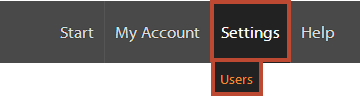
- Click on "Settings", then "users".

Once you enter the user section you will see your current user list, this list does not include you, your details are found under the "my account" area outlined below.
- Click on "add a new user" to get started.
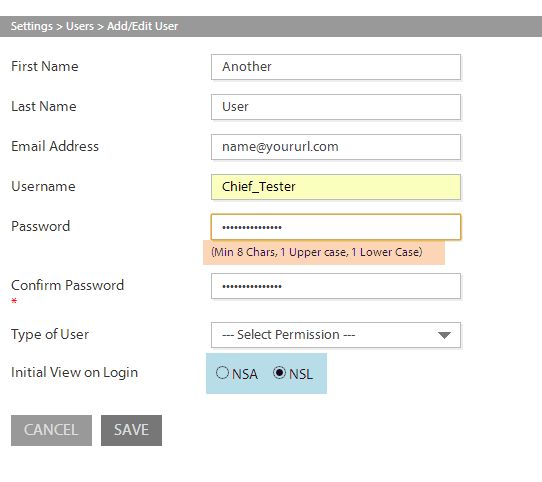
- Adding a user is very straightforward as you can see above. Please ensure you use a secure password.
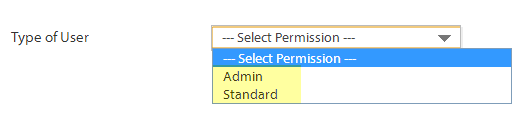
- You will also want to set the "user permission" level, only admin level can access the settings drop down menu.
- Finally, you can set the unified login details "Initial View on Login" to start on either of core services, licensing (NSL) or analytics (NSA), whichever you use the most.

- To edit or delete an existing user use the buttons on the right of each user record.
Managing your account in detail
Click on the "my account" drop down menu and select from the various options, for this tutorial we will start with the "my details" link.
My Details
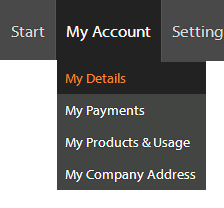
- Click on "My Details"
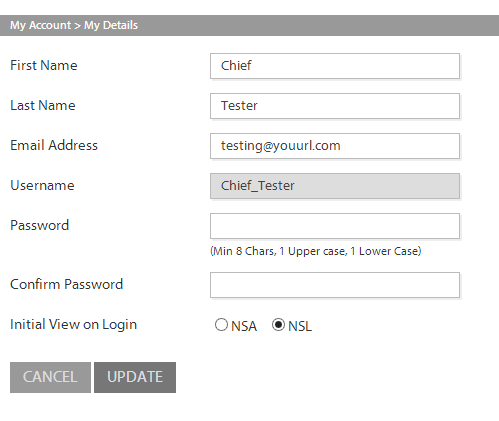
- This is basic "user" related information and login credentials. Please ensure that you use long/strong passwords and change these regularly.
All passwords must have: Min 8 Chars, 1 Upper case, 1 Lower Case
My Payments
This is where you can see the payments history for this account. This is not currently being used in the portal.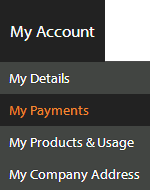
- Click on "My Payments"
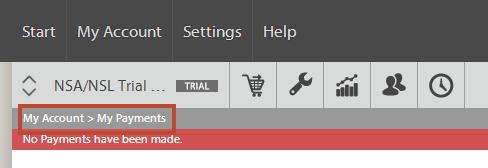
- Any payment history will be stored here.
My Products & Usage
This are is an important part of the daily use of the product as it allows you to quickly understand what you have consumed in terms of license codes and what product subscriptions you have and their status.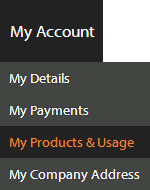
- Click on "My Products & Usage"
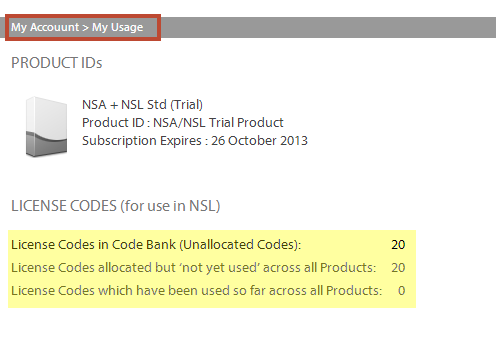
- As you can see from this page the trial account has only a single product and some 20 sample test license codes as this is a product being used for both licensing and analytics. The Nalpeiron product name is listed, along with the subscription period end date.
My Company Address
This is simply your business location for billing and legal documentation, its important that this is correct at all times.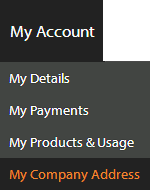
- Click on "My Company Address"
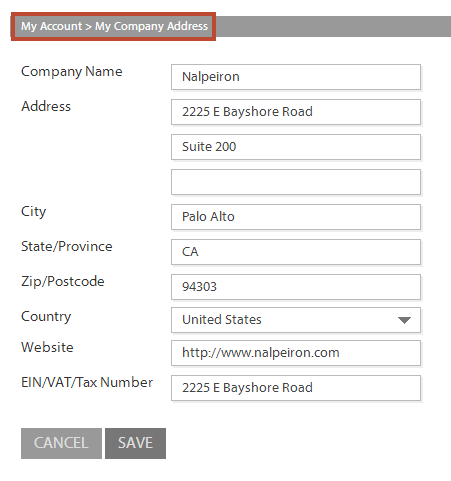
Ensure all the fields are correct and up to date.
My Products and License Code Bank
Nalpeiron breaks down its paradigm into "products" (or ProductIDs).
If you have an unlimited account you can self-serve these items as required.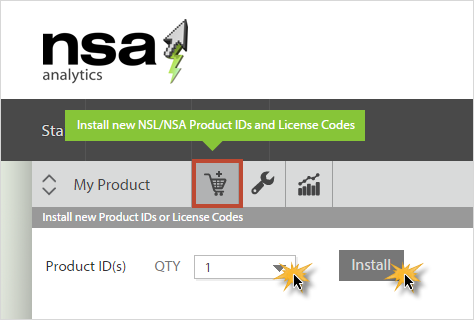
It's very simple, just click on the ProductIDs drop down dialog boxes and add either in the volume required for your project.
Once you have added products they will show up in the "Product Toolbar" for user within your licensing projects.