
Introduction
The Zentitle "cloud-based" concurrency licensing uses the Zentitle Private Licensing Cloud infrastructure to manage your users via the Internet.
Instead of having a server installed on-premise with every customer you can now deploy these types of licenses just as easily as "node" based ones!
This will remove a major cost/hassle with the usual network-based licensing setup.
Of course, it does require that your users can access the Internet easily in order to operate effectively.
If not then please use our other concurrent network licensing products.
Zentitle "cloud-based" concurrency licensing allows multiple end user "clients" to share a single license code where any number of them, up to a defined maximum number at any one time (concurrent), may use this code. As with other forms of "floating" concurrent licensing the users trying to connect to the license is "limited" (by you in the settings) and after the fixed amount you set is reached users cannot access the license until a user free's up a device based connection by logging out of your application.
This is a flexible, non-named user, access arrangement mostly used in business transactions where you allow many users access to your Software in a flexible way without permanently locking down to specific "nodes" or devices.
This functionality is also very flexible and baked into the core of the Zentitle licensing design allowing you to easily make any license switch from a "node" to a concurrent basis "on the fly" by changing the license code attributes on the Zentitle Server.
The way you access and control concurrent licensing is at the "profile" or code level itself, not via the normal "product level" setup.
We are assuming that before you try and use this type of functionality you have already learned how to use the rest of the Zentitle Service and understand how our paradigm operates i.e. how to generate licenses, add them to products, to code your app and then to manage license codes etc.
Getting Started
To get started please ensure you have the credentials to hand you got sent with your trial or account purchase and proceed as below.1
Login to my.nalpeiron.com2
On the Zentitle dashboard, the concurrency-related features of a license code may be configured on the corresponding "License Code" page as shown below.
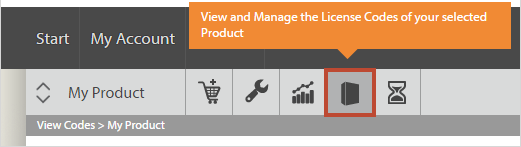
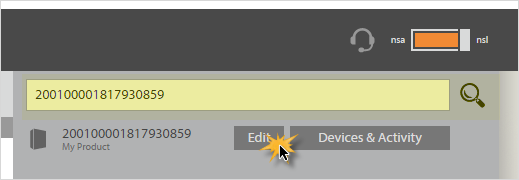
- Select a code to edit from the list displayed.
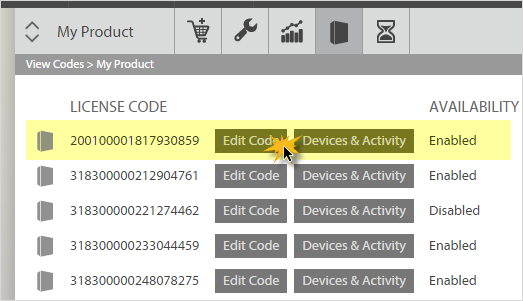
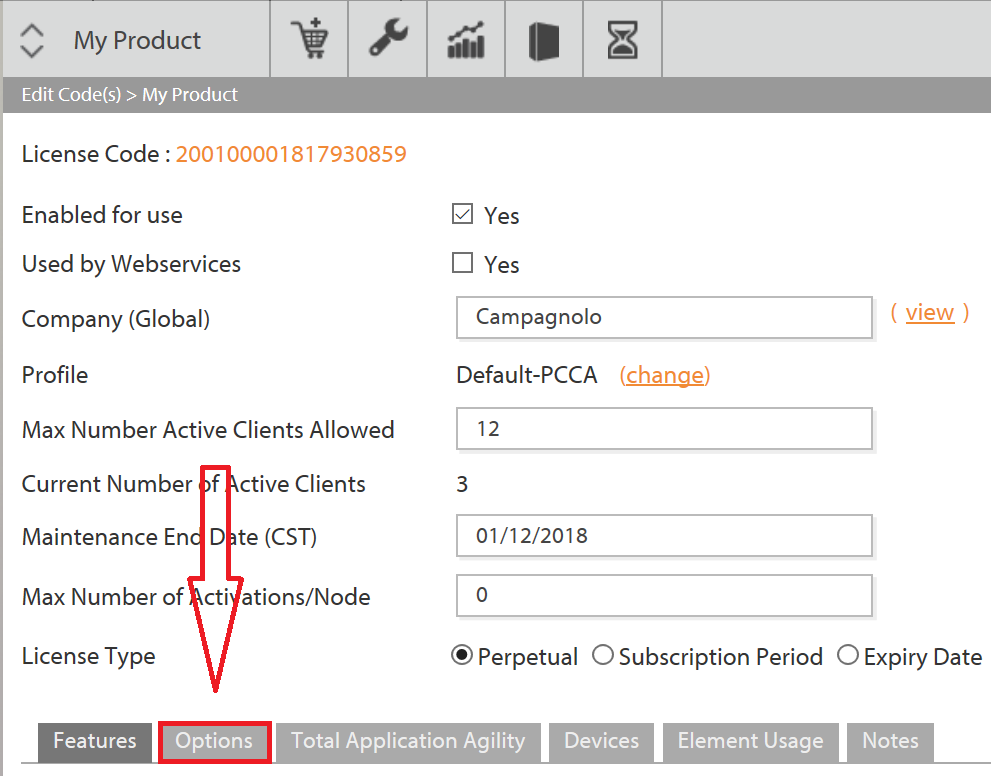
In order to make a license into a "concurrent" license, you need to switch its type from a standard "node" type license to one with "Concurrency Mode".
- First, select the options tab at the base of the "edit code" page.
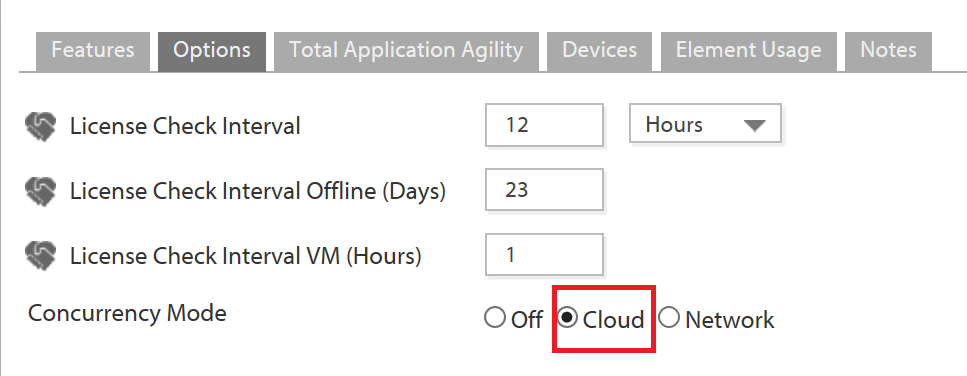
- Next, select the "Concurrency Mode" you wish to use, in this case its "Cloud" mode.
- Finally, select the set the number of "active" clients allowed to connect at any one time to this single license by editing the "Max number Active Clients Allowed" dialog box and click "save".
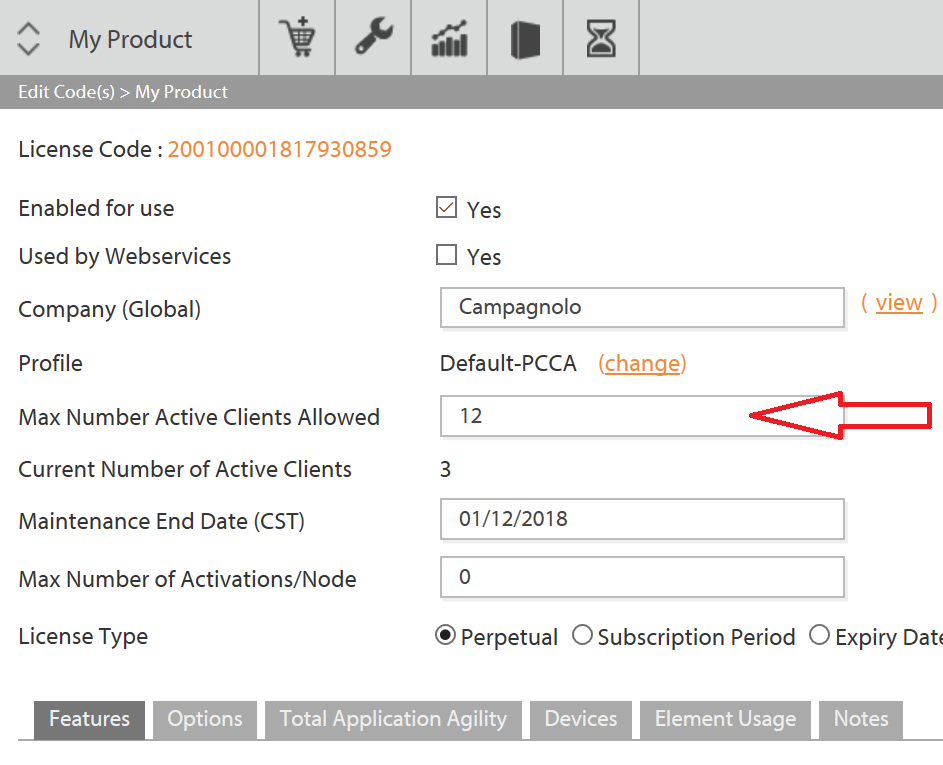
The maximum number of concurrent clients is set in the "Max Number of Active Clients Allowed" field and the "actual" number of active concurrent clients is shown by "Current number of Active Clients" below.
In the example shown, the maximum number of concurrent clients allowed is 50 with 1 being the actual concurrent client number attached at this time.
You may also search for a code to edit and follow the same process.
Concurrent usage FAQ
The following points relating to the configuration of concurrent licenses should be noted:
- Concurrency can be enabled/disabled for a given license code ‘on-the-fly’.
- Concurrent and non-concurrent (‘Node-locked’) license codes may be associated with the same product.
- All current licensing modes permit the use of concurrent licenses.
- All current license features (e.g. application agility, feature-based licensing) permit the use of concurrent licenses.
- Concurrent Licenses can be used Cross platform so clients can be a mix of Windows, Mac or Linux.
Editing groups of licenses
You may also edit a group of licenses in a "profile" if you wish to create a license code group with that capability to distribute via your e-commerce or sales channels.
The basic procedure is the same so see the Article "NSL V10 - License Code Profiles" to learn more about profiles.
Adding the code to your Application (for networking)
A client application, on starting with a given license code, checks the license status. For details on this please consult the appropriate sample application for your own IDE. The table below shows values of this property pertinent to concurrency:
| license status | Meaning |
|---|---|
| 1 | Activated, non-concurrent |
| 3 | Activated, concurrent |
| -115 | Number of allowed activations exceeded |
The client application should be allowed to run if the license status has the value 1 or 3.
How to code your app. (sample code)
//Return the license to the server to free up the activation for another client

string LicenseCode = GetLicenseCode();

if (LicenseCode == "")

{

    MessageBox.Show("Licensecode is required to return the license");

}

ShaferError = oShafer.ReturnLicense(LicenseCode);

if (ShaferError != (int)Shafer.ErrorCodes.FC_OK && ShaferError != (int)Shafer.ErrorCodes.FC_PRIVACY_NOTSET)

{

    Shafer.ErrorCodes Err = (Shafer.ErrorCodes)ShaferError;

    string ErrMess = "";

    Shafer.GetErrorMessage((int)Err, ref ErrMess);

MessageBox.Show(ErrMess);

}
Activity on a license code
Activity and devices associated with a "cloud" based license code are shown on the "devices & activity" page for any given license code.
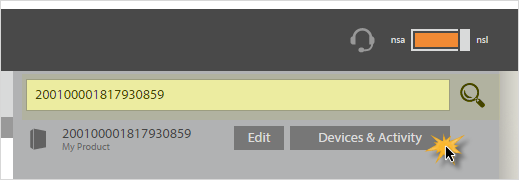
If you review the license in question all devices will show in one of two states, either as a device name and number with the associated "activation" history or showing as the same device but "struck through" illustrating a device that has been removed from the code having been previously attached.
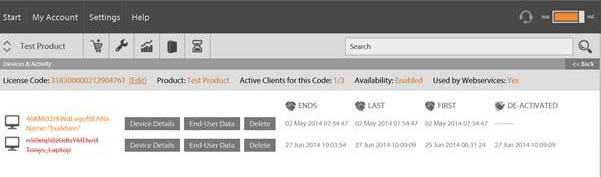
Upon successful "return" of the device attached to a license code to the server, the de-activation will be evidenced as a ‘strike-through’ of this activation on the Devices & Activities page. This "strike-through" is reversed when the license on the same client machine is then re-attached to the license.
Handling issues with orphaned activations
In the event of a crash of the client application, there is the possibility that the license is not successfully returned to the server. In order to address this issue and to avoid the unwanted possibility of an activation being orphaned and made unavailable to future potential clients, NSL concurrent licensing has a built-in crash protection system that works as follows:
When a client attempts to acquire a seat on a concurrent license, the server checks to see if there are any seats checked out for which the relevant lease period (e.g. normal, VM - whichever applies) has expired. If so, one such seat will be released, ensuring that the new client will not be unable to obtain a seat because of an orphaned client.