
Introduction
Now you have your application setup and deployed you can start to Export the gathered Analytics Data for your Product(s).Extract the data and analyze it using Data Mining Applications from third parties or your own In-house Solutions. You can easily export all of the categories we collect, or you can select only the categories you need. These reports can be very big so you will be notified when your report is ready for download via email. Be sure to have the correct email setup within the >My Account >My details section on the main toolbar or you may not receive system communications.
Exporting your data
The NSA export functionality enables the downloading of historical analytics data in XML format. This functionality can be accessed on the NSA dashboard by clicking the wrench icon. This will display a drop down menu with the last item being Export.
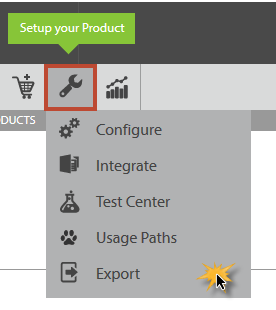
- To get started login as usual and click on "Export" on the product toolbar.
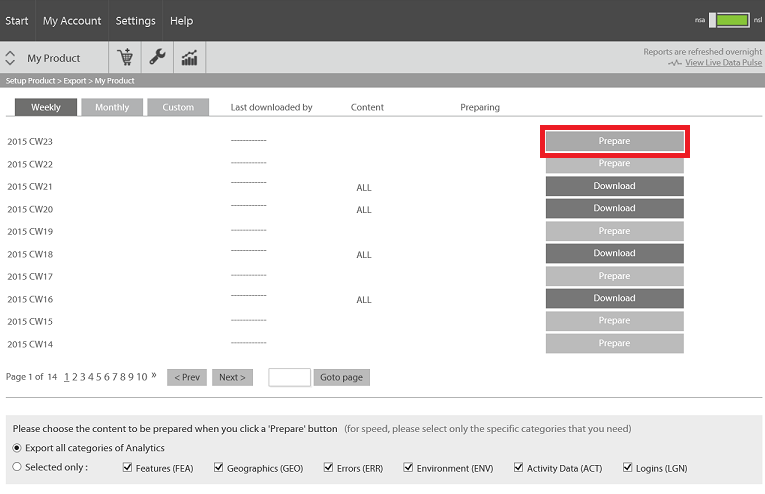
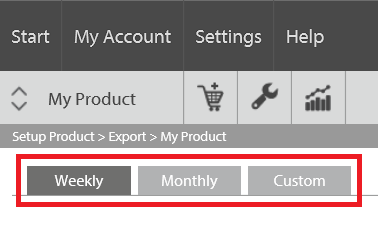
Data is exported on a "per product" basis so you will need to ensure you have selected the "product" of interest with the Nalpeiron Service. NSA Export data is displayed in tabular format. There are three tabs to the left, with the labels Weekly,Monthly and Custom.
Selection of Weekly will display on the left-most column weekly data available for export, with the name giving the year and week of the data set. For example, ‘2014 CW40’ means the data set for the 40th week in the year 2014.
These are displayed in reverse-chronological order and historical data can be accessed using the page selector at the bottom of the table. Selecting the Monthly tab will present available monthly data sets, for example ‘2014 October’.
The Custom tab is reserved for functionality to be implemented at a later date.
- As you can see from the image the data is organized based on time, in reverse order from when collected, so the latest data is at the top of the list. Exporting starts by selecting the timeframe and the categories via the tabs and dialogs at top/bottom of the page.
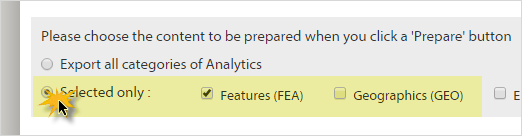
- Start by choosing the categories you need from the bottom of the page. You can choose to export all your categories, or select the ones required.
Choose from the categories of data where the following abbreviations are used:
- ALL - All data
- FEA - Features
- GEO - Geographics
- ERR - Errors
- ENV - Environment
- ACT - Activity data
- LGN - User logins
- Next, select a week or month from the tabs at the top.
- Finally click the "prepare" button on the right next to the selected week or month.
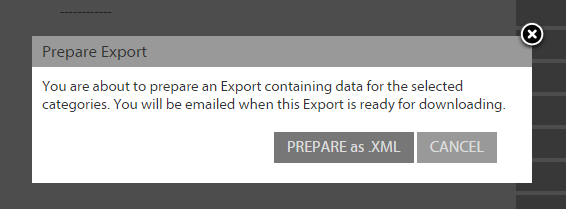
- You will then be prompted to select the format for the output file, click the "prepare as .xml" button. Be sure to have the correct email setup within the >My Account >My details section on the main toolbar or you may not system communications.
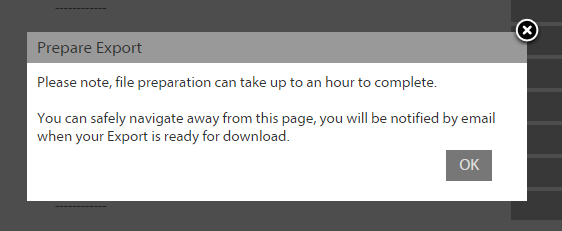
- If you remain on the Reports page you will the message on the export button telling you that your export is being prepared.
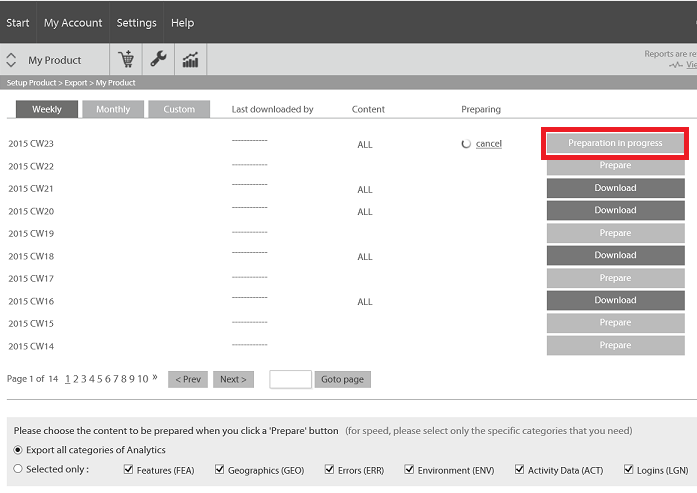
- You may either wait or return when you have received an email informing you that the exported data is now available.
- Once the report is available the button will switch to saying "Download".
- Click on the button and you will get a dialog to save the data to your local machine for review as a zipped file.
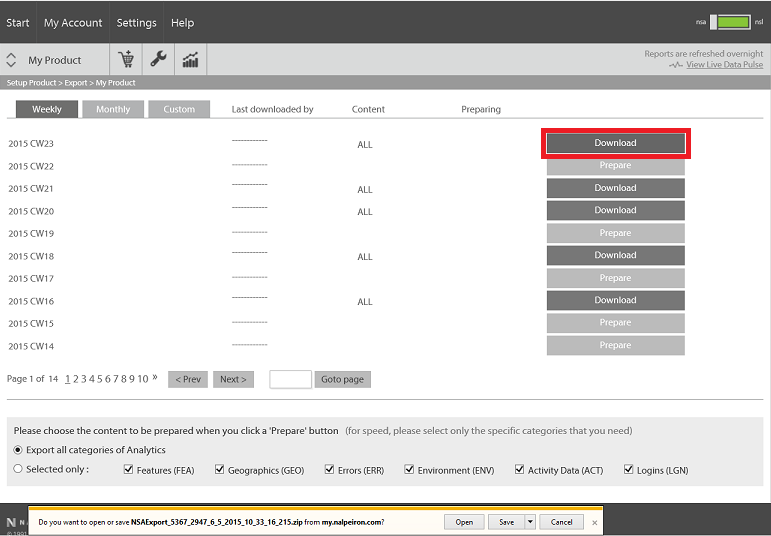
The zip archive contains your exported data for the categories you have chosen in XML format:
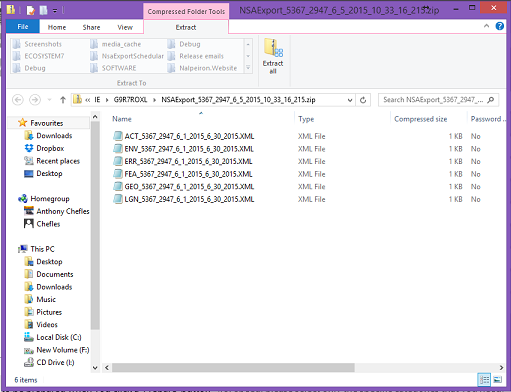
The filenames contain useful information. The archive filename has the format:
NSAExport_<CompanyID>_<ProductID>_<Datetime>.zip
where the <Datetime> is the creation datetime of the archive, i.e. of the export, to millisecond resolution.
The names of the individual XML export files have the format:
<Category>_<CompanyID>_<ProductID>_<StartDate>_<EndDate>.xml
where the <Category> is the three letter abbreviation of the export date category as explained above and the <StartDate> and <EndDate> refer to the period of time covered by the export.
Report Management
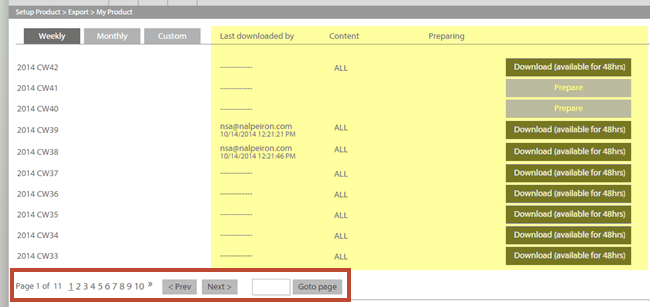
- Once you have prepared your report(s) you now be able to see a history of your downloads within the system with who (email) requested the data and a timestamp for your records along with which report was ordered. You can use the pagination at the bottom to scroll through the pages of data over time within the system.
The "Last downloaded by" column gives the following information about any previous download activity for each data set: who last downloaded it (by email address) and the date and time of this last download. The "Content" column describes which categories of data were last downloaded for each data set, as described above. The right-most column consists of download buttons for the data sets.