
Getting started
To get started please ensure you have your credentials (sent with your trial or account purchase) and proceed as below.
Login to my.nalpeiron.com
Once you are logged in you can add, edit, delete or manage resellers. You can also associate license code profiles with particular resellers and create/manage reseller user accounts.
To start managing your resellers you will need to have the correct permissions and be able to access the Settings tab on the navigation bar, as in the screenshot below.
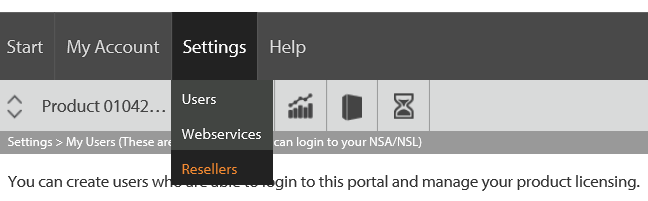
Click Settings on the navigation bar and select 'Resellers'.
Creating a Reseller
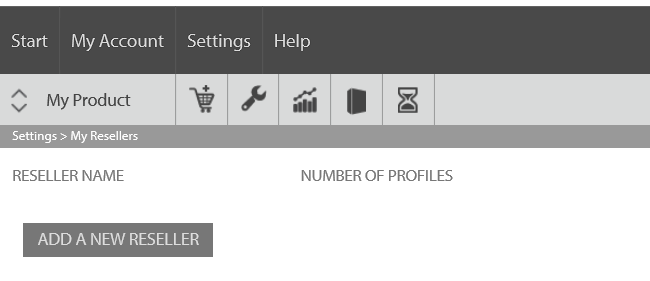
Click the 'Resellers' item on the drop-down menu. Initially, this page will be empty. To create a reseller, click the 'Add A New Reseller' button.
This will take you to the 'Add/Edit Reseller' page. Please fill in the fields as shown below to identify the reseller.
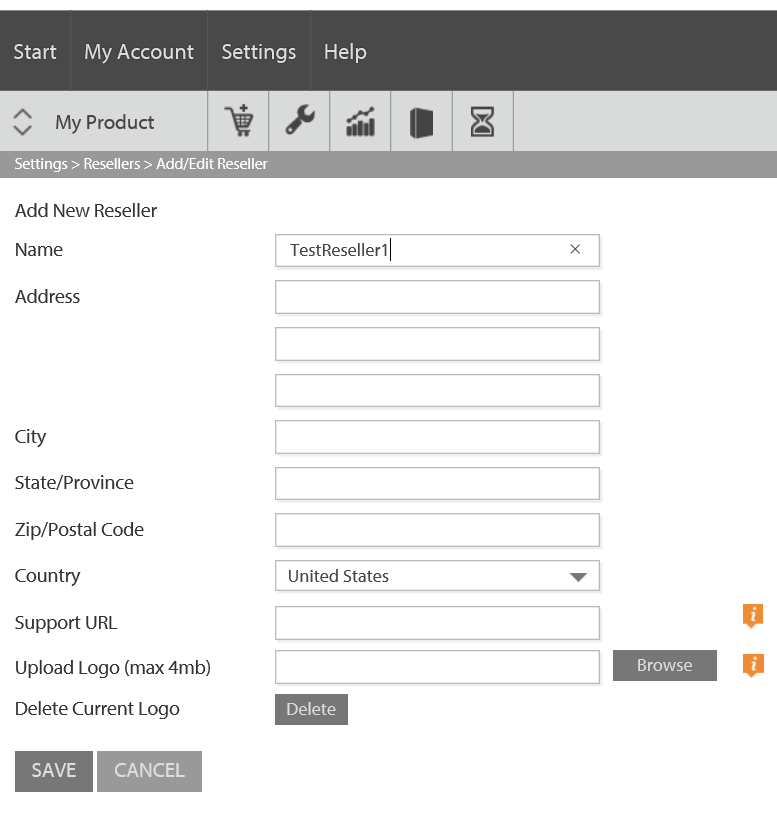
You are asked to provide standard information about your reseller (name, address, country) in addition to the following:
- Support URL: This is the URL of a support page you will provide for your reseller. The link to this will appear on their landing page - see below
- Upload Logo: You can upload a logo for your reseller which will replace the default 'nsl licensing' logo which appears at the top left corner of each page. The maximum size of this logo is 4MB. The dimensions of the logo should be 300x80, otherwise, it will be rescaled to fit.
There is also a Delete logo button, which will delete the stored logo file and replace it with the default Zentitle logo on each page in the reseller portal.
Once you have provided the requested information about your reseller, click the Save button to create this reseller. You will then be taken back to the Resellers page where your newly-created reseller has been added to the list.
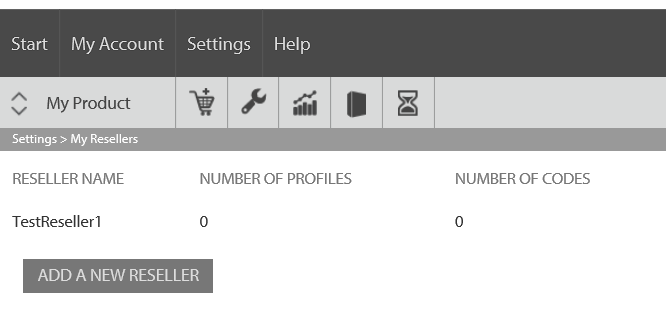
For each reseller in the list, the following information is shown:
- Reseller Name
- Number of profiles - this is the number of license code profiles that have been assigned to the reseller. More details are given below.
- Number of codes - this is the total number of license codes in all of the profiles that have been assigned to the reseller.
- Created - this is the date on which the reseller was created.
Also, for each reseller, there are 'Edit' and 'Delete' buttons. The edit button will take you back to the 'Add/Edit Reseller' where you can amend their details. The 'Delete' button deletes the reseller.
Upon deletion of a reseller the following operations are carried out on the profiles and users associated with that reseller:
- All license code profiles associated with the reseller are also deleted. All license codes in these profiles are re-assigned to the default profile.
- All 'reseller' users become standard 'ISV level' users. It the ISV admin's responsibility to determine if these users should subsequently be deleted and to carry out this task accordingly.
Assigning Profiles to a Reseller
The method by which license codes become associated with a reseller is that they must belong to a license code profile which has been assigned to that reseller. You can create a license code profile which is assigned to a reseller simply by selecting the reseller when editing or creating a profile. (Please become familiar with the concept and use of license code profiles before proceeding.)
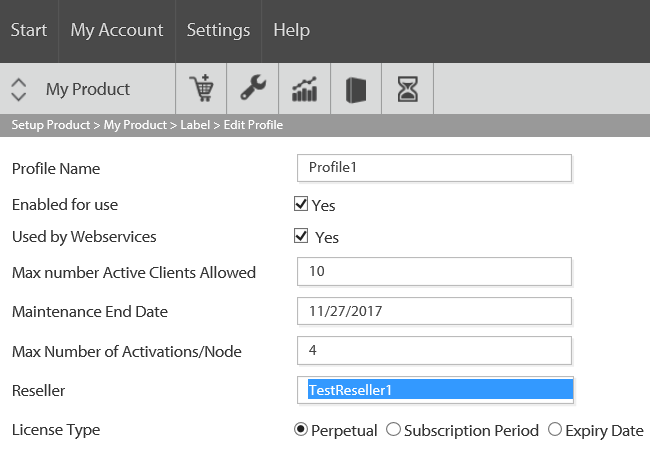
Select, with the 'Reseller' drop-down, the reseller to which you wish to assign this profile.
Note that there is no limit to the number of profiles that can be assigned to a given reseller. You can assign as many as you like from any of your Zentitle products. A given profile can, however, only be assigned to one reseller.
You must assign a profile to a reseller before proceeding to create reseller users. Deletion of all profiles assigned to a given reseller will result in that reseller's users' access to Zentitle being revoked until new profiles have been assigned.
Creating Reseller Users
To create users for your reseller, go to the Settings->Users item on the navigation bar drop-down. (Please become familiar with the management of users before proceeding.) Clicking this item will take you to the Users page.
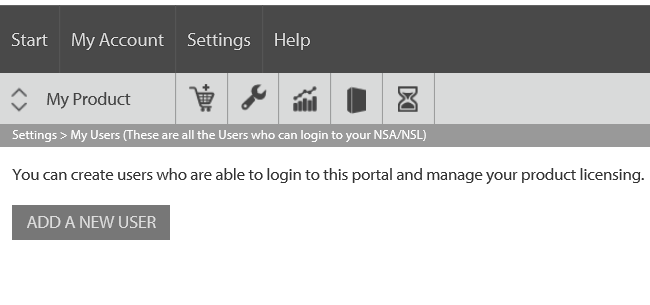
This page shows the list of existing users and contains an 'Add a New User' button. Clicking this button will take you to the 'Add/Edit User' page.
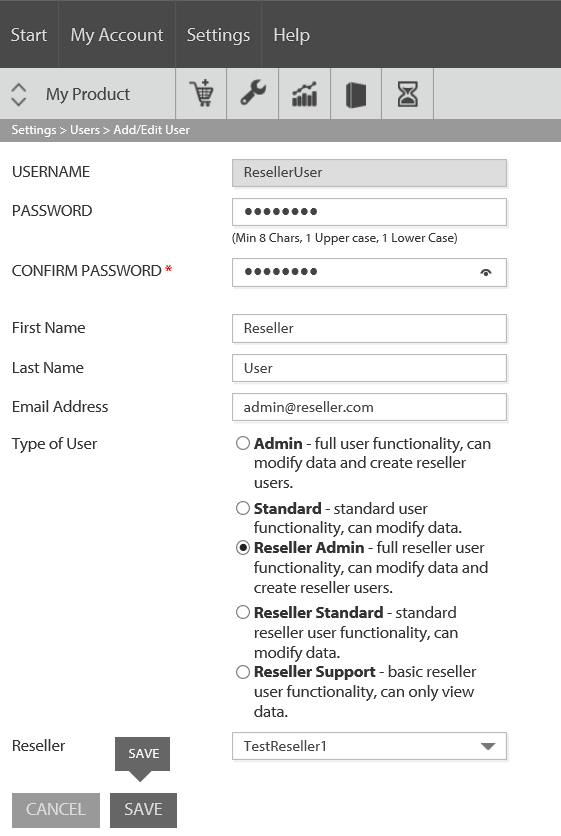
The radio buttons allow you to select the user role. In addition to the two 'ISV level' user roles, there are three 'reseller level' user roles to choose from. These are:
- Reseller Admin: Full functionality. Can modify license code data and administer reseller users.
- Reseller Standard: Can modify license code data.
- Reseller Support: Can view license code data.
Saving the user will then take you back to the Users page where you will be able to see your newly-created user.
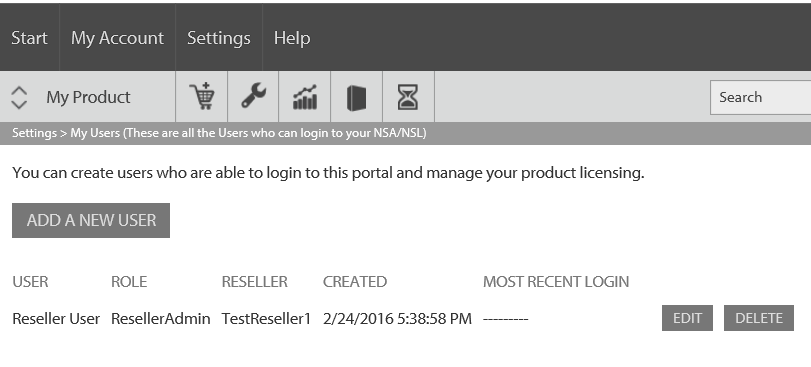
A reseller admin will be able to create their own reseller users. They will also be able to create sub-resellers and perform all the above administration tasks with respect to them.