Getting started
To get started please ensure you have your own credentials to hand that were provided to you by your ISV or parent reseller.
Login to my.nalpeiron.com
The Zentitle Dashboard
On successfully logging in, you will see a dashboard with the following appearance:
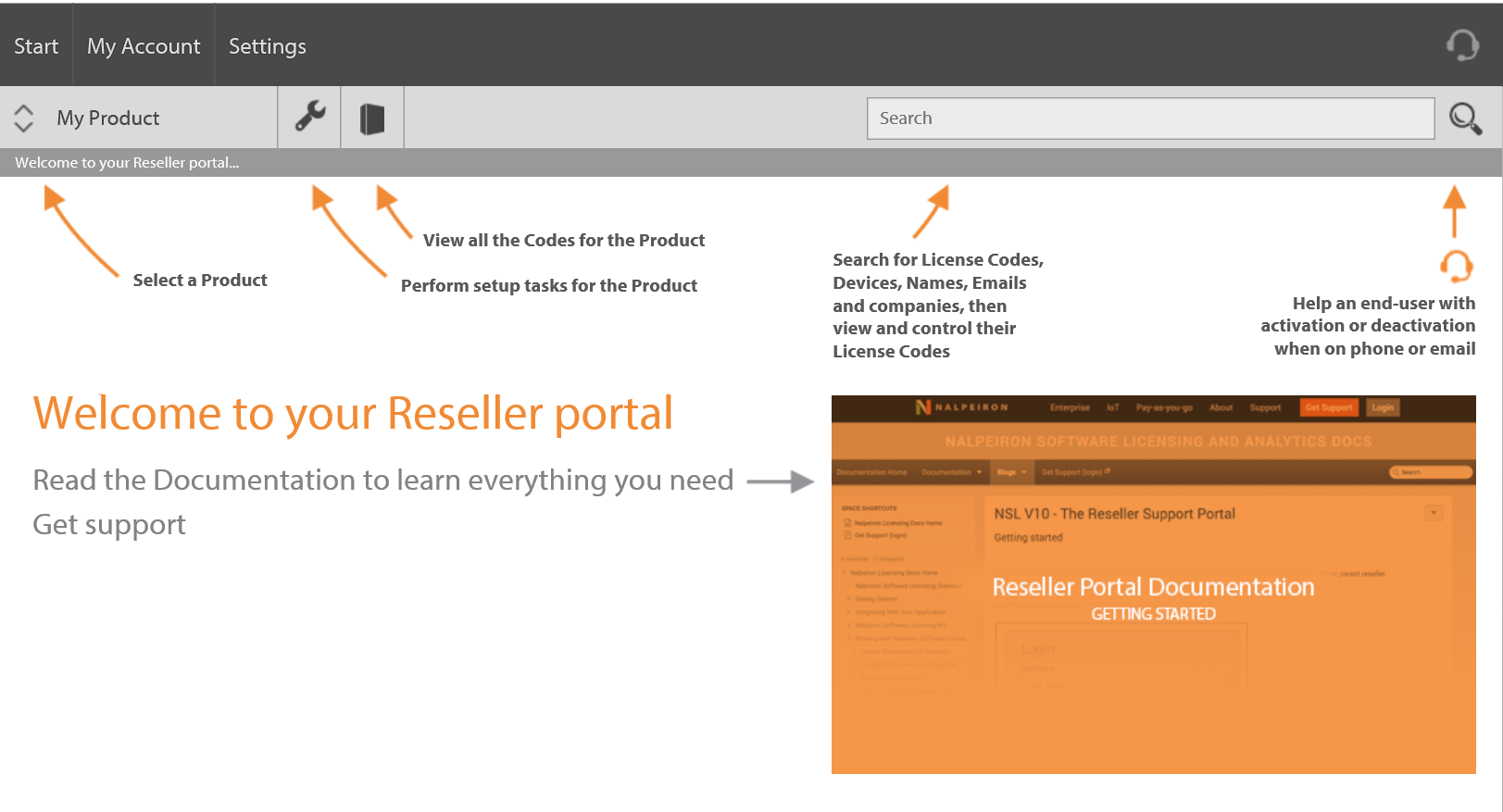
On the gray toolbar, you will see, at the far left, a product dropdown. This contains a list of the products that have been assigned to your reseller organization. All information, including license code information and search results, will be filtered by the product you select on this dropdown.
If no Support URL has been provided, on clicking the GetSupport link you will see a page consisting of the following message:

Managing License Codes
If you click the 'software package' icon on the gray toolbar indicated by the 'View all the codes for the Product' label, you will be taken to the 'Manage Codes' page which displays a dashboard containing license code information for the selected product:
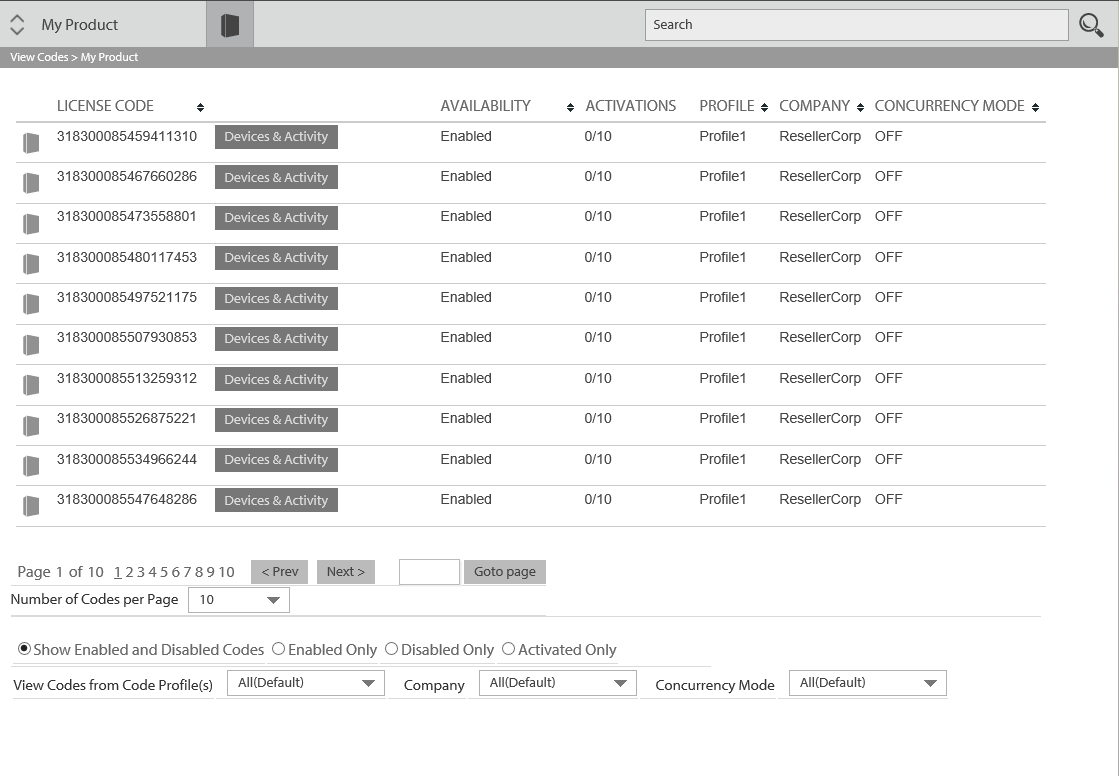
- LICENSE CODE: The license code itself.
- The 'Edit Code' button. Clicking this will allow you to edit the properties of this license code.
- The 'Devices & Activity' button. Clicking this will give you information about devices and activations that have used this license code.
- ACTIVATIONS: This gives the current number of activations of this code out of the maximum possible number of activations.
- PROFILE: This tells you to which (if any) code profile this license code has been assigned.
- COMPANY: This tells you which (if any) company this license code has been assigned.
- CONCURRENCY MODE: This tells you which concurrency mode (off/cloud/network) has been set for this license code.
The license code table is paginated. Below the visible page of this table, you can select the previous or next page by clicking the 'Prev' or 'Next' buttons. You can also go to any page by entering the page number in the 'Goto Page' text box and clicking the button.
You can select the number of codes per page from the dropdown menu below. The options are 10,20,50 or 100 codes.
You can filter license codes using the radio buttons labeled as follows:
- Show All Codes: Shows license codes with any activation/enablement status.
- Enabled Only: Shows only license codes which have been enabled.
- Disabled only: Shows only license codes which have been disabled.
- Activated only: Shows only license codes which currently have at least one activation.
- Unused Only: Shows only license codes which have never been activated or marked for in use by web services.
You can also. using the dropdown menus, further restrict the license codes to be viewed to be those belonging to a certain profile, associated with a certain company, having a certain concurrency mode, or any combination thereof.
Search
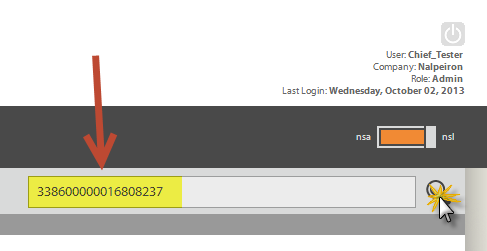
- Paste into the bar a code from your database or a client and click the "search" icon on the right (Magnifying glass).
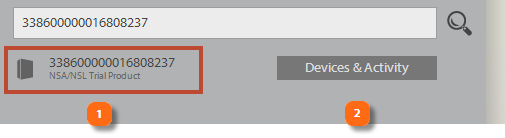
The resultant search should find your code if its in your "bank" of codes.
The search will offer you the following options:
- The matching code
- A button to review all the devices attached to the code plus activity history and the analytics for the license
Additional Search options:
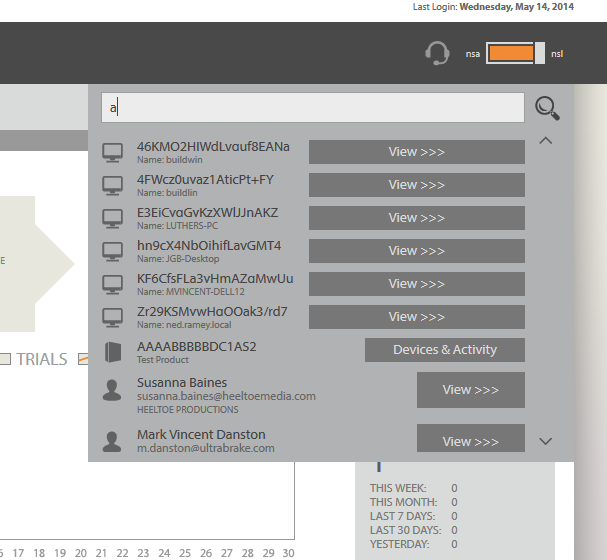
Search is very powerful and can also display other useful results about your Users too, if you have collected it, such as:
- Computer ID (DeviceID)
- End User – First Name
- End User – Last Name
- End User – Email
- End User – Company
Search by Computer ID (DeviceID)
This is a very powerful feature to understand, support and manage your user's devices, all of which we identify through ComputerIDs. The user can give such an ID as generated by our API on the client, and you can then easily search Zentitle for more data about that device.
On searching, you see any associated License Codes (each one shows you the Code Number and the associated Product). You can then Edit the Code, or view ‘Devices & Activity’ (which is helpful as you can then see which other Computer IDs might be attached to this Code, or have been on this Code)
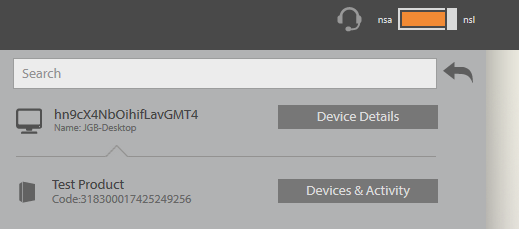
You might notice there is no End-User data button next to the License Codes, this is because there might be many Users attached to a single Code. It is important to bare in mind that just because you have found a Computer ID and can see license codes, these codes could be shared by many different devices (and ‘people’).
Search by User
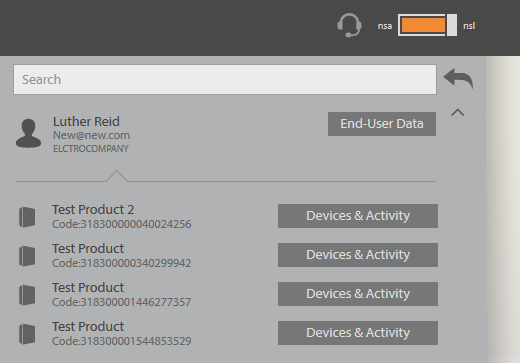
Obviously, you can't use this option unless you have setup a process to attach your user data to the licensing and imported the data, or had it added during a registration process.
On this search result, the End-User is listed at the top and there is an End-User Data button next to him/her.
The same real world person would appear as several unique results if she has registered the same details on different devices.
So, on this view, you also see, the License Codes belonging to associated Computer IDs (DeviceID) for this End-User.
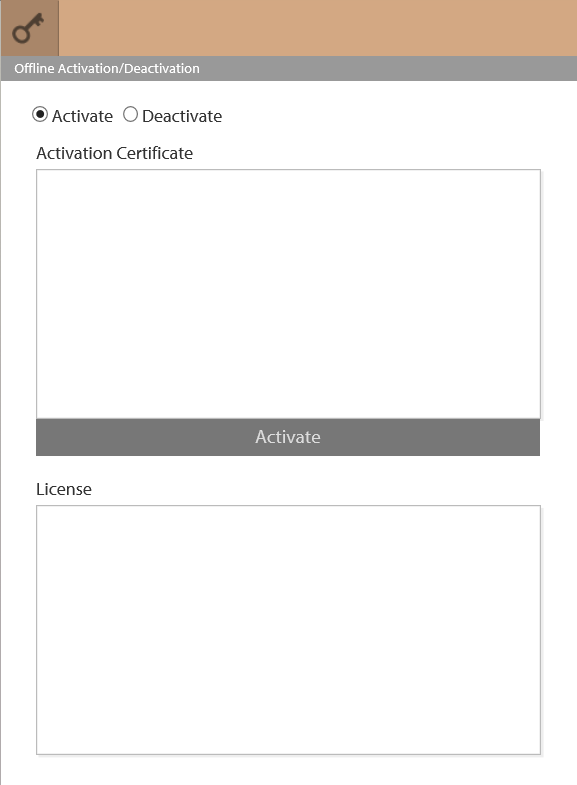
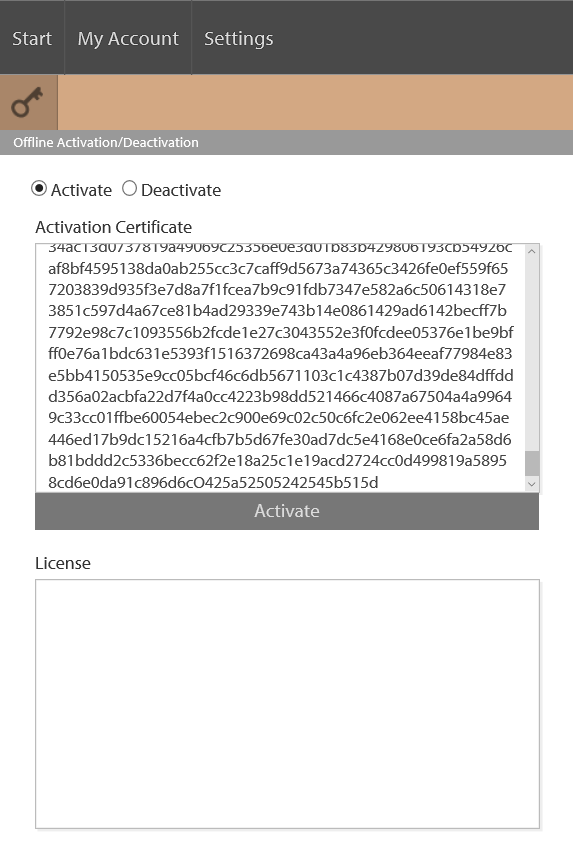
Offline Activation/Deactivation