
Introduction
Zentitle allows you to manage your licenses by attaching them to "Companies". A Company is essentially some form of corporate entity or business under which a set of licenses will be associated. Users and Companies are different top level associations for license codes, the latter being added via Web Services or manually.Company data is associated at the highest level can be associated with a specific "ProductID" within the system or can be made global but can be searched system wide.
Getting started
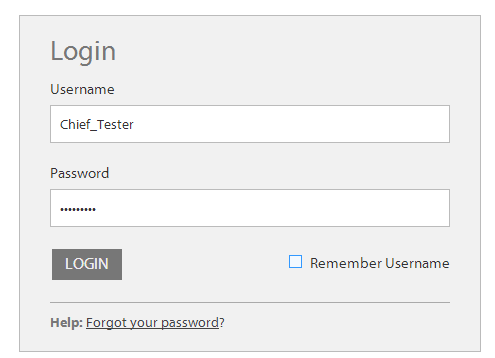
To get started please ensure you have the credentials to hand you got sent with your trial or account purchase and proceed as below.Login to my.nalpeiron.com
Managing Companies
Once you are logged in you can add, edit, delete or manage Company data within the Publisher Center. You can also associate License codes to existing Companies along with associated searchable fields to make finding and managing the license code associations.
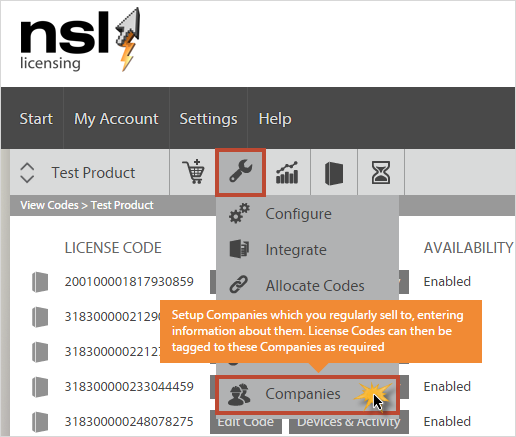
To start by managing your list of "Companies" you will need to have the correct permissions and be able to access the Setup tab on the toolbar.
2. On "Companies" page you can see a list of existing Companies in the system, along with their unique "COMPANY ID" and the number of associated license codes.
You can page through the Company list, as well as:
To start by managing your list of "Companies" you will need to have the correct permissions and be able to access the Setup tab on the toolbar.
- Click the "wrench" on the product toolbar and select "Companies"
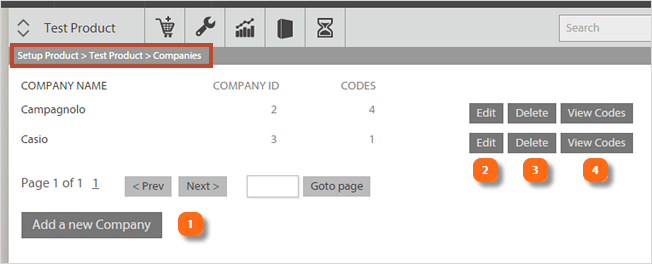
2. On "Companies" page you can see a list of existing Companies in the system, along with their unique "COMPANY ID" and the number of associated license codes.
You can page through the Company list, as well as:
- Add
- Edit
- Delete
- View
The associated codes plus add a new Company using the indicated buttons.
3. Adding a new Company.
- Click the the "Add a new Company" button at the bottom left of the page.
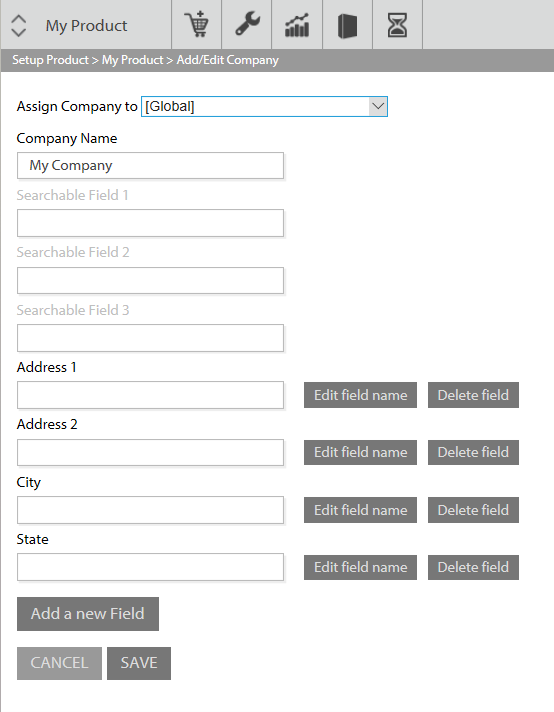
- The minimum required to add a new Company is the "Company Name" which can be any text you wish.
- Select the product from the 'Assign Company To' dropdown that you would like to assign your company to. Selecting '[Global]' will make this company available to all products.
In addition to this data associated with the Company you can optionally populate the values of the three available searchable fields. These values can be searched for on the main Zentitle dashboard search box (with 'Company' selected in the dropdown) and such a search will return all companies with the specified field value.
- Once you have added a new Company simply "save" it to the list.

- Further, you can add your own custom non-searchable reference fields, these can be added to the database but not searched for in the main search toolbar with the Publisher Center so they will show up in your data but are not set as instant search criteria.
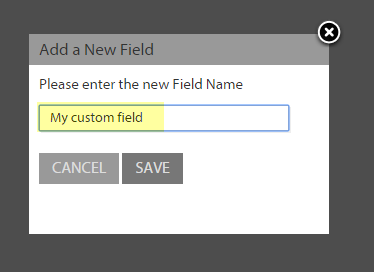
- Once you have added your new fields you can add data to them as well as delete or edit them.
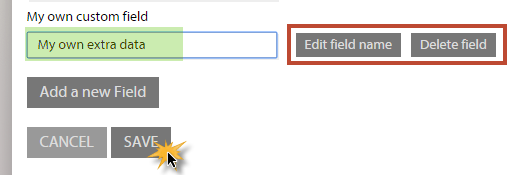
- Again, once you have added a new Company simply "save" it to the list.
4. Editing a Company.
- Click the the "Edit" button to the right of the Company name on the list.
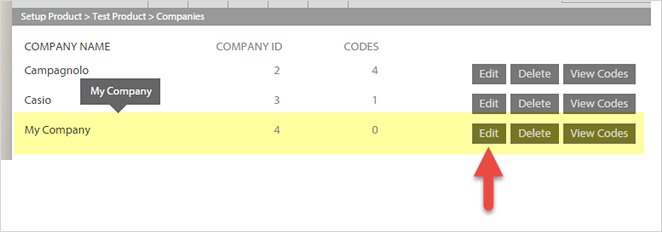
- You will then return to the dialog you had when you added the Company.
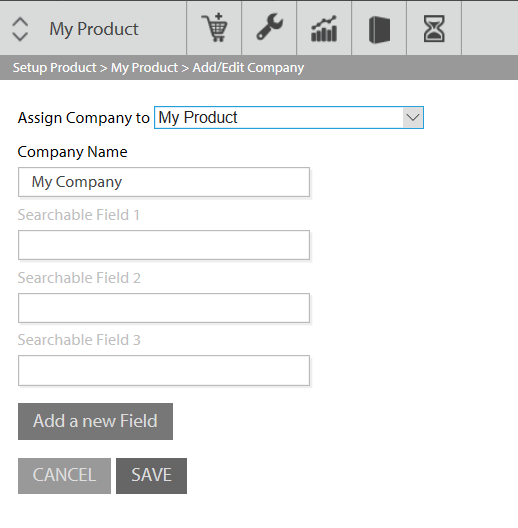
- Assign company to required product from the dropdown. Assigning it to '[Global]' will make it a global company - see above.
- Make any changes you need and then click "save".
5. Deleting a Company.
- Click the the "Delete" button to the right of the Company name on the list.
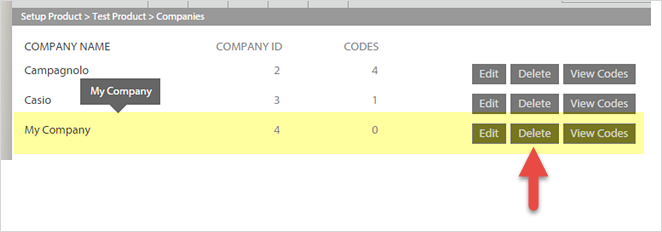
- You will get a confirmation dialog, click OK to delete this Company.
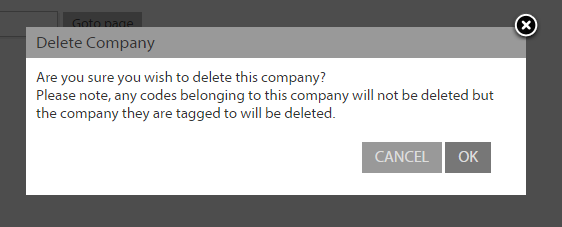
If you delete a Company you will have no way to get that Company back and if it's associated with license codes the Company association will be removed. You will not lose any licenses in this process.
6. Viewing license codes associated with a Company.
- Click the the "View Codes" button to the right of the Company name on the list.
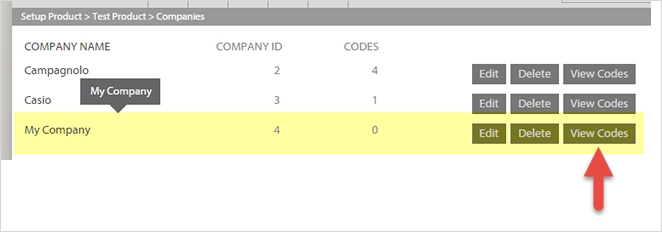
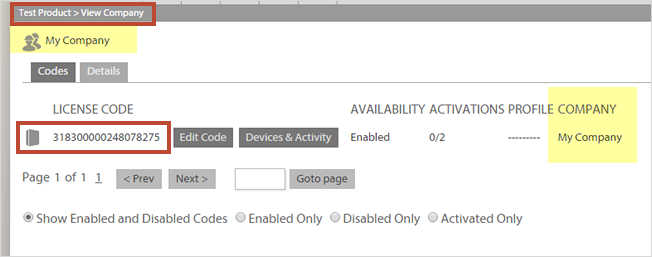
- This will show you a new dialog with a list of all of the license codes already associated to this Company.
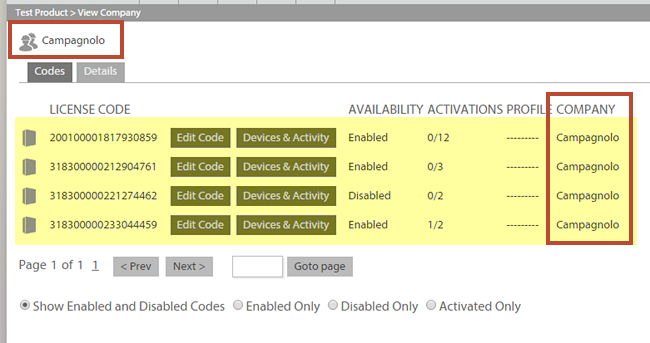
- From here you can manage these specific license codes just like you do normally when managing your licenses within the Zentitle UI.
7. Associating Company data to a License Code
Once you have Company data within Zentitle you can then attach that to your license codes also within the service.
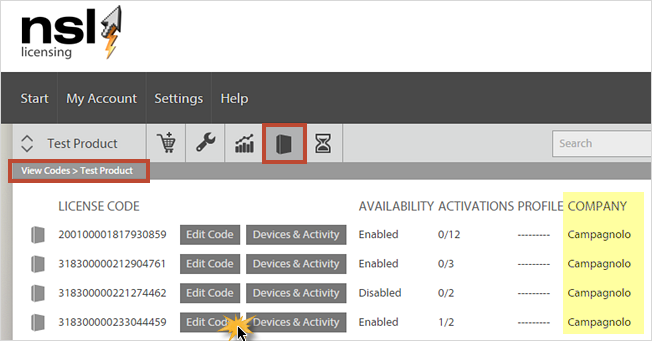
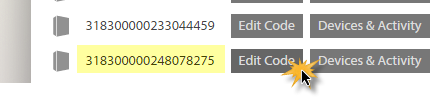
- To do this you navigate to the license code management tab on the product dashboard, and then edit any code you wish to associate with a specific Company.
- Choose the code to edit and click the "edit code" button.
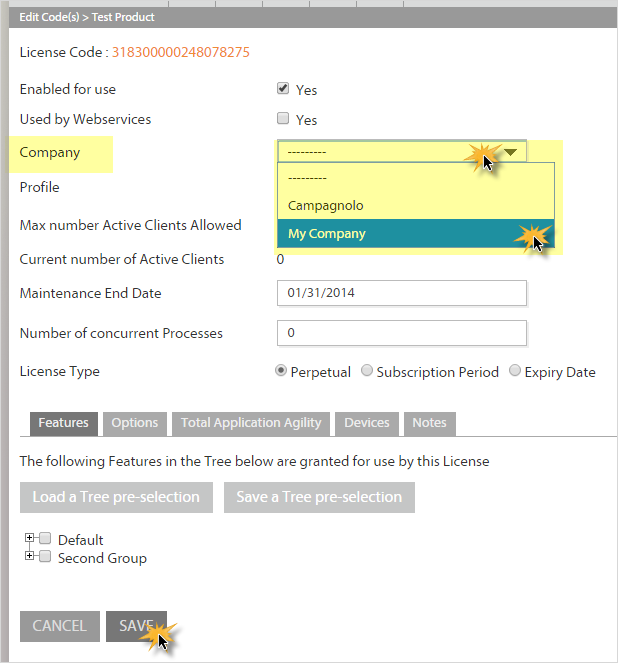
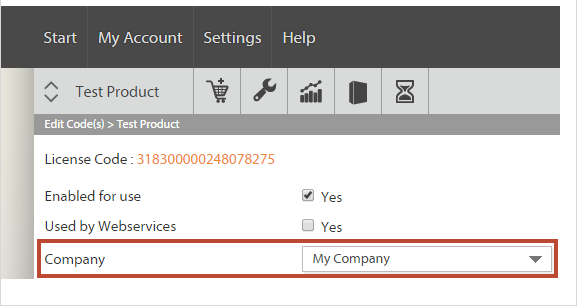
- Once you are on the "code edit" dialog simply choose the Company you wish to attach to this code from the Company dropdown list. Then click Save.
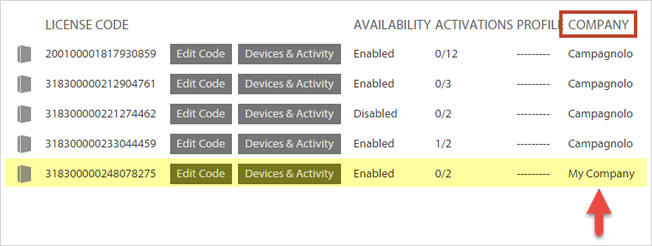
- The license code list will then display your chosen Company against the code in the list.
8. Searching for Companies and associated codes
Once you have associated the Company and license code data you can easily search for groups of codes on a company or vice versa, who owns what license code.
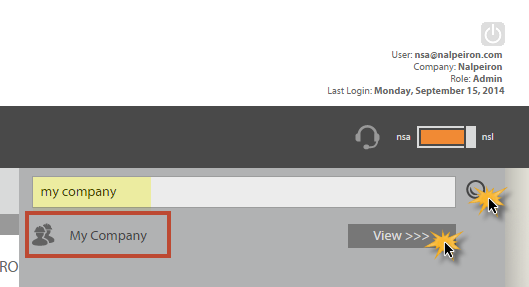
- Simply enter a Company name (or part of one) in the Search toolbar and click the search button.
- If the company exists you will see it in the returned search dialog and clicking the "view" button will show you the license code(s) details for that Company.
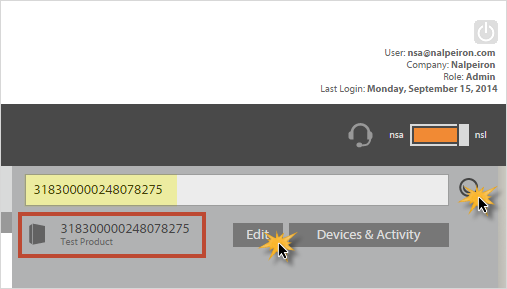
- You can also search for a license code and see the Company associated with it.
- If the license code exists you will see it in the returned search dialog and clicking the "edit" button will show you the license code(s) details for that Company.